Pixel Stretch Effect Prompt! Try This Viral Pixel Stretch Filter on Your Photo
Right now, Instagram is totally flooded with those pixel stretch effect photos—they’re going viral everywhere, and people are really curious about how to create them. While professional editors typically use advanced software like Photoshop and Canva to edit these, I will teach you how to create them with the help of ChatGPT.
Pixel Stretch Effect Trend
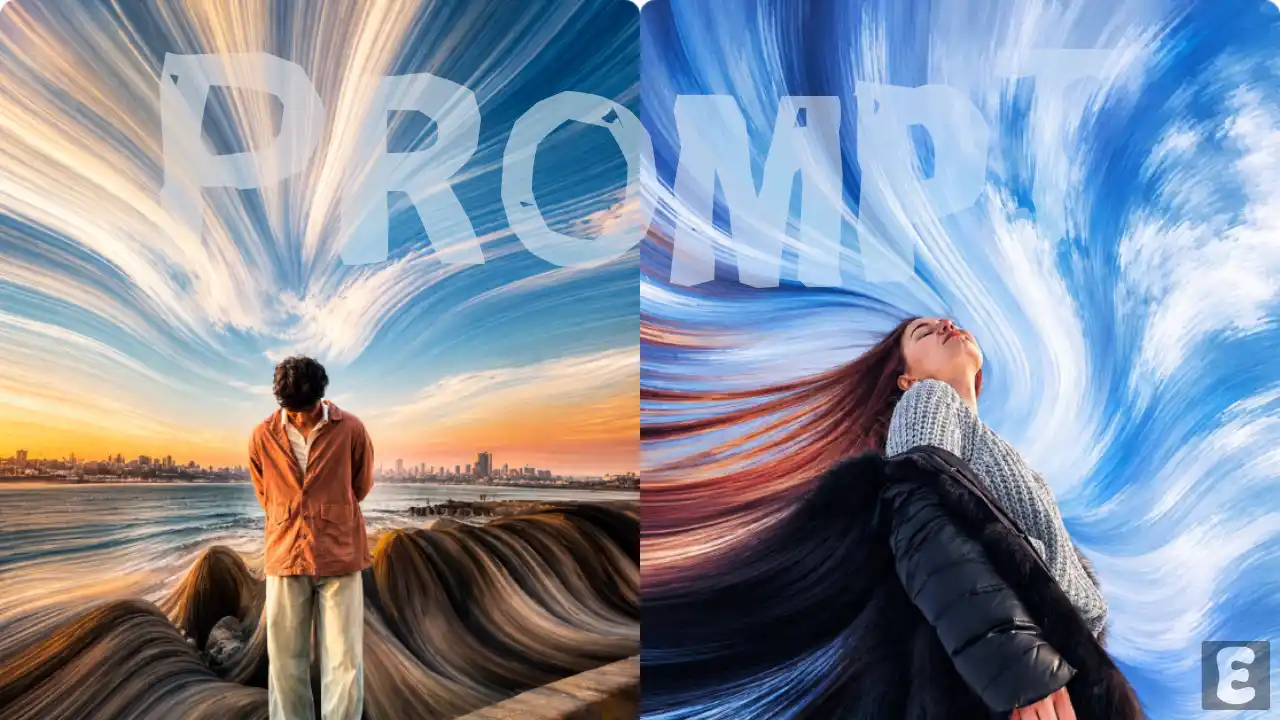
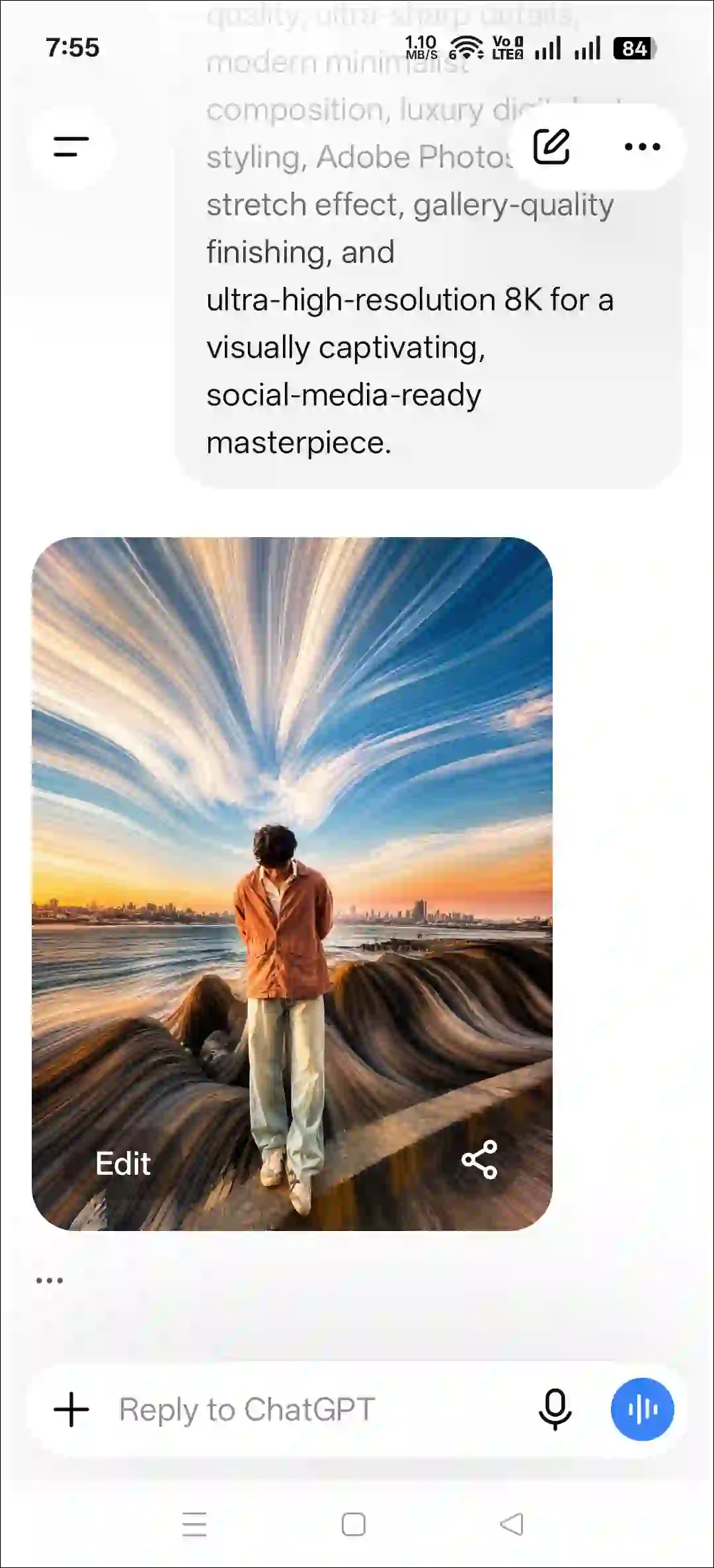
This viral pixel stretch effect is a trending photo-editing technique in which a strip of pixels from an image is taken and stretched across the entire frame. This effect creates dynamic, glowing streaks or abstract lines in the photo, adding a sense of motion behind the main subject, leading lines, or an artistic flair.
Generally, specialized software is used for such editing to isolate the subject. Not everyone knows how to use the software, but if you want to create such photos, then this post is for you.
In this article, I have shared a ‘Pixel Stretch Effect Prompt’ that you can paste into ChatGPT or Google Gemini to transform an ordinary photo into one featuring the Pixel Stretch effect. It is incredibly simple, and once the photo is generated, you’ll be saying, “Wow”.
How to Create Pixel Stretch Effect in Photo using AI Prompt
Below, I have shared two methods that will teach you how to create a pixel stretch effect without using Photoshop. Both methods are easy; just follow them carefully.
Method 1. Using ChatGPT + AI Prompt
Step 1. Open ChatGPT App or Website (Chatgpt.com).
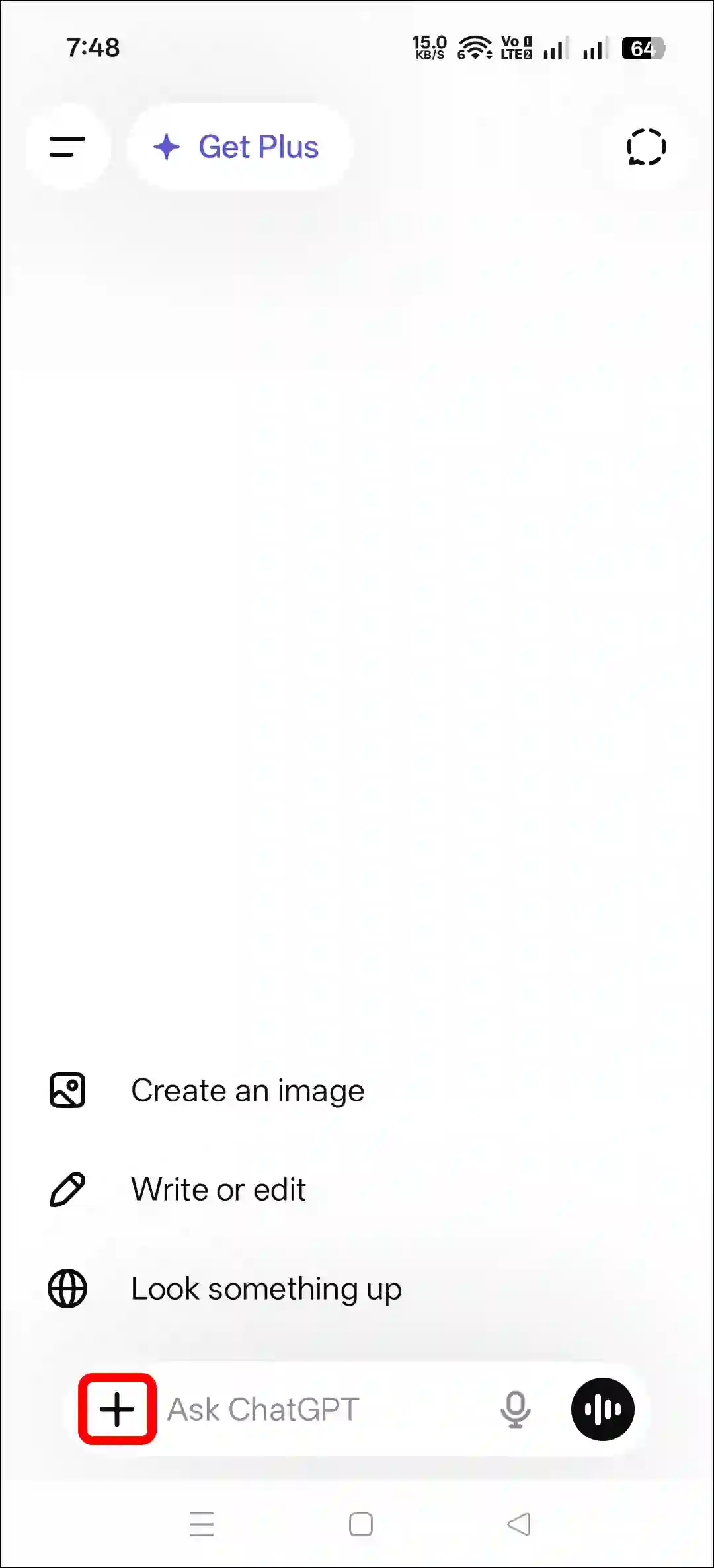
Step 2. Tap on “+” Icon at the Bottom Bar.
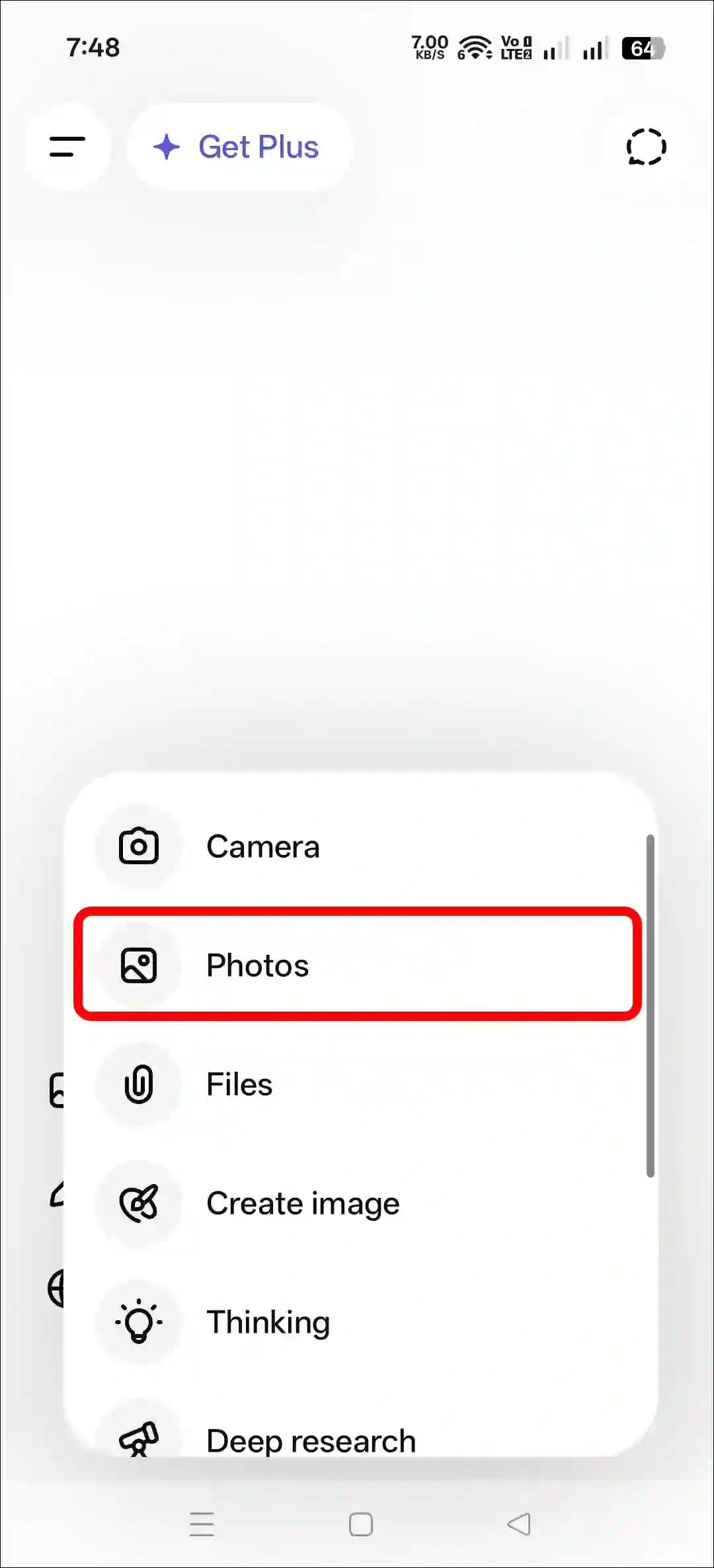
Step 3. Now, Tap on Photos and Upload a Photo as Reference.
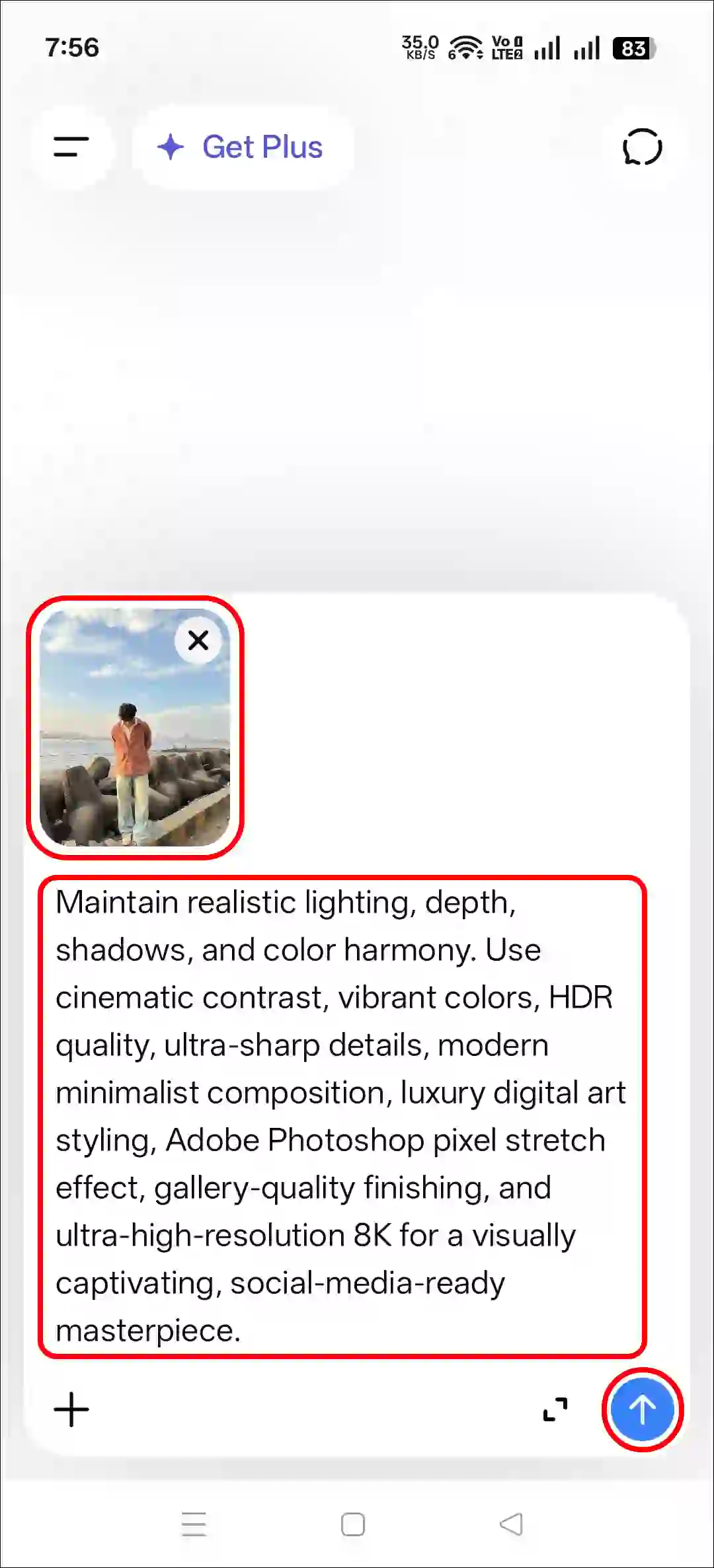
Step 4. Next, Copy and Paste the Prompt and Tap on Arrow Icon.
Step 5. Now, Your Photo is Ready to Use.
Method 2. Using Gemini + AI Prompt
Step 1. Open Gemini App or Website.
Step 2. Tap on “+” Icon and Select Images (Create and Edit) Option.
Step 3. Tap on “+” Icon and Select Photos Option and Upload a Picture.
Step 4. Now, Copy and Paste the Following Prompt in the Text Box Tap on Arrow.
Step 5. Wait for a While! Your Photo is Here.
That’s all! You’re done…
Also read: Instagram’s Instants Feature! Here’s How to Use or Disable It
Copy Trending Pixel Stretch Prompt
Transform the uploaded image into a premium pixel stretch artwork while keeping the main subject perfectly sharp, detailed, and recognizable. Extract colors and textures from the subject and extend them into smooth, flowing pixel-stretch ribbons that follow elegant curves and dynamic motion. Create seamless transitions between the original image and stretched areas, avoiding glitches or harsh edges. The stretched pixels should appear silky, fluid, and organic, like streams of color, light, paint, or energy. Maintain realistic lighting, depth, shadows, and color harmony. Use cinematic contrast, vibrant colors, HDR quality, ultra-sharp details, modern minimalist composition, luxury digital art styling, Adobe Photoshop pixel stretch effect, gallery-quality finishing, and ultra-high-resolution 8K for a visually captivating, social-media-ready masterpiece.FAQs
Q 1. How to make a pixel stretch effect without Photoshop?
Answer – You no longer need Photoshop to create a pixel stretch effect in your photos. You can create such eye-catching images entirely for free using just ChatGPT and a pixel stretch prompt.
Q 2. Will this prompt really work?
Answer – Yes! This prompt works perfectly, and we have tested it as well.