ChatGPT Desktop App Not Responding on Windows 11
Are you using the ChatGPT desktop app and it suddenly stopped responding? Don’t worry! you’re not alone. In this post, I have discussed this problem and some methods to fix it. Read on for more information.
Windows 11 users are currently facing this issue, and many have posted about it on platforms such as Reddit, Twitter, and the OpenAI community. According to a report from the OpenAI community, this issue is being observed in version v1.2026.133.0 of the ChatGPT desktop app.
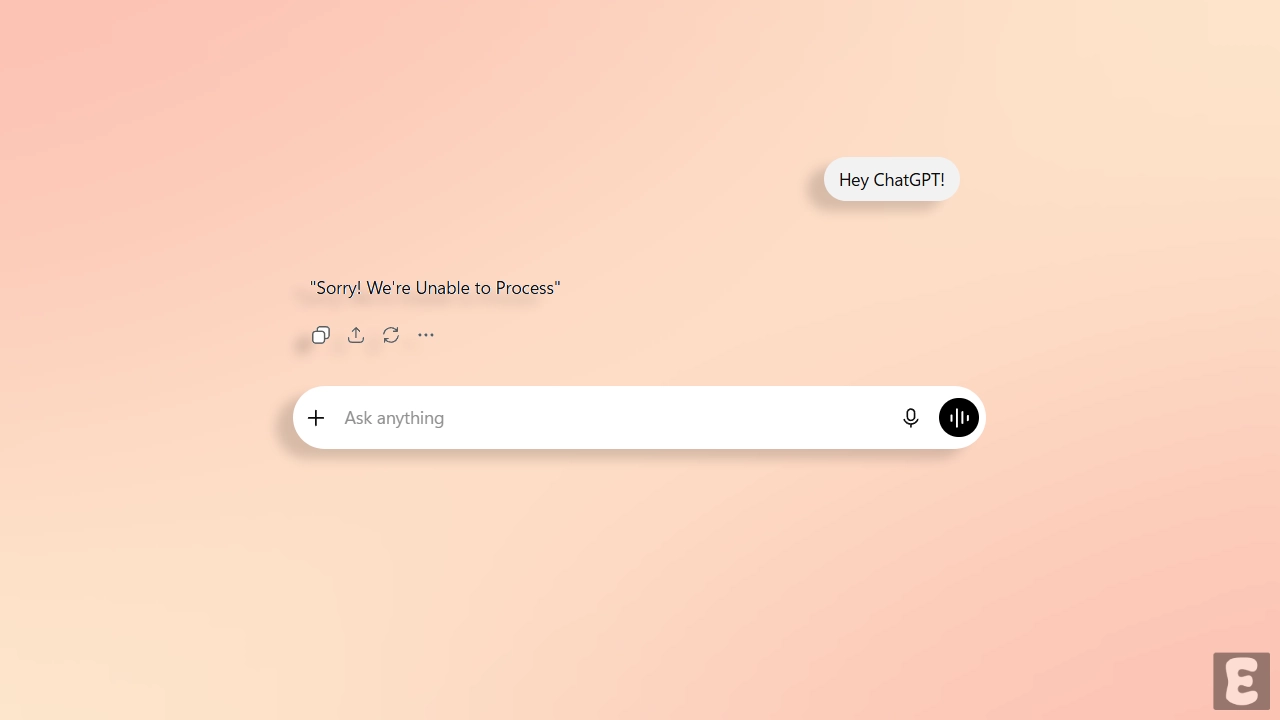
According to a post on the OpenAI community, the ‘Log In’ and ‘Sign Up’ buttons have become unresponsive in app version v1.2026.133.0, and chats are appearing blank or failing to render. We found a similar post on Twitter (Now X) too; user Souvik Kundu mentioned app v1.2026.133.0 there as well. The user has reported that conversations appear blank in this version of the ChatGPT app on Windows 11, and at times, the conversations fail to render.
Try These Fixes If Your ChatGPT Desktop App is Not Responding on Windows 11
1. Check Internet Connection and Server Status
If ChatGPT fails to respond to your questions, it is a sign of a weak internet connection. ChatGPT requires a strong internet connection to understand your questions and generate responses. Perform an internet speed test on your Windows 11 computer or laptop; if the speed is slow, switch the Wi-Fi to a different connection.
Apart from this, the issue could also arise due to a server glitch on ChatGPT’s end. If the server experiences downtime, ChatGPT will not respond to any of your actions. You can check ChatGPT’s live server status by clicking on this link.
2. Force Close the ChatGPT
If you are on the ChatGPT desktop app’s login or sign-up page and none of the buttons are responding, you need to force close the ChatGPT application. You can perform this action from Task Manager on Windows 11.
- Press CTRL + SHIFT + ESC to Quickly Launch the Task Manager.
- Find the ChatGPT and Right Click on It and Then End Task.
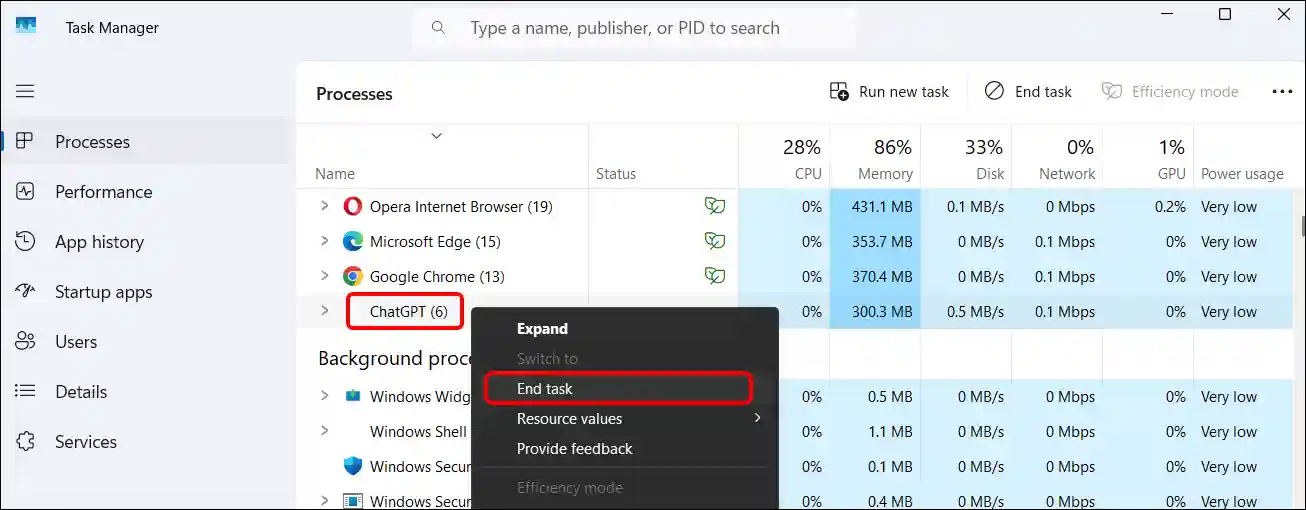
Now, restart ChatGPT and check if it is working properly. If it still doesn’t work, try the other methods mentioned below.
3. Repair or Reset ChatGPT Application
Windows 11 has a built-in tool that helps repair corrupt applications without losing your personal layout. You will find this option in the ‘Installed Apps’ section of Windows 11 Settings. When an application becomes unresponsive, the repair tool is very helpful in making it fully functional again.
- Press Windows + I to Quickly Launch Settings.
- Click on Apps > Installed App.
- Search ChatGPT and Click on “⁝” and then Advanced Options.
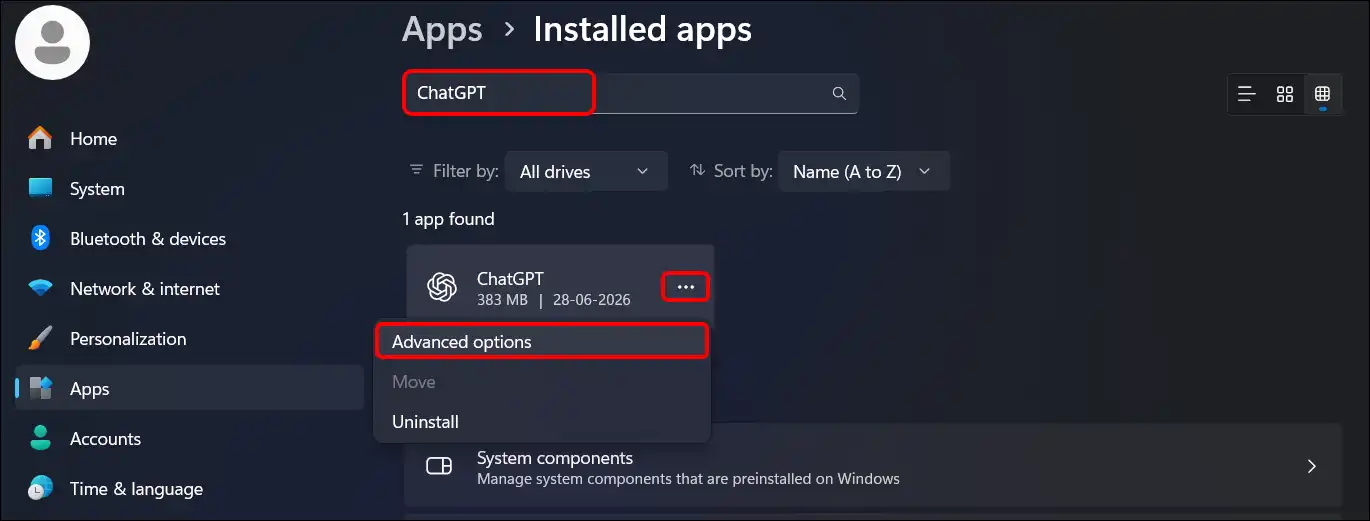
- Scroll Down and Click on Repair.
- If the ChatGPT App is Still Unresponsive Come Back to Menu and Click on Reset Button.
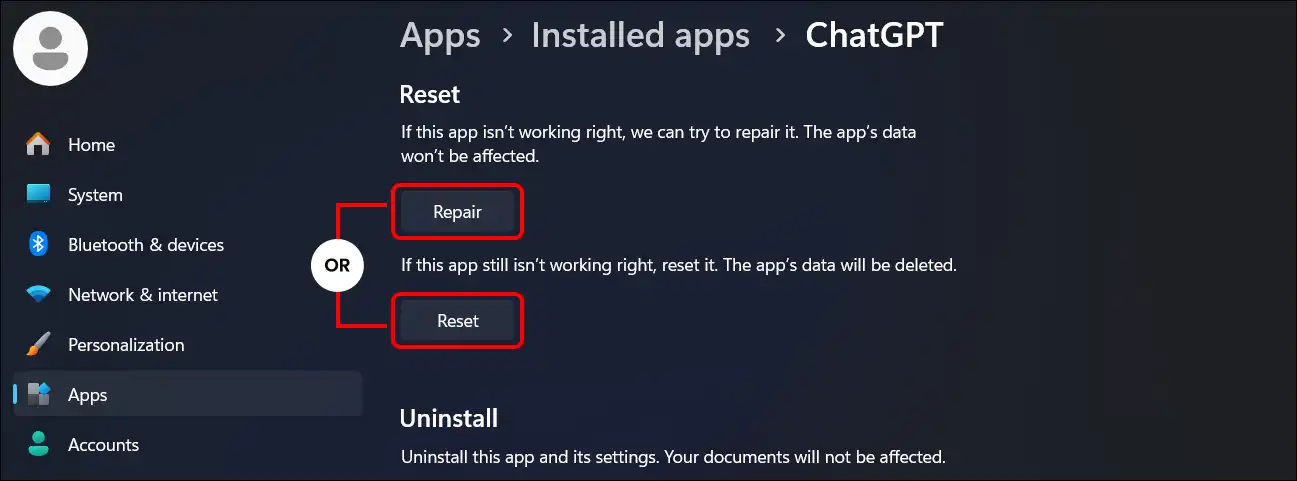
Note: If you reset the ChatGPT app, local application logins will be cleared. This means you will have to log in to ChatGPT again.
4. Run sfc /scannow
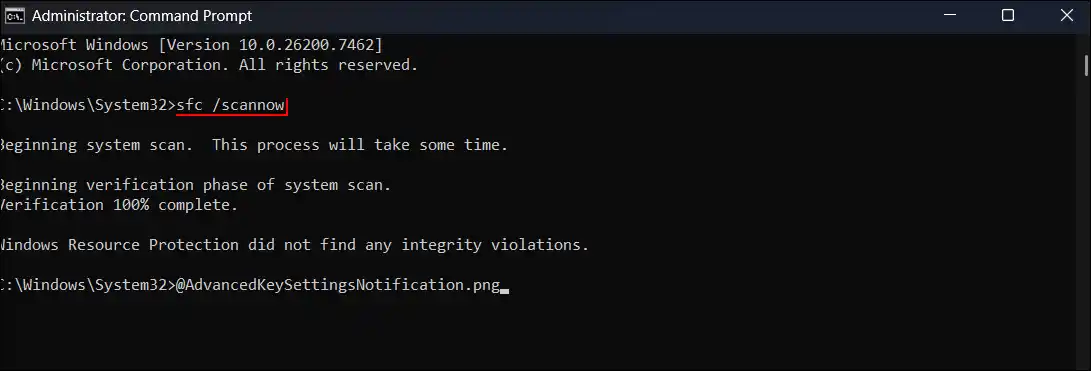
Applications often become unresponsive due to corrupted system files. However, you can easily clear these corrupted files by running a repair command in the Command Prompt (CMD). All the steps are mentioned below.
- Press Windows + S and Search “CMD” and Then Run as Administrator.
- Click YES on UAC (User Account Control) Prompt.
- Type
sfc /scannowand Hit Enter. - Once You See a Message That Says, “Verification 100% Complete”, Simply Close CMD and Restart Your Computer.
5. Update or Reinstall the ChatGPT App
In version 1.2026.133.0, this issue has arisen due to a bug affecting the ChatGPT desktop app. Please update your ChatGPT app from the Microsoft Store. If the problem persists, uninstall the ChatGPT application from the system and then reinstall it from the Microsoft Store.
6. Try ChatGPT’s Web Version
If all the methods mentioned above fail, you should definitely try the web version of ChatGPT. Often, when the application malfunctions due to bugs or glitches, the ChatGPT website serves as a reliable alternative that works effectively. Simply open any desktop browser like Chrome, Firefox, Edge, Opera, Brave, etc., and go to ChatGPT.com; log in and explore.