How to Fix Instagram Story Views Not Showing Problem
Are your Instagram Story views not showing? Don’t worry! You’re not alone. Many Instagram users have recently reported this issue on Reddit and Twitter. This can be a bit frustrating for users; however, the methods mentioned below will help you fix this problem.
Instagram Story is a feature that lets you share photos, videos, and songs with your followers, and it remains valid for only 24 hours. That means if you share something on your story, it will automatically disappear 24 hours after you post it.
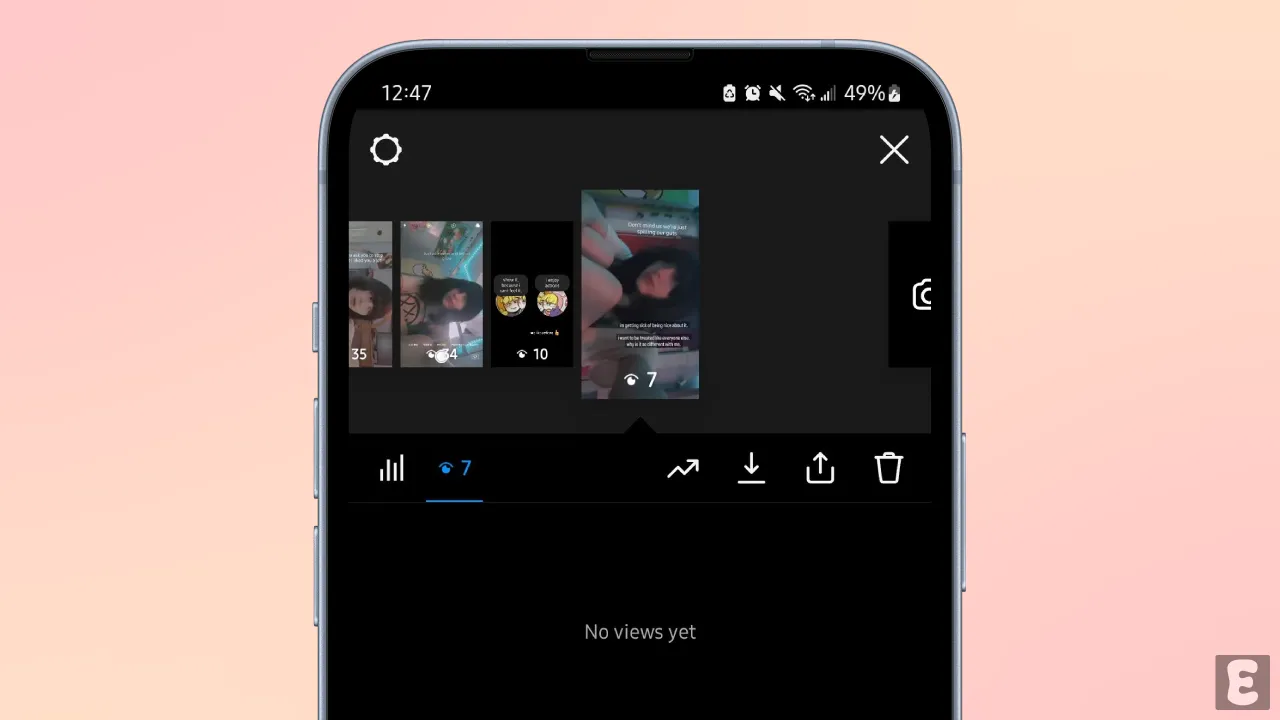
Instagram Stories provide you with analytics that show you how many people viewed your story and who exactly viewed it. However, sometimes due to technical glitches or other reasons, the story views do not appear. You can resolve this story views issue by following some technical troubleshooting.
1. Close and Reopen Instagram App
Completely close the Instagram app on your phone, then clear it from the Recent apps tab. Now open Instagram again and check your story views. This process often resolves temporary problems easily.
2. Check Your Internet Connection
The Instagram app requires an internet connection to load content. If your internet is a bit slow or not working at all, story views will not load. You should switch your internet connection. For example, if you are using mobile data, switch to WiFi, and if you are using WiFi, switch to mobile data.
3. Clear Instagram App Cache
Cache helps apps load faster, but when it gets corrupted, it can prevent an app and its functions from working properly. However, did you know that you can easily fix this issue by clearing the cache on your Android phone?
Quick way to clear Instagram’s corrupt cache:
- Tap & Hold the Instagram App Icon and Tap App Info.
- Tap Storage Usage.
- Tap Clear Cache.
4. Unhide Your Story from Others
Instagram has a feature that lets you hide your story from others. If you accidentally enable this feature on your account, no one will see your story, so your story views won’t count. Follow the steps below to turn off the hide story mode.
- Open Instagram App on Your Android or iPhone.
- Go to Your Profile and then Tap Three ≡ Lines at the Top Right.
- Tap Story, Live and Location.
- Tap Hide Story and Live From.
- Uncheck Everyone and Tap Done.
5. Check Server Status
Sometimes this issue occurs due to a delay in Instagram’s server-side processing. You can check Instagram’s server status by visiting the Downdetector website. If the server is actually experiencing some kind of outage, you cannot do anything except wait.
6. Update Your Instagram App
An outdated Instagram app version often causes such problems. If your Instagram is also outdated, quickly update it to the latest version from the Google Play Store or the Apple App Store. Updating will immediately fix the bug-related issues.
7. Log Out and Back In
Now, you need to log out of your IG account and then log back in. This action refreshes your login session and reconnects your account to the Instagram server.
Additional Tip: You can check story views on Instagram Web by using a mobile or desktop browser at instagram.com. If the views appear there, the issue lies with the mobile application.