
Instagram’s Restyle AI Feature! Here’s How to Use and Fix Issues
Meta is adding new AI features to its Instagram app, making users’ tasks and overall experience much better. As part of this, Instagram has introduced the “Restyle AI” feature. Let’s see what this is and how you can use it. I’ve also explained how to fix issues related to Restyle AI.
What is Instagram’s Restyle AI Feature?
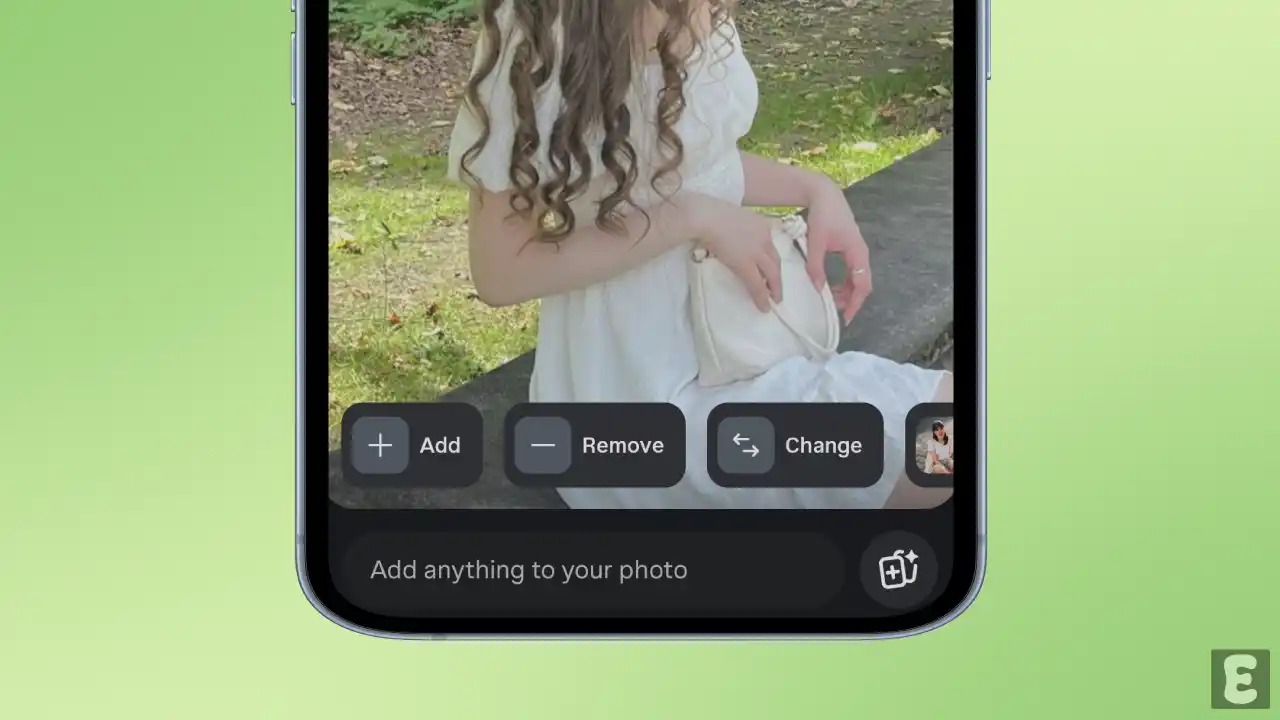
Instagram has an AI-powered photo-editing tool called Restyle, located in the Stories section. With this tool, you can improve your photos or videos before sharing them to your story, and you can also add new effects using AI.
Instagram’s Restyle AI feature lets you add, remove, or change things in a photo using prompts. For example, you can change a person’s clothes or their color. The Restyle AI feature offers many more amazing options like this.
How to Use Restyle AI in Instagram Story
Using this Restyle AI feature is very simple. However, some users still don’t see the Restyle AI option in their Instagram app. In that case, they need to update the Instagram app to the latest version from the Play Store (for Android) or the App Store (for iPhone).
To use Instagram’s Restyle AI in a story to edit a photo:
Step 1. Open Instagram App and Go to Your Story and Select a Picture.
Step 2. Tap on Restyle Icon at the Right Side or the Top.
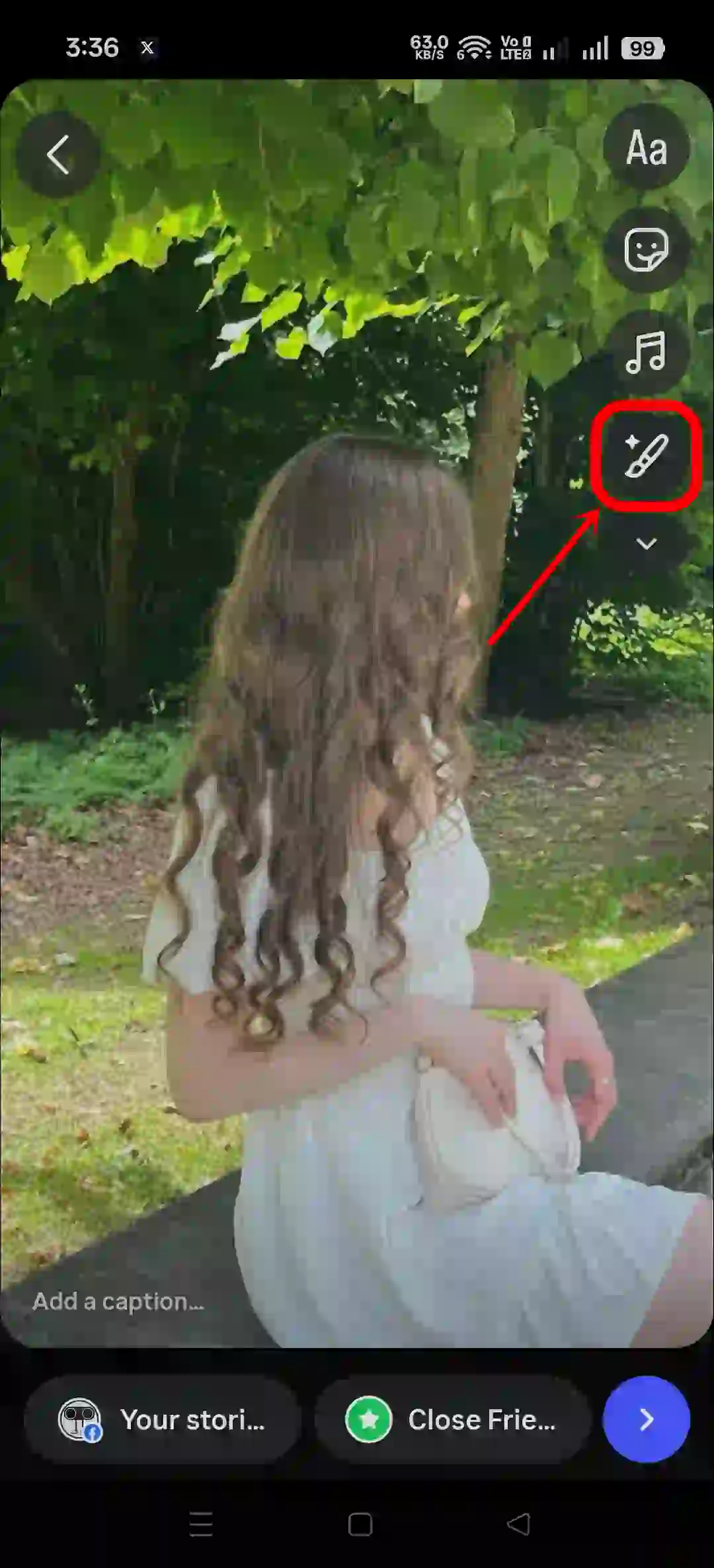
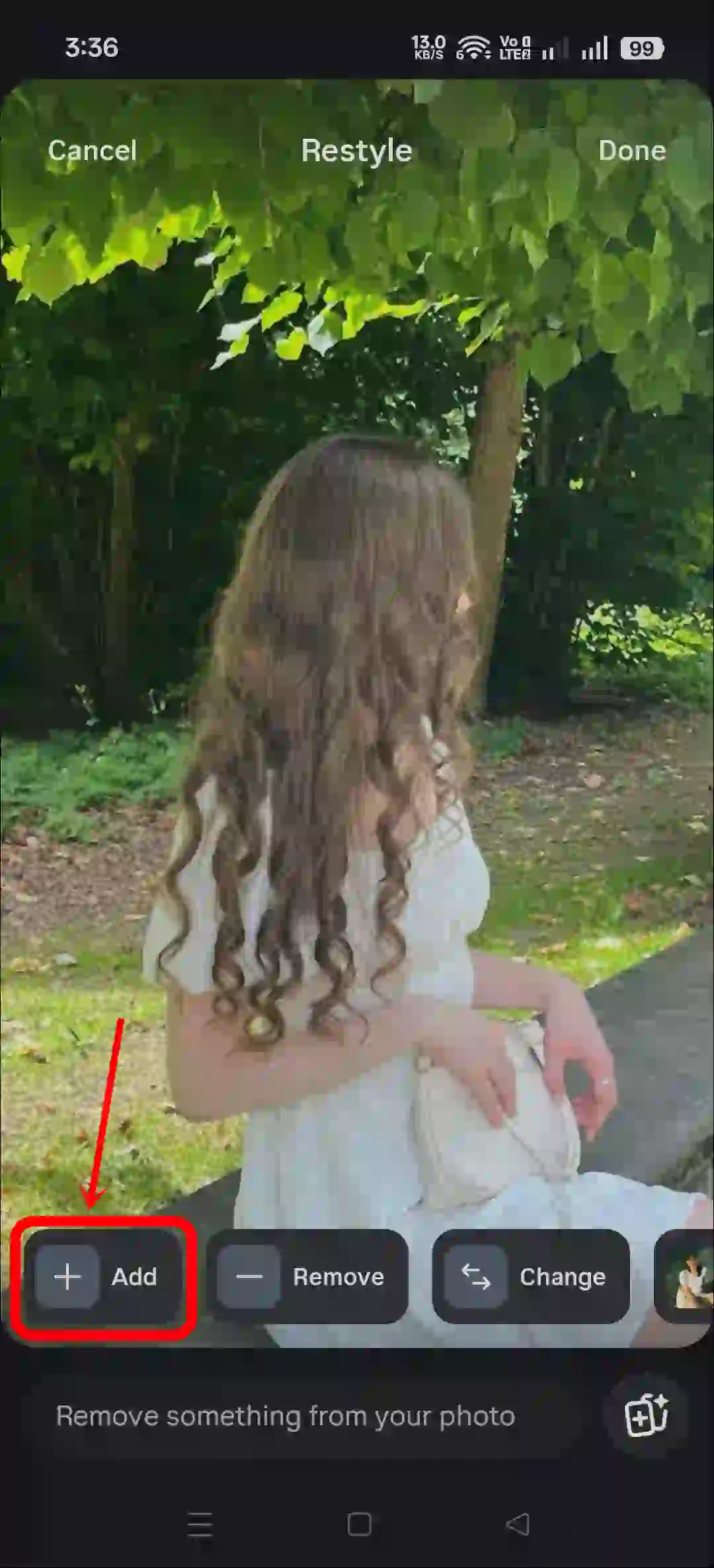
Step 3. Here You’ll See Options Like Add, Remove, Change and Other Trending Restyles. To Use Prompt Simply Tap on Add, Remove, or Change Option.
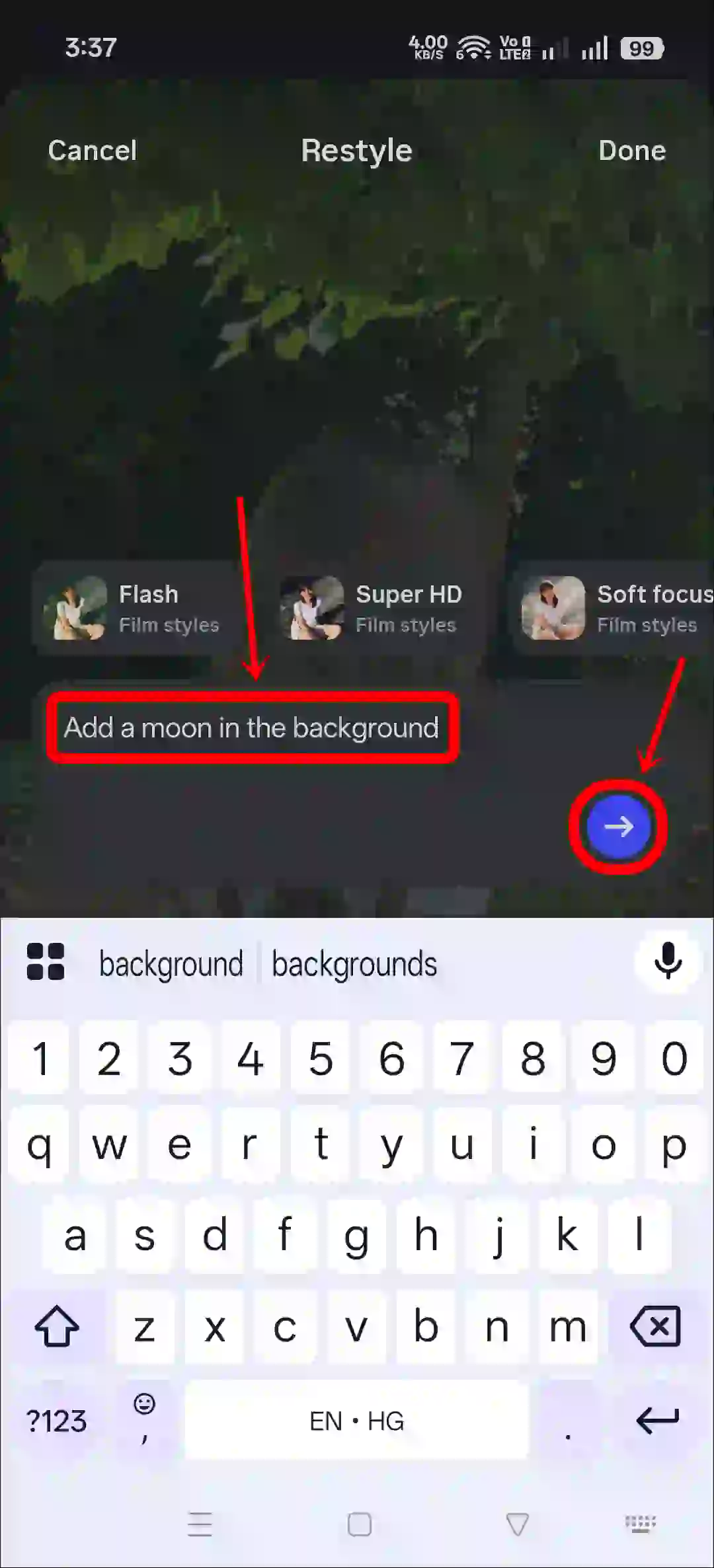
Step 4. As I Select Add Option, I’ll Add a Prompt; “Add a Moon in the Background“ and will Hit Arrow.
Step 5. Now, You Can See the Moon is Added to the Background.
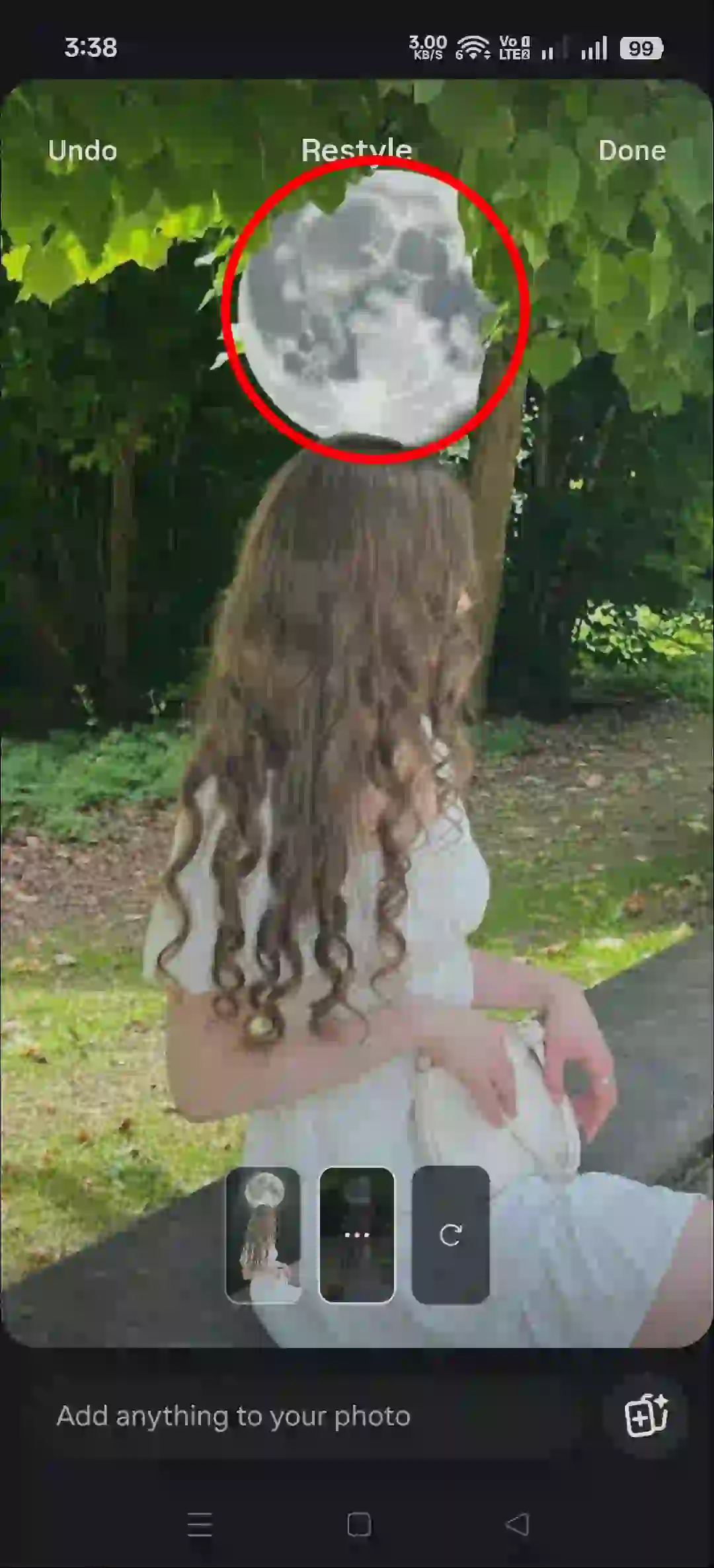
Step 6. Similarly, If You Select Any Trending Restyle, the Picture will be Transformed Immediately.
That’s it…
Also read: Instagram’s Instants Feature! Here’s How to Use or Disable It
Fix Instagram’s Restyle AI Feature Related Problems
If the Restyle AI option is not showing on Instagram or it isn’t working and shows a “something went wrong” error, you’re not alone. Let’s find out why this happens and how you can fix it.
There can be some reasons for the Restyle AI problem in Instagram stories, such as:
- Outdated Instagram App
- Corrupt Cache
- Internet Issues
- Over Used
1. Close and Reopen Instagram App
Completely close the Instagram app on your phone, then clear it from the Recent apps tab. Now open Instagram again and check the Restyle AI feature. This process often resolves temporary problems easily.
2. Clear Instagram App Cache
Cache helps apps load faster, but when it gets corrupted, it can prevent an app and its functions from working properly. However, did you know that you can easily fix this issue by clearing the cache on your Android phone?
- Tap and Hold Instagram Icon.
- Tap App Info.
- Tap Storage Usage.
- Tap Clear Cache.
3. Update Instagram App
An outdated Instagram app version often causes such problems. If your Instagram is also outdated, quickly update it to the latest version from the Google Play Store or the Apple App Store. Updating will immediately fix the bug-related issues.
4. Check IG Server Status
Sometimes, this “something went wrong” issue occurs due to a delay in Instagram’s server-side processing. You can check Instagram’s server status by visiting the Downdetector website. If the server is actually experiencing some kind of outage, you cannot do anything except wait.
Note: Please log out of your account and then log back in. This process refreshes your login session and reconnects you with the server.


Restyle feature
Photo editing nahin ho raha hai
Photo edit nhi ho rha h
something went wrong
Somthing want wrong problem
Something want wrong problem
Filters was not coming
Hello this filter is not working
How can use this filter
Can tell me
Viral viral filter
Hi, I wanted to make a request to you, the lofi filter is not appearing on my Instagram, can you do something please?
This is so good
Something went wrong
A raha hai
Lofi dusk have been not showing in my Instagram account
Filters are not shown in Instagram
❤️❤️
👍
Mere ms ye lofi dusk show n ho rha h
Somthing went wrong bta rha please solve this my problem
Mere me lofi dusk nahi aa raha hai something went wrong bata raha hai
Something went wrong 😭
Something went wrong
Something went wrong
Something went wrong 😭
Something went wrong 😭
I like it for AI
Photo addting nahi ho rahi