Enable End Task in Taskbar by Right Click on Windows 11
Generally, to forcefully close a running app in Windows 11, you need to go to the Task Manager. But what if I told you that you can ‘End Task’ for that app simply by right-clicking on it in the taskbar? Yes! By activating a setting in Windows 11, you can enable the “End Task” option directly on the taskbar.
This is a hidden setting that is disabled by default in Windows 11, and you need to enable it manually. Enabling this option is extremely easy, and all the steps for doing so are listed below one by one.
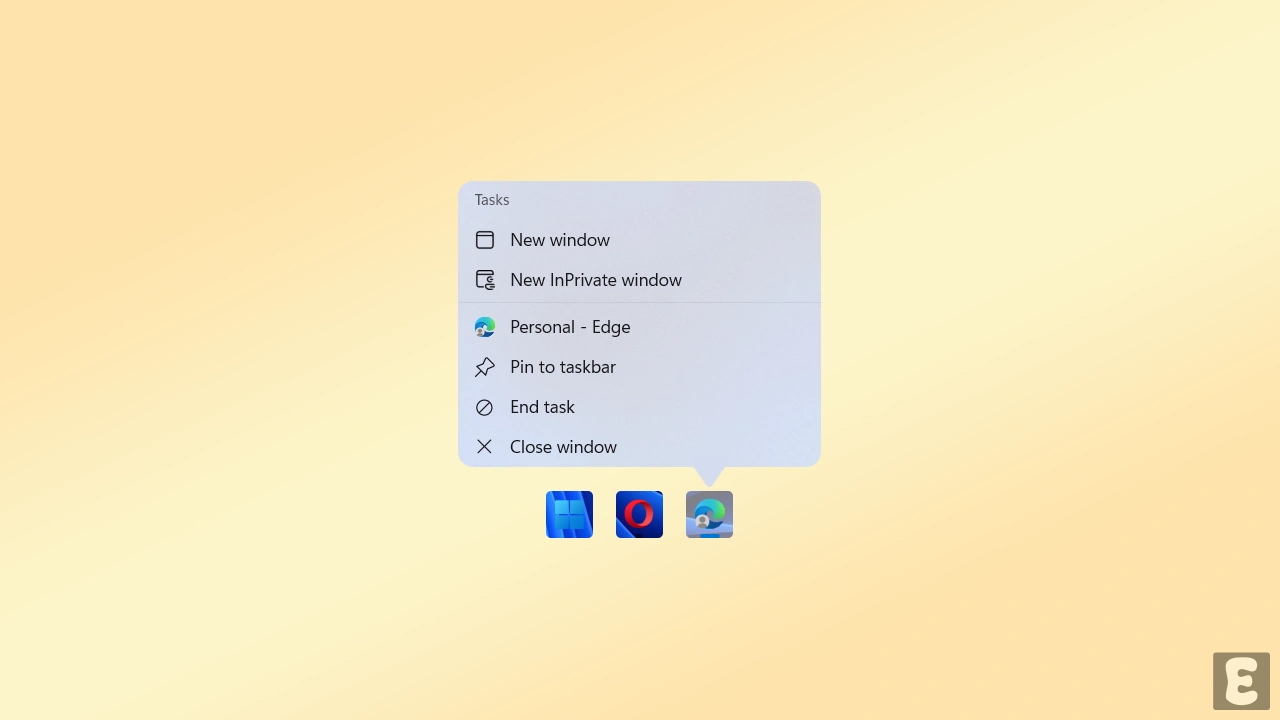
How to Enable End Task in Taskbar by Right Click to Close Apps in Windows 11
Step 1. Press Windows + I to Quickly Launch the Settings.
Step 2. Go to System > Advanced.
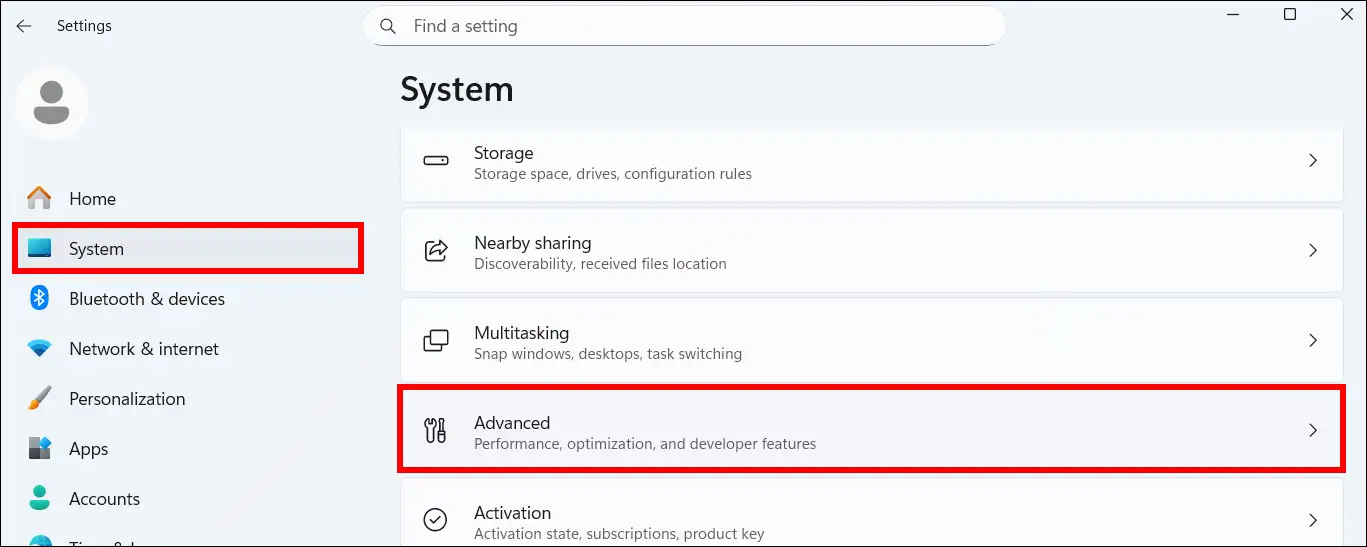
Step 3. Under the Taskbar Section, Simply Enable the “End Task” Toggle.
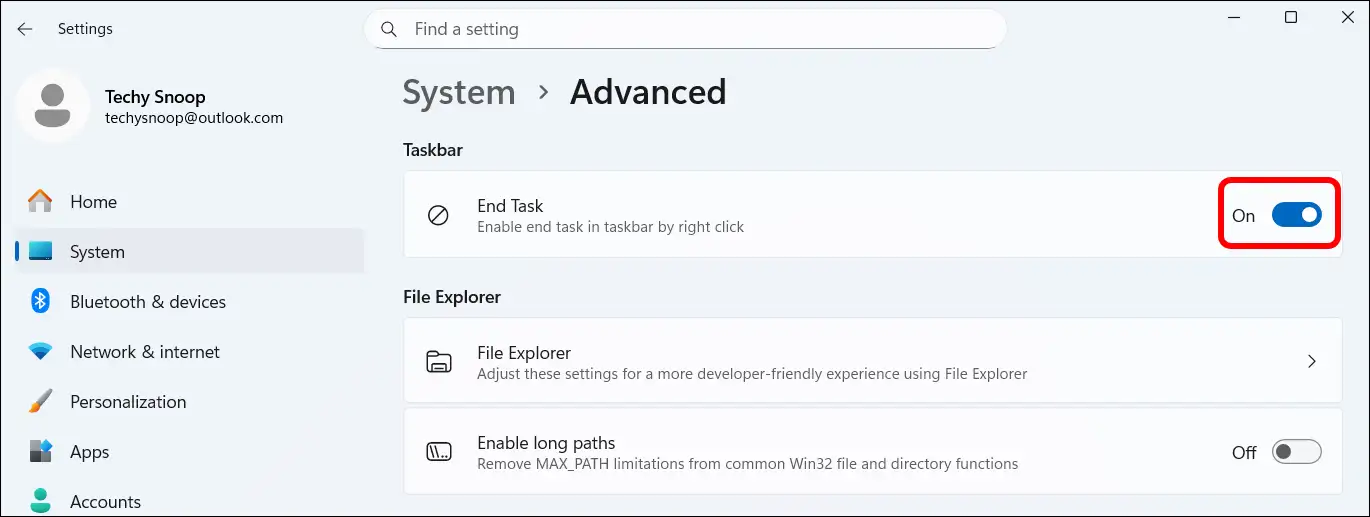
That’s it! Now, whenever you right-click on an app on the taskbar, the ‘End task’ option will appear. Clicking on it will completely close your program. This shortcut makes your work easier and saves the time it takes to go to the Task Manager.
Also read: “Please Enable JS and Disable Any Ad Blocker” on Chrome, Edge, Firefox, Safari
Why Should I Enable End Task Shortcut in Taskbar?
Often, when applications freeze, the close button does not work, or even if the close button does work, the application continues to run in the background. In this situation, there’s only one solution: use the End Task option, which you can access through Task Manager.
However, you can now bypass the Task Manager process by enabling the “End Task” shortcut for the taskbar in the settings. That’s exactly why you should turn it on.