Facing Instagram Related Problems? Try This Methods to Fix!
Instagram is a popular social media platform with millions of users worldwide. Since the platform is based on technology and the internet, users often encounter various technical issues. If you are also currently facing any issues with the Instagram app, then this post is for you.
In this post, I have explained several methods that help resolve various issues on Instagram, and all the methods mentioned have been tested by us. Below, we have mentioned some common errors and technical issues related to Instagram.
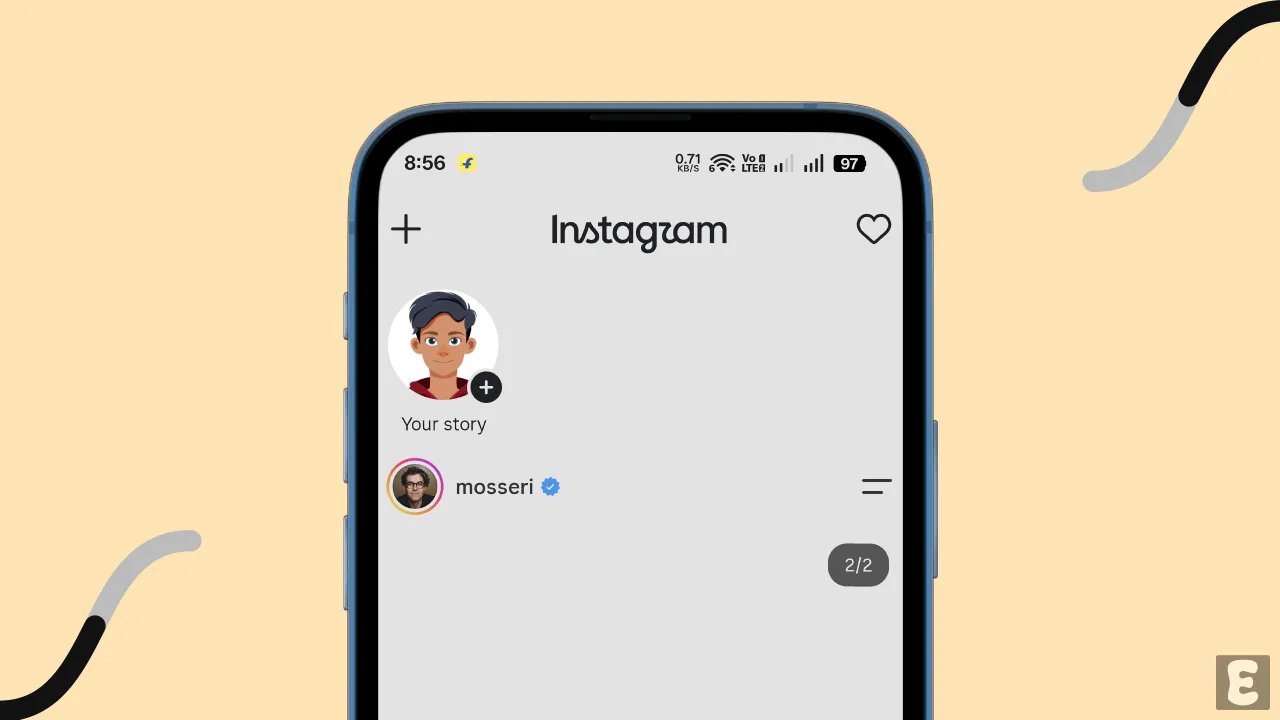
- Instagram Server Outages
- Instagram App Freezing or Crashing
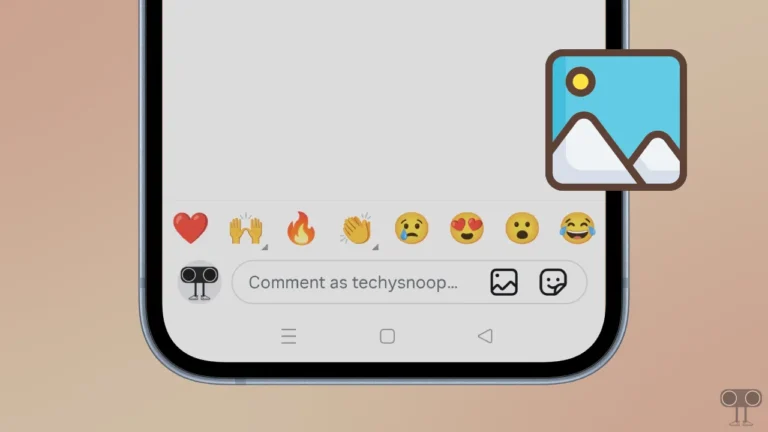
- App Comments Glitch
- Disappearing or Delayed Messages
- Missing Features Like Chat Themes, Custom Emojis, or Read Receipts Disappearing Intermittently
- Unable to Reply or Forward
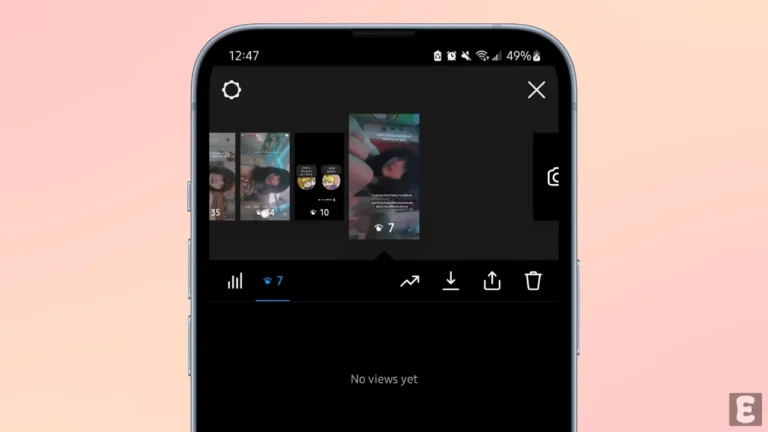
- Instagram Reels, Post, Story Failed Uploads, Story, Reposting Bugs
- Instagram Profile Picture (PFP) Disappearing
- Instagram Account Login Issues
- Instagram Couldn’t Add to Template
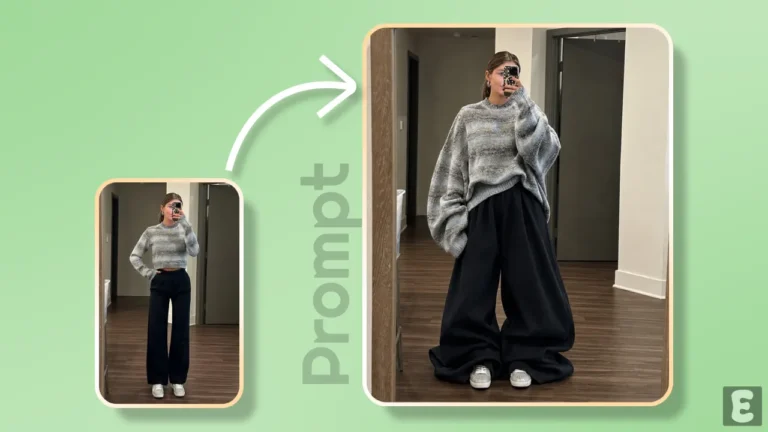
- Instagram Restyle Problem
It is not necessarily the case that only the issues listed above will frequently occur. You might encounter entirely new problems on Instagram next time. In other words, new problems keep emerging over time. Issues with the Instagram app often disrupt a user’s smooth experience.
How to Fix if Instagram App Not Working on Your Android or iPhone
1. Verify Your Internet Connection
Whether you are using the Instagram app or the website, a stable internet connection is required. If the internet connection on your phone or computer is weak or not working at all, Instagram will not function properly; as a result, posts, Reels, and stories will fail to load or play in your feed.
In such a situation, first check the internet speed on your device. If the internet is indeed not working, switch your device to ‘flight mode’ for 5 seconds, then disable it. Alternatively, you could also try switching to a different WiFi network.
2. Restart Your Instagram App & Device
Sometimes, unknown temporary issues can prevent the Instagram app from functioning correctly. However, such problems can often be resolved simply by restarting the app. To do this, minimize the app on your phone, then clear all background apps from the ‘Recent Apps’ tab. Now, reopen the Instagram app and check.
Note: Sometimes, the Instagram app may crash and close automatically as soon as you open it. In such a situation, you need to restart your phone. A simple device restart can easily resolve this issue for you.
3. Clear Instagram App Cache (Android)
An outdated Instagram cache can be the reason why the app keeps crashing or closing repeatedly. While cache files help an app load more quickly, they can also cause issues if they become corrupted. You can easily clear the corrupted cache on an Android phone.
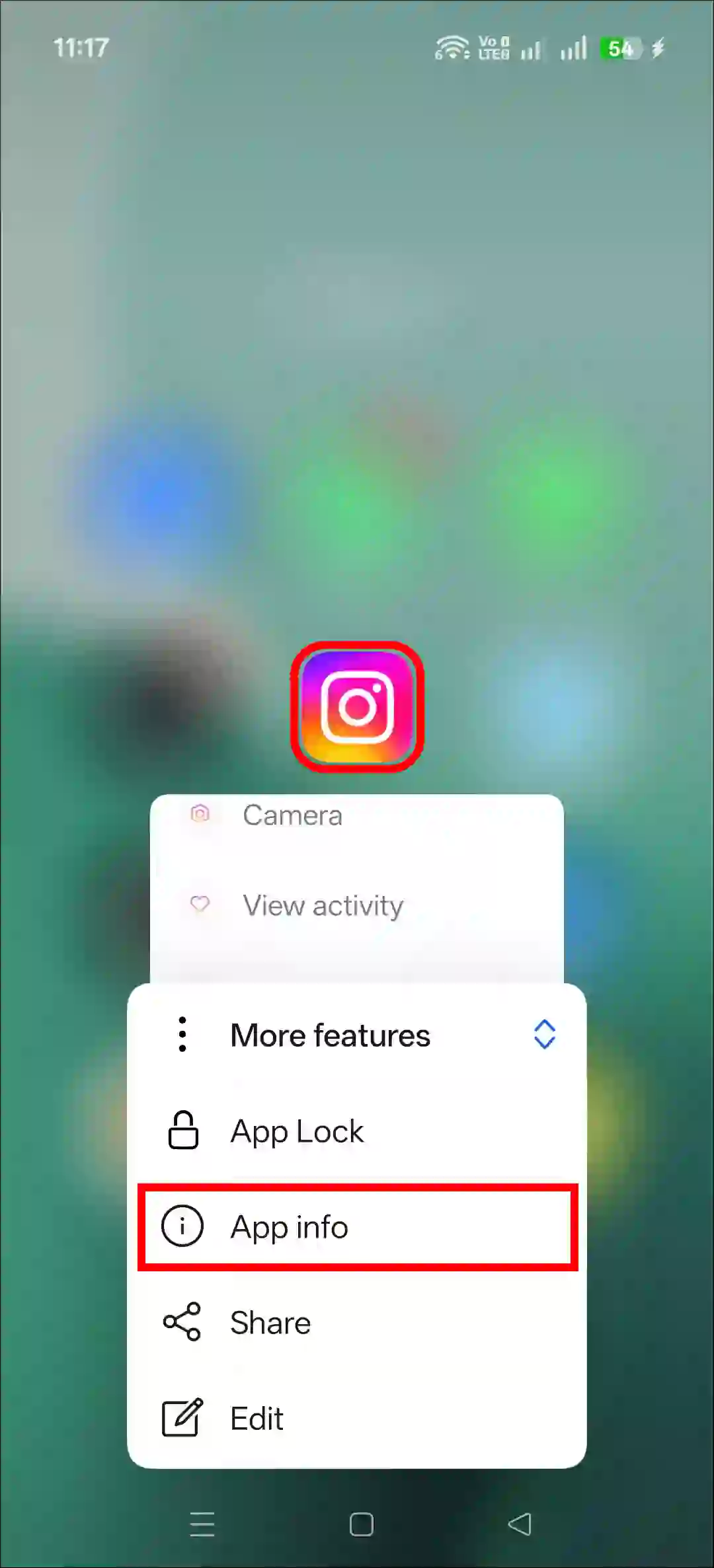
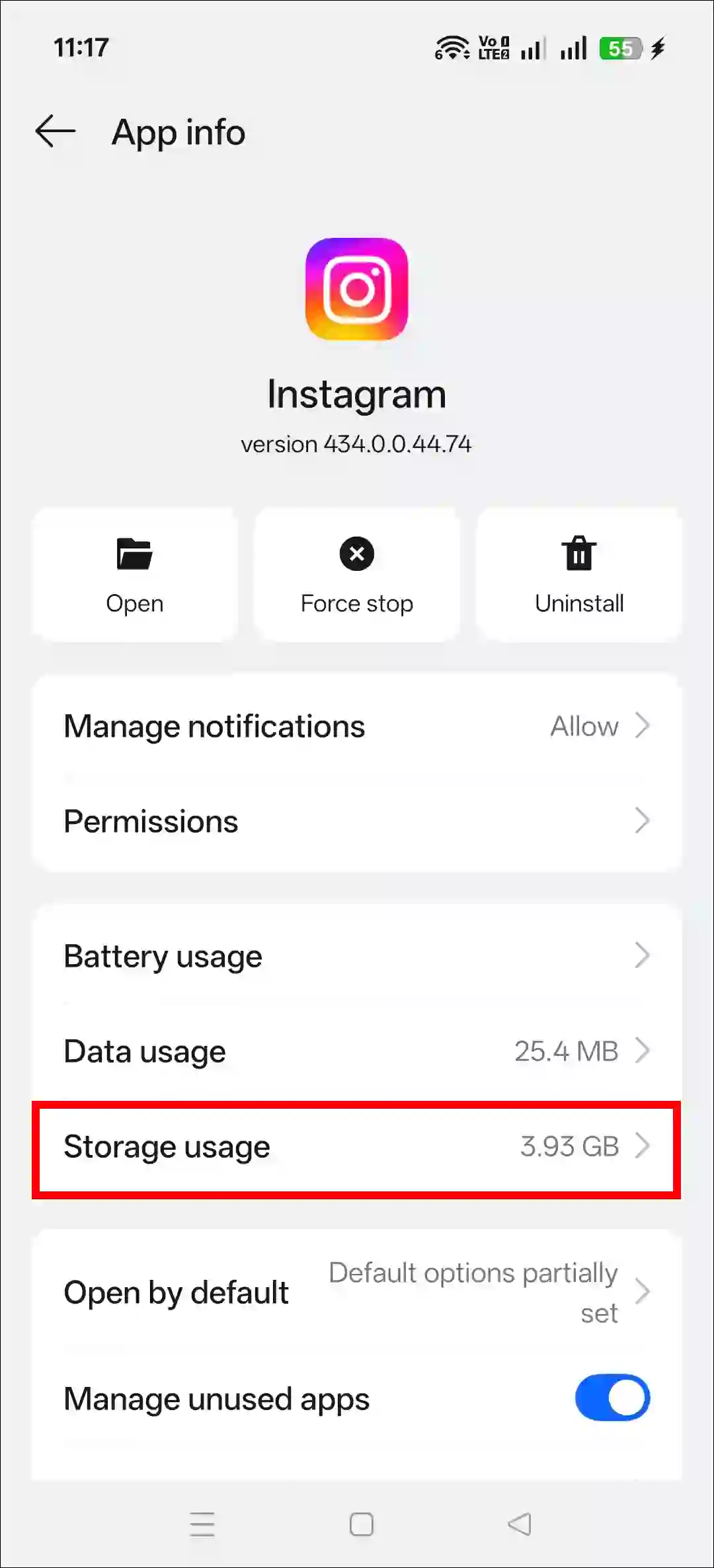
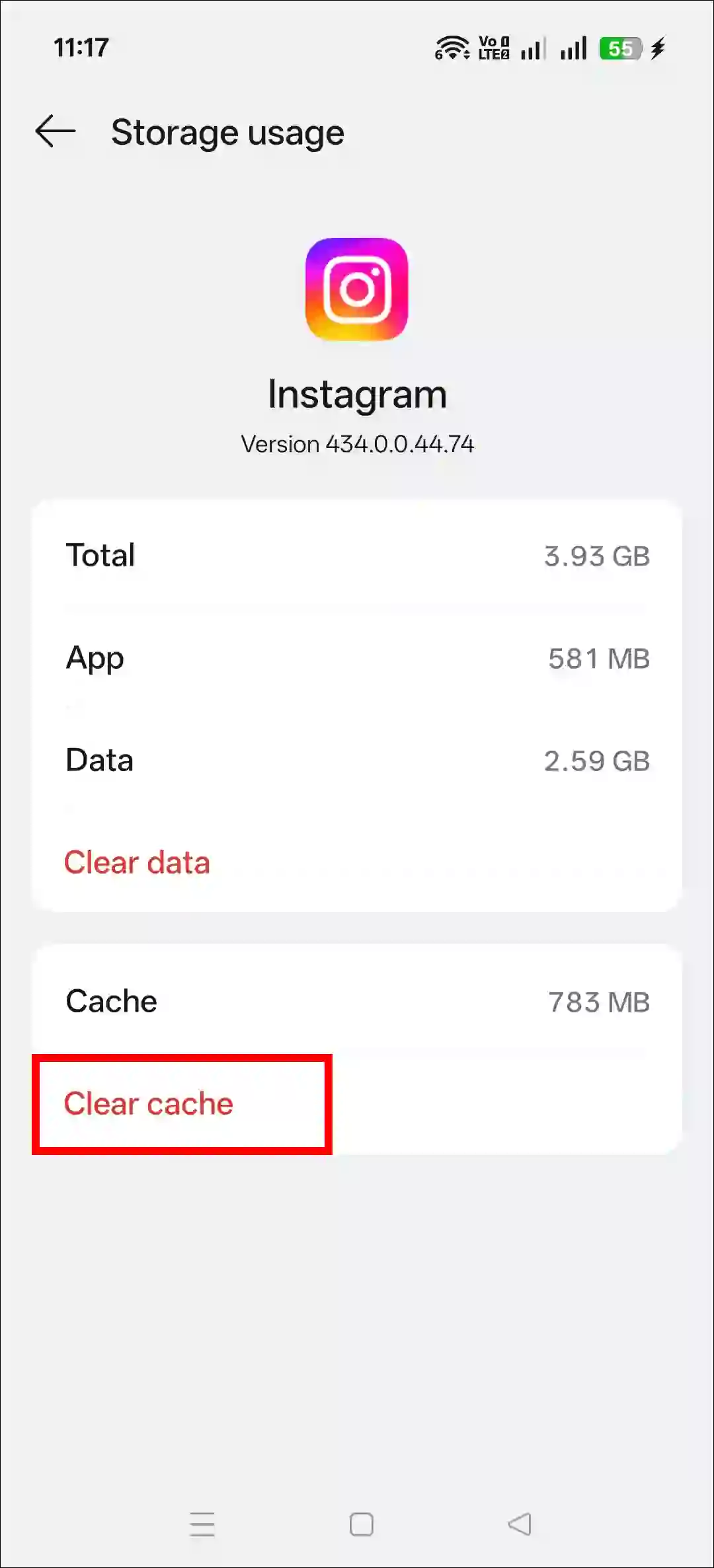
To clear Instagram app cache on your android phone:
- Tap and Hold Instagram Icon.
- Tap App Info.
- Tap Storage Usage.
- Tap Clear Cache.
4. Check Instagram Server Status
Sometimes, this issue occurs due to a delay in Instagram’s server-side processing. You can check Instagram’s server status by visiting the Downdetector website. If the server is actually experiencing some kind of outage, you cannot do anything except wait.
5. Disable VPNs and Private DNS
If you are using a VPN or private DNS on your device, disable it immediately, as this could be the cause of your Instagram issues. An active VPN or private DNS often blocks Instagram servers, preventing media from loading.
6. Allow IG App Permissions
The Instagram app on Android or iPhone requires certain permissions to enable specific features. If you do not grant these permissions, you may encounter issues related to the camera, microphone, notifications, or media files. However, you can easily grant these permissions.
- Tap and Hold Instagram Icon.
- Tap App Info.
- Tap App Permissions.
- Now, Allow All Necessary Permissions for Your Instagram App.
7. Sign Out and Sign-in Again
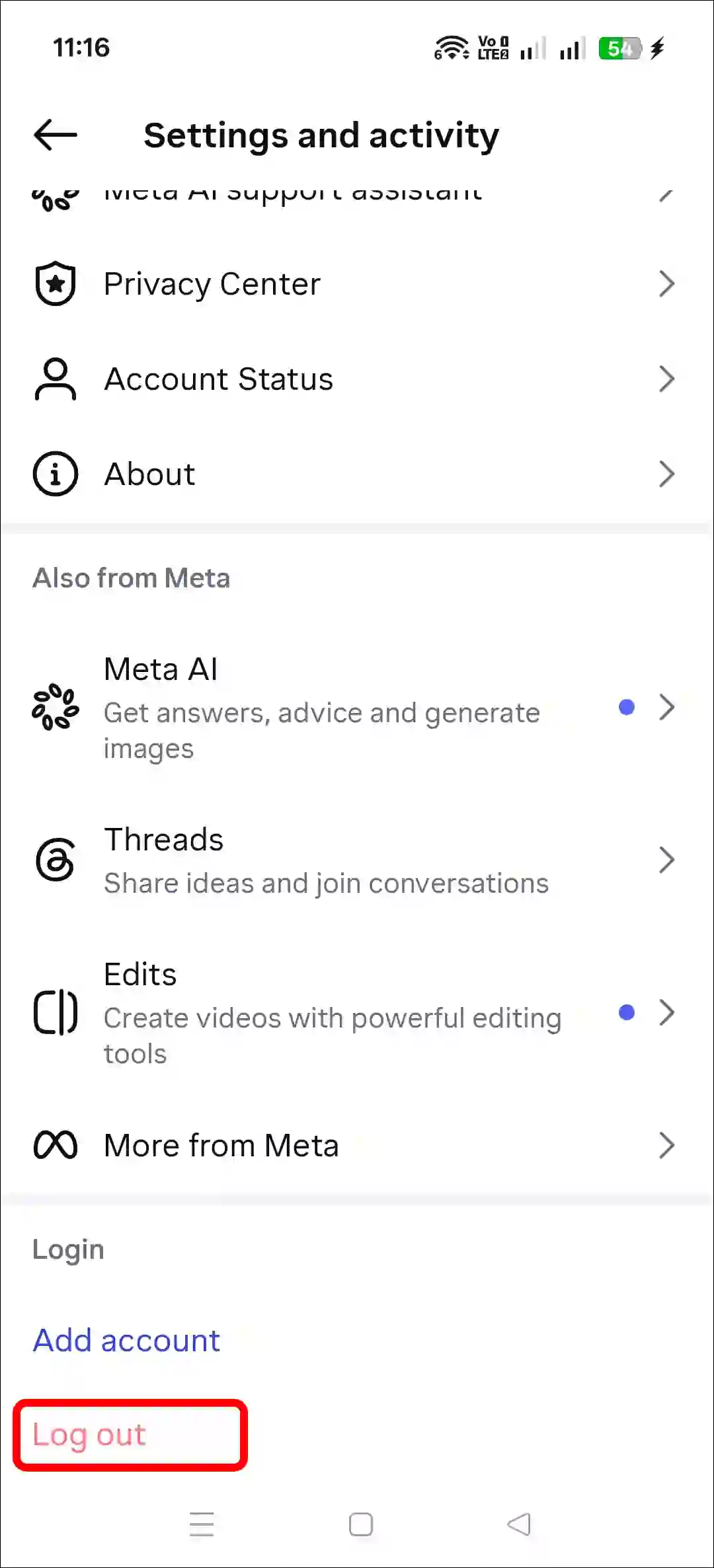
If you stay logged into Instagram for too long, your session can get out of sync. The easiest fix? Just log out and log back in. Yes! To do this, go to the Instagram app, log out of your account, and then log back in.
8. Update Your Instagram App
We often don’t update Instagram to the latest version, and that outdated app ends up full of bugs, which can create all kinds of problems. Quickly update your Instagram app to the latest version by visiting the Google Play Store (for Android) or Apple App Store (for iPhone/iPad).
9. Use Instagram Web or Lite
If the issues persist even after following all the methods mentioned above, try using the Instagram web or ‘Lite’ version. If there is a bug in the Instagram mobile app, the web or ‘Lite’ version allows you to bypass it and access Instagram.