
Instagram Comments Photo Update! You can Now Comment Pictures on Insta
After a long wait, Meta has finally officially rolled out the photo comment feature on Instagram. This will completely change your commenting style now. Let’s find out more about this feature and how you can post a photo as a comment on an Instagram Reel or post.
Instagram’s New Photo Commenting Feature
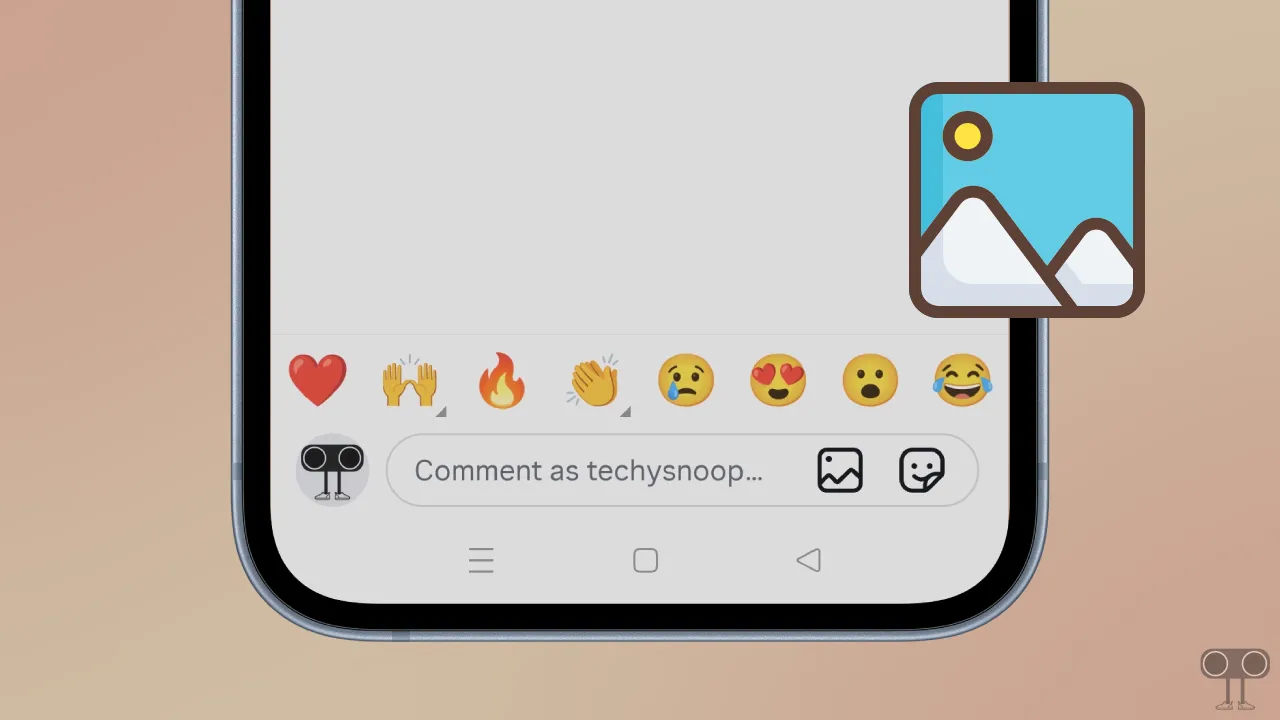
Until now, you could only post text and GIFs in Instagram comments, but now you can also post photos from your device’s gallery. To do this, open the comments section of a reel or post, then tap on the image (gallery) icon that appears at the bottom.
Next, select a picture from your gallery. The photo will then be posted in the comments section. However, just like other comments, you can edit or delete it as well. This feature is available for both Android and iPhone (iOS), and I have outlined all the steps one by one below, accompanied by pictures.
How to Post Pictures in Comments on Instagram
- Open Instagram App on Your Android or iPhone.
- Find the Target Post or Reel and Tap on Comments Icon.
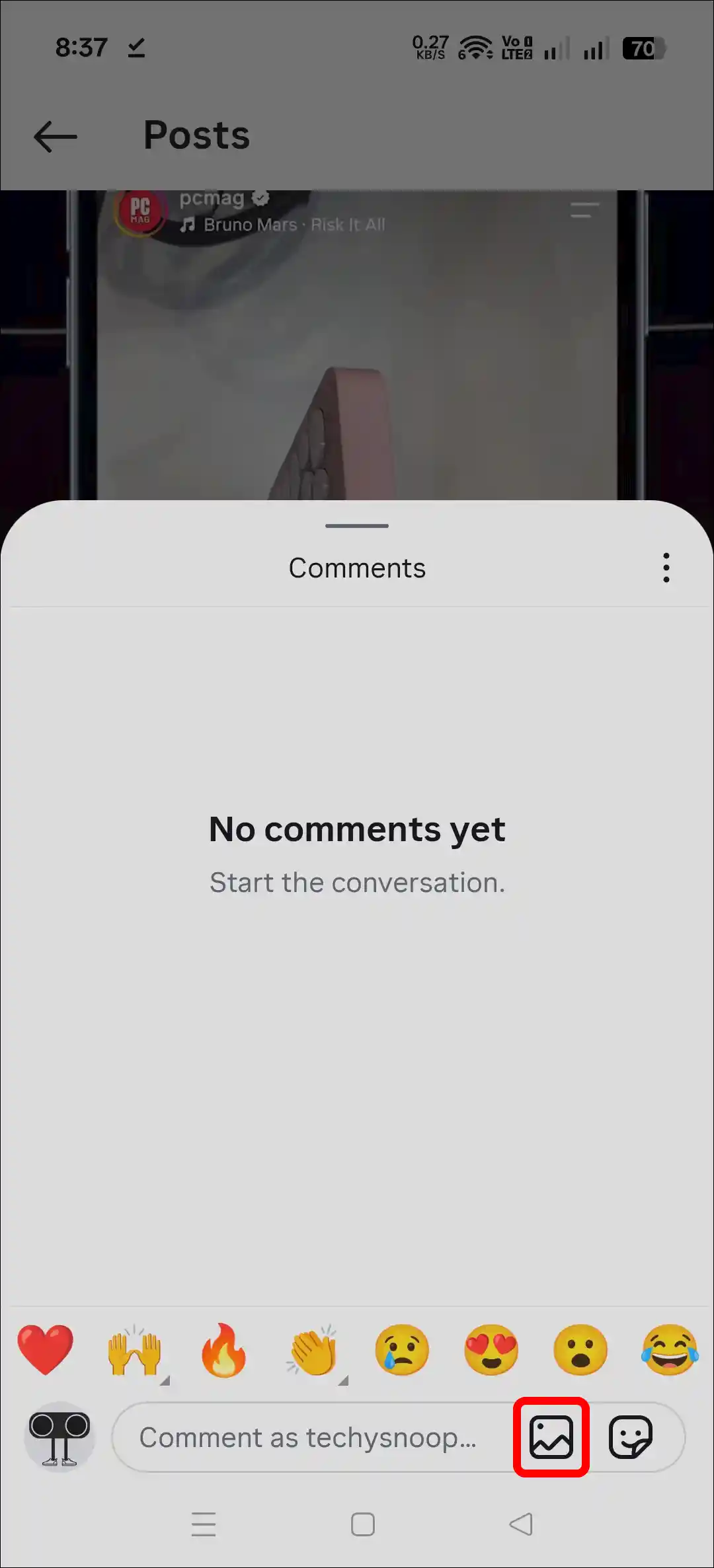
- Tap on Gallery (Photo) Icon at Bottom Just Before the GIF Icon.
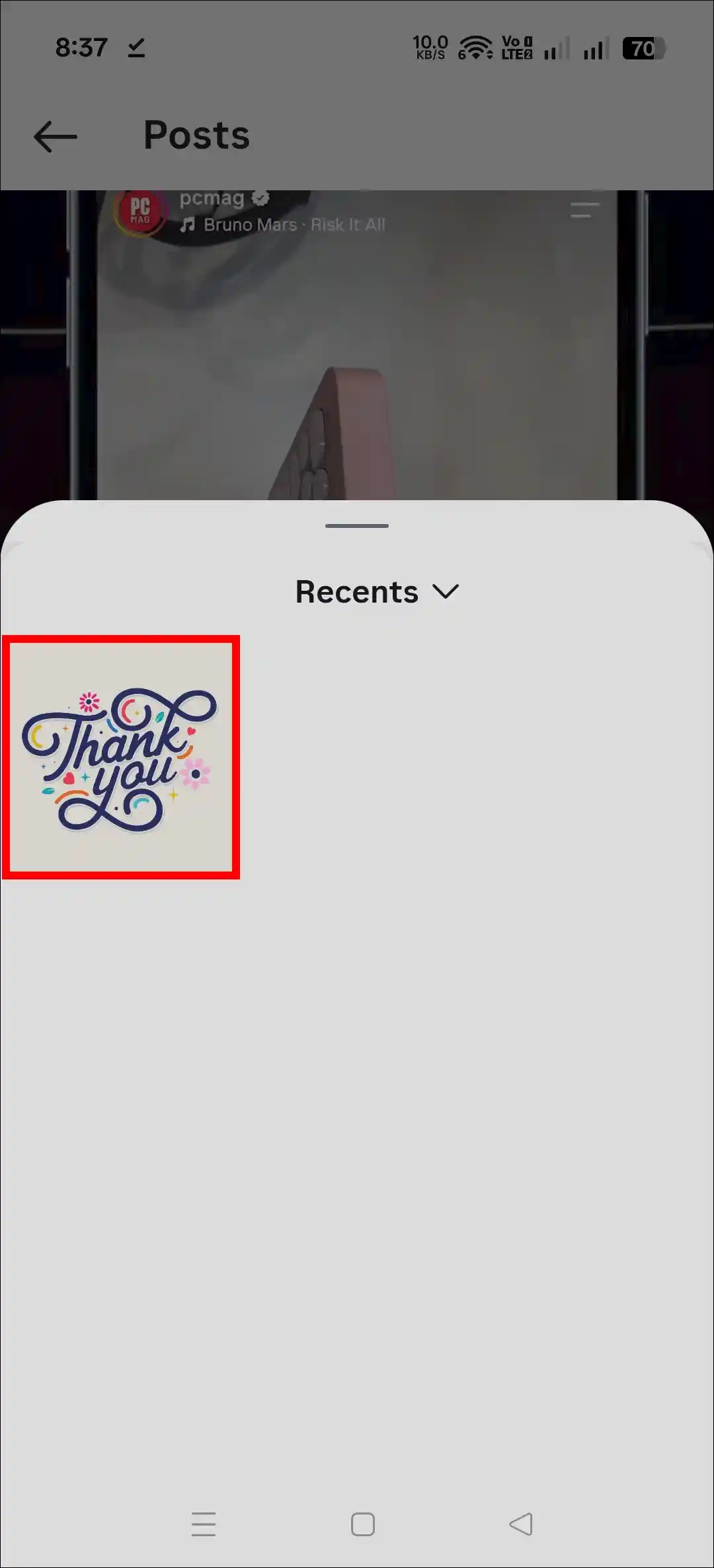
- Select a Picture from Your Gallery.
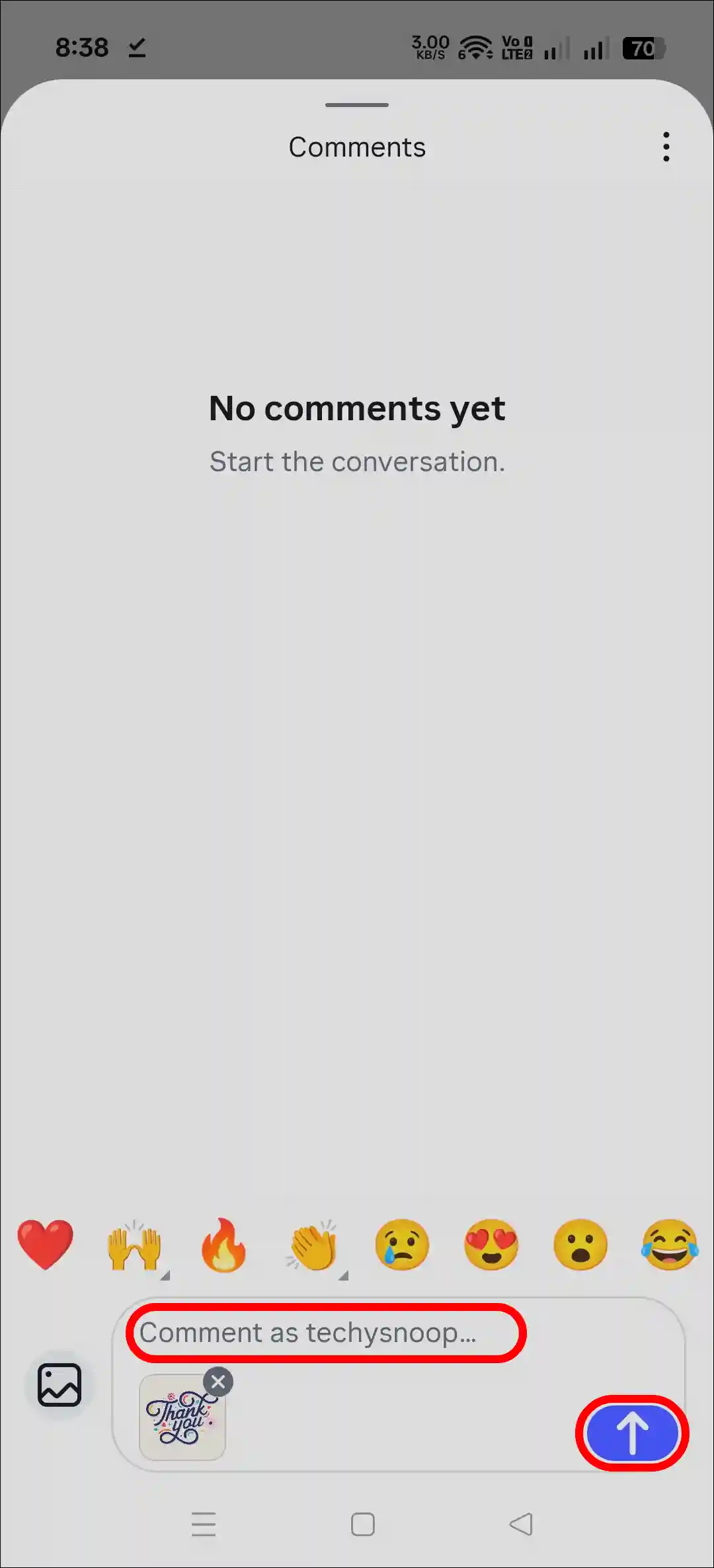
- Type a Text Message (If You Want), Then Tap on Arrow Icon.
The picture you selected has now been posted as a comment. If you wish, you can also edit it by tapping the edit button. Additionally, if you want to delete this photo comment, long-press on it and then tap the delete button.
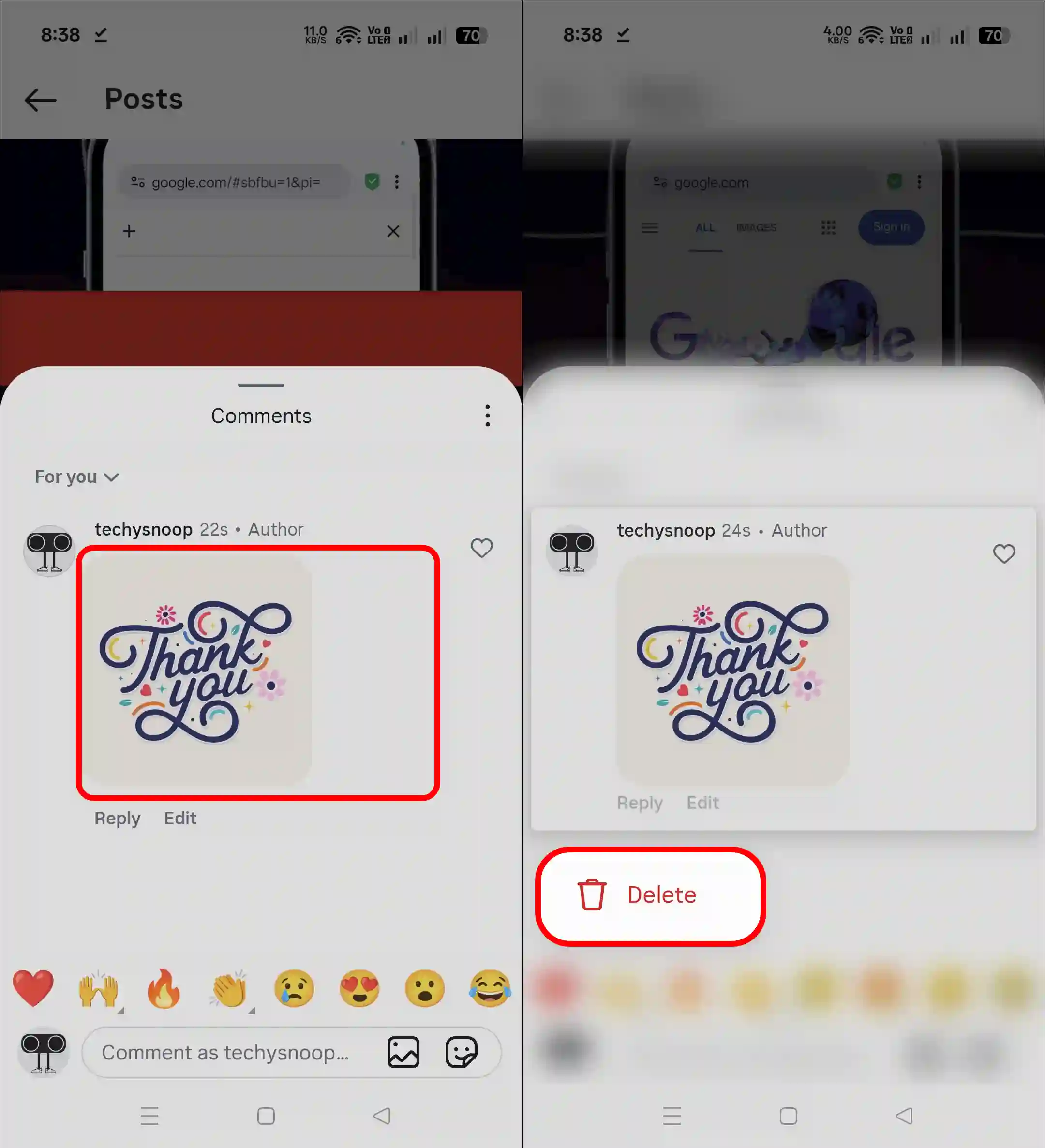
That’s it! You’re all done…
Also read: Instagram Reels Share Friends ID/Name Not Showing Problem
Fix Instagram’s Photo Comments Option Not Showing Problems
Now, everyone can use the photo commenting feature on Instagram. If you do not see the gallery option in the comments, it is mostly due to an app bug, an outdated app version, or a corrupted cache. You can solve the problem using the methods below.
1. Update Your Instagram App
An outdated app often has glitches and bugs that break features. However, Meta always rolls out the latest updates for Instagram. You can update it to the latest version from the Google Play Store or the Apple App Store.
2. Clear Instagram App Cache
- Tap and Hold Instagram Icon.
- Tap App Info.
- Tap Storage Usage.
- Tap Clear Cache.
Note: Please log out of your account and then log back in. This process refreshes your login session and reconnects you with the server.
Also read: How to Repost a Post or Reel on Instagram


Follow me
Comment box photo post
Thanks
So cute
Maine sare try kar liye fir bhi gallery option nhi aa raha
Mere bhi nahi bhi Na aa raha hai
Photo comment ebuZzpro
.
Hello
Thanks
The photo option is not available in my Instagram comments. Please solve this problem.
Please givee photo shearing in coment section of instagram
Instagram
Photo wala
Comment mein photo send karne ka nahi option nahi aa raha hai
Harsh rdj
In my android phon it doesn’t show the icon
Mere photo bhejne wala open kar do
Comment ma photo share korar opson
Photo comment instagram
Meri Instagram per comment comment per photo send kyon Nahin Dene ka option a raha hai please help MI 🥹
Comment photo