
Fix Instagram Reels Share Friends ID/Name Not Showing Problem
When you share Reels on Instagram, the share list typically displays the IDs or names of friends you interact with regularly. However, users have been frustrated because their Instagram share list changed, and now they have to manually search for friends every single time.
If the order of your “Share to” list has changed, don’t worry! You are not alone. Many users are frustrated by this and have reported the issue on platforms like Reddit and Twitter. When sharing, Instagram shows you accounts you have never interacted with.
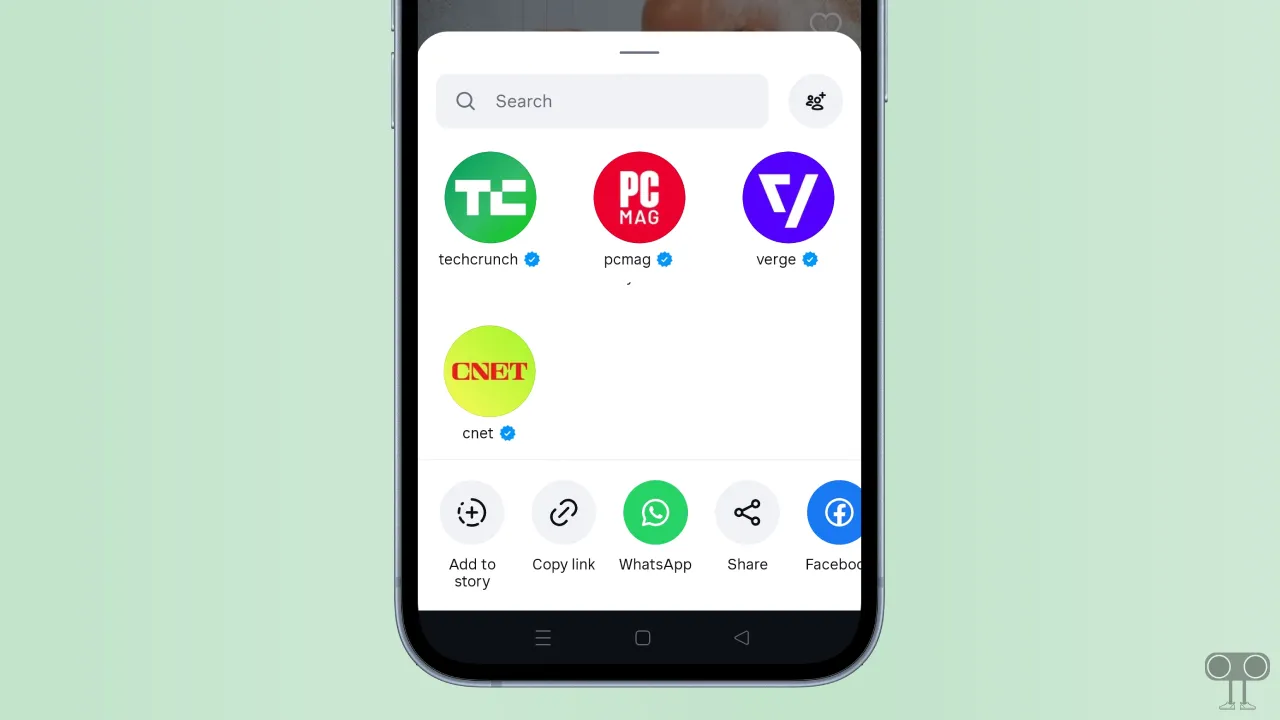
Why my Instagram reels share list changed?
If the order of your Instagram share list has suddenly changed, a major reason for this could be an unknown app glitch. Instagram glitches often make certain features disappear or stop working properly. And sometimes, recent algorithm updates even reset the order of your frequent contacts.
Since this is a glitch, you can follow a few specific methods mentioned below; hopefully, they will help resolve the issue. Currently, both Android and iPhone users are facing this problem.
How to Fix Instagram Reels Share Friends ID/Name Not Showing Problem
1. Restart Your Instagram App
As I mentioned earlier, since this issue could be due to a temporary glitch, restarting the app is an effective solution. Restarting the app often resolves temporary glitches and ensures all functions work correctly.
First, force-close Instagram completely, then clear it from your recent apps list too. Now restart your phone once, open Instagram again, and check if that fixes the issue.
Also read: How to Fix Instagram Story Views Not Showing Problem
2. Clear Instagram Cache
Instagram’s cache usually helps the app launch faster, but when it gets corrupted, it can mess with the app and stop certain features from working properly. Fortunately, you can clear the corrupted cache by following the steps below.
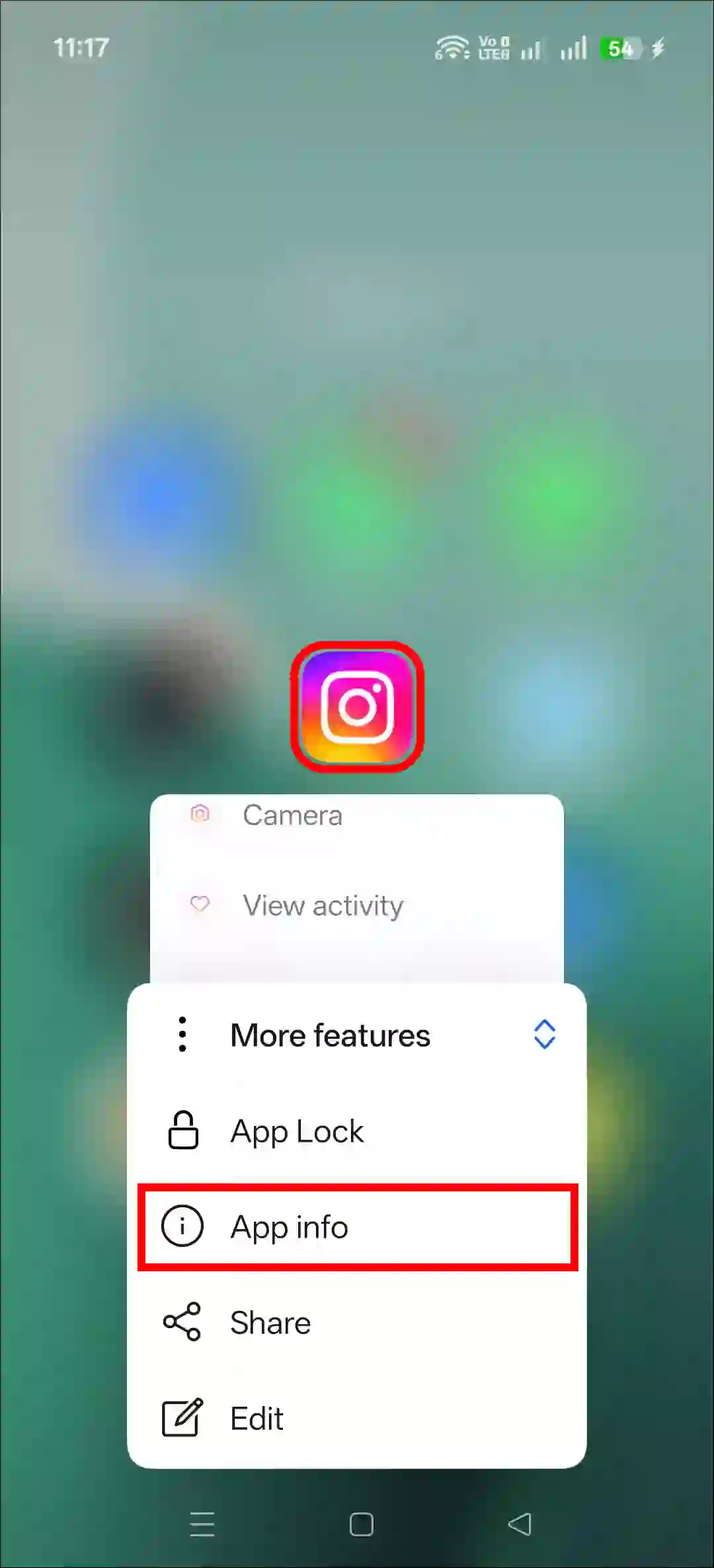
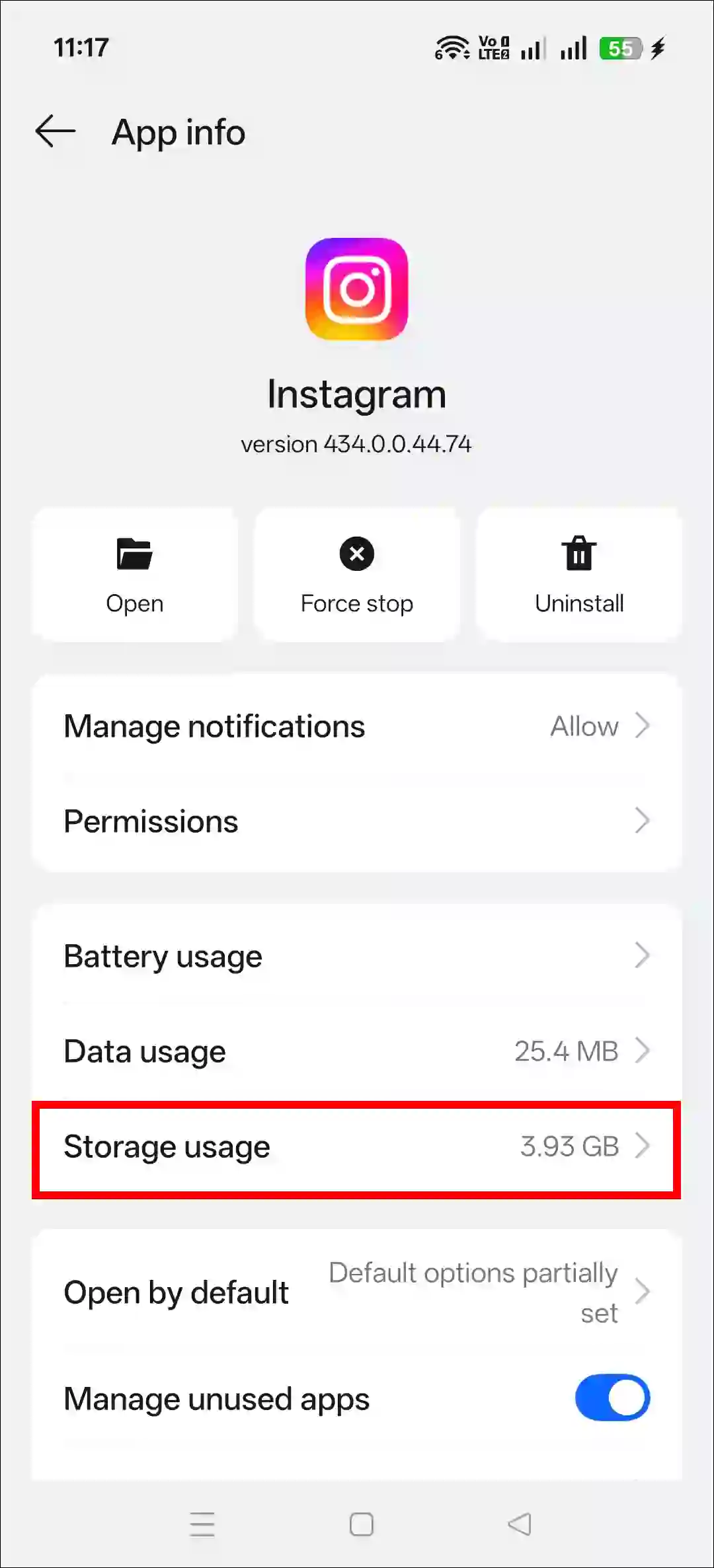
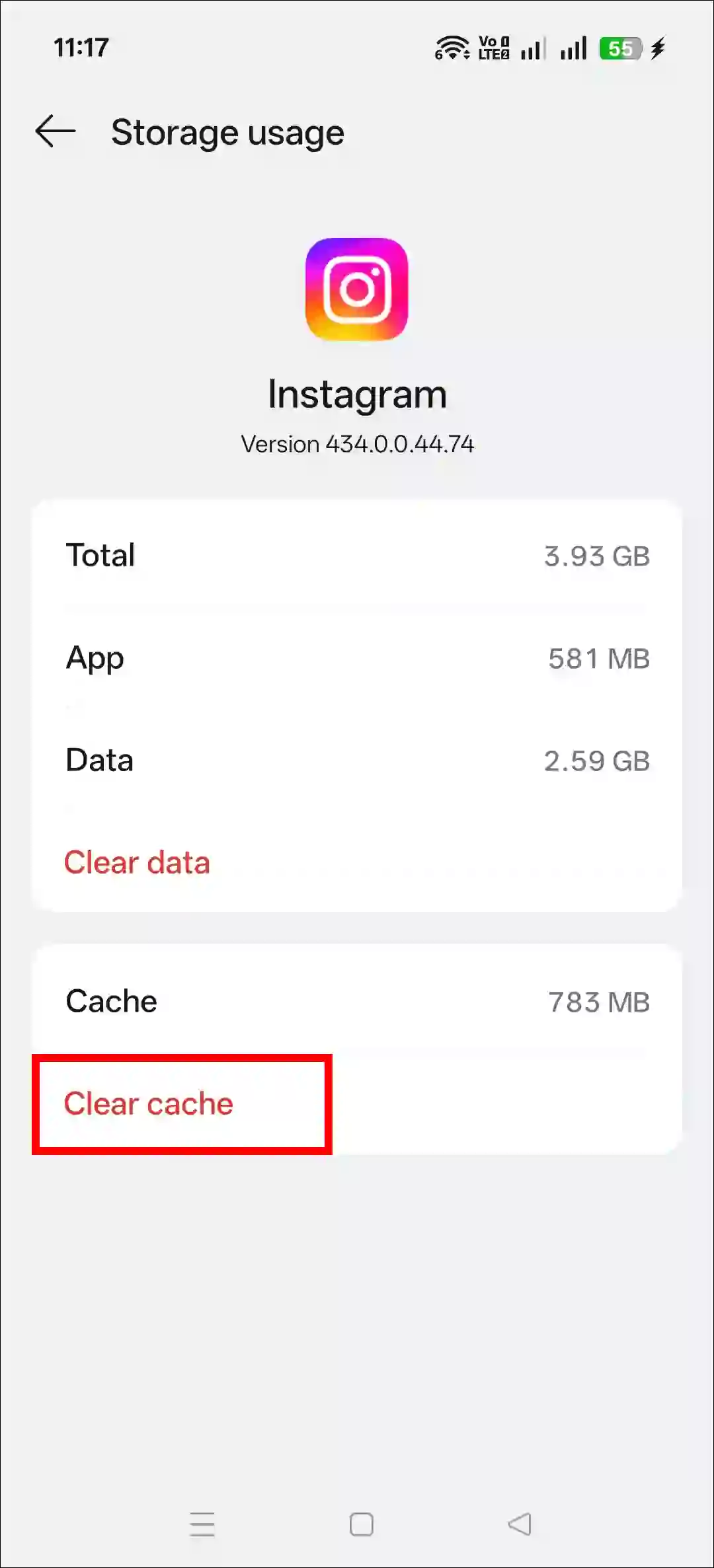
To clear Instagram app cache on and Android:
- Tap and Hold Instagram Icon.
- Tap App Info.
- Tap Storage Usage.
- Tap Clear Cache.
3. Update Your Instagram App
We often don’t update Instagram to the latest version, and that outdated app ends up full of bugs, which can create all kinds of problems. Quickly update your Instagram app to the latest version by visiting the Google Play Store (for Android) or Apple App Store (for iPhone/iPad).
Most users say the latest Instagram update fixed the share list order issue.
4. Sign Out and Sign-in Again
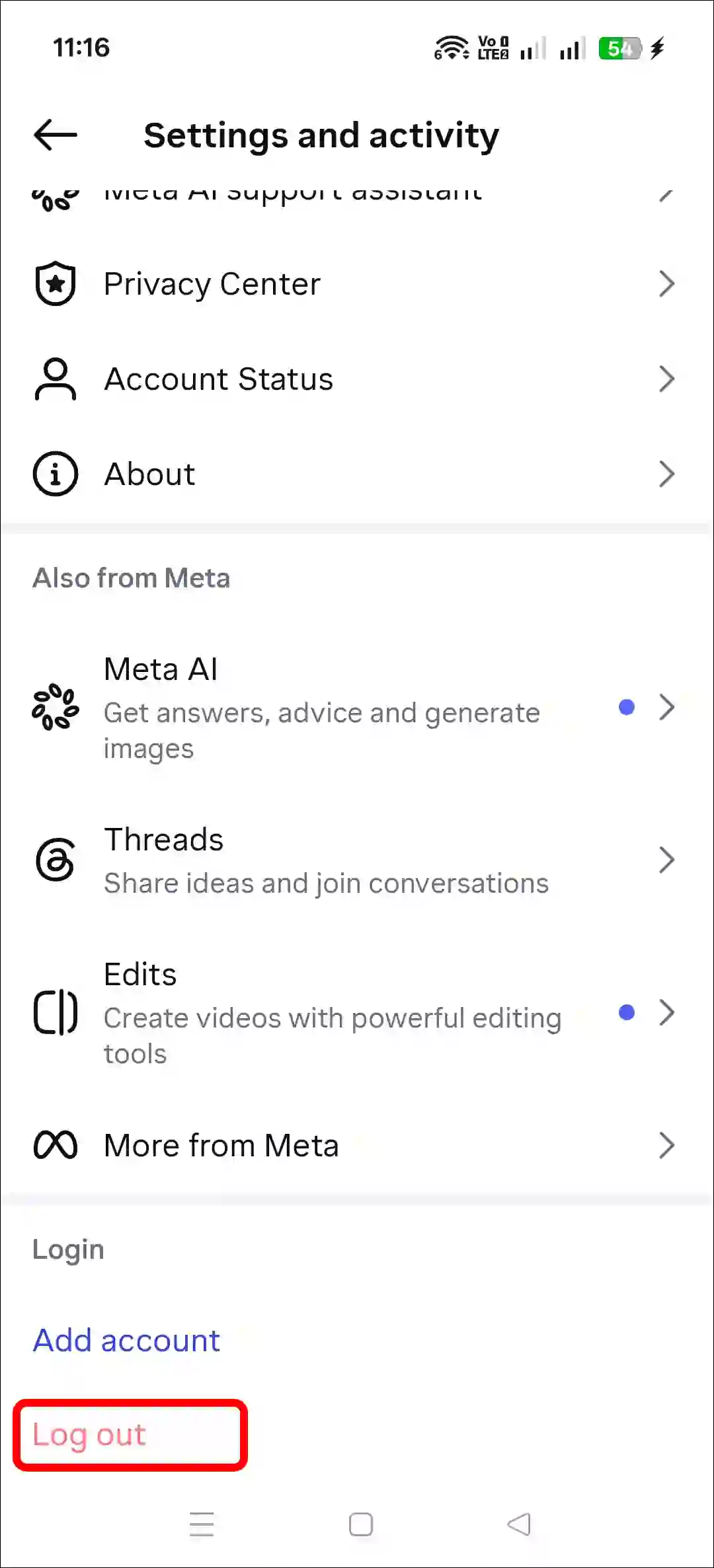
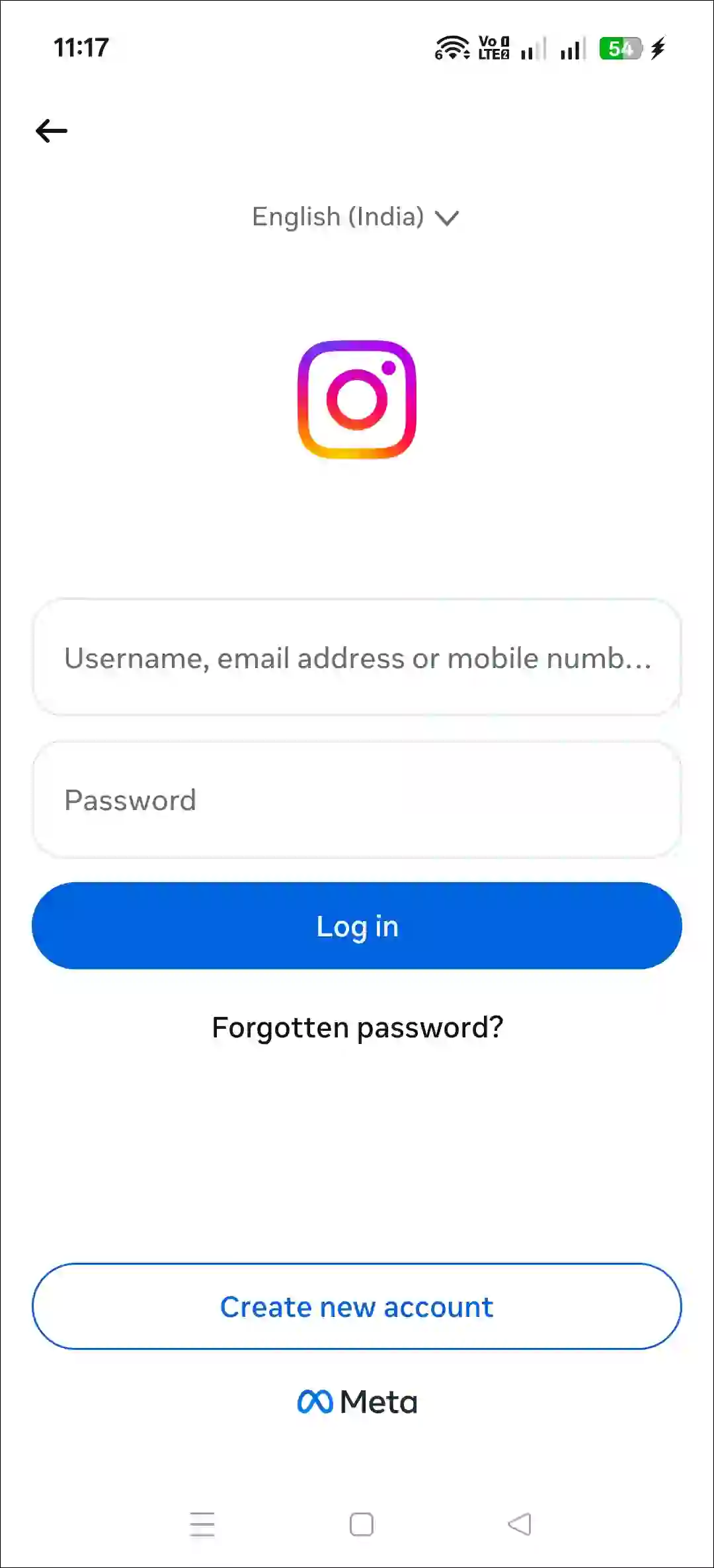
If you stay logged into Instagram for too long, your session can get out of sync. The easiest fix? Just log out and log back in. Yes! To do this, go to the Instagram app, log out of your account, and then log back in.
5. Wait for a While
If you have followed all the methods mentioned above but the problem persists, you should now wait until the issue resolves itself. Yes! Instagram often fixes these issues on its own; it just might take a little time (1-2 hours).
Also read: How to Repost a Post or Reel on Instagram
I’ve already updated the resource for the photo option but it still doesn’t show the option yet
I’m angry rn
Photo send problem