
How to Repost a Post or Reel on Instagram
Instagram continuously introduces new features for its users. This time, Instagram has rolled out a repost feature for posts and Reels, which drives engagement on posts and Reels. Let’s find out how you can repost a post or Reel on Instagram and how to delete the reposted Reels or posts.
Instagram’s Repost Feature
Instagram’s Repost feature allows you to share other people’s public posts or Reels on your profile’s Repost tab and your followers’ feeds. To do this, you will find a built-in “Repost” button (two circling arrows) located below posts and to the right of Reels; simply clicking on it will repost that post or Reel.
This new repost feature from Instagram is available for both Android and iPhone (iOS).
How to Repost a Post or Reel on Instagram
If you come across a post or Reel on the Instagram app that you like, and you want it to appear on your profile, you can repost it by following the steps mentioned below.
- Open Instagram App on Your Phone.
- Tap on Repost 🔄 Button Under the Post and Bottom Right Side or the Reel.
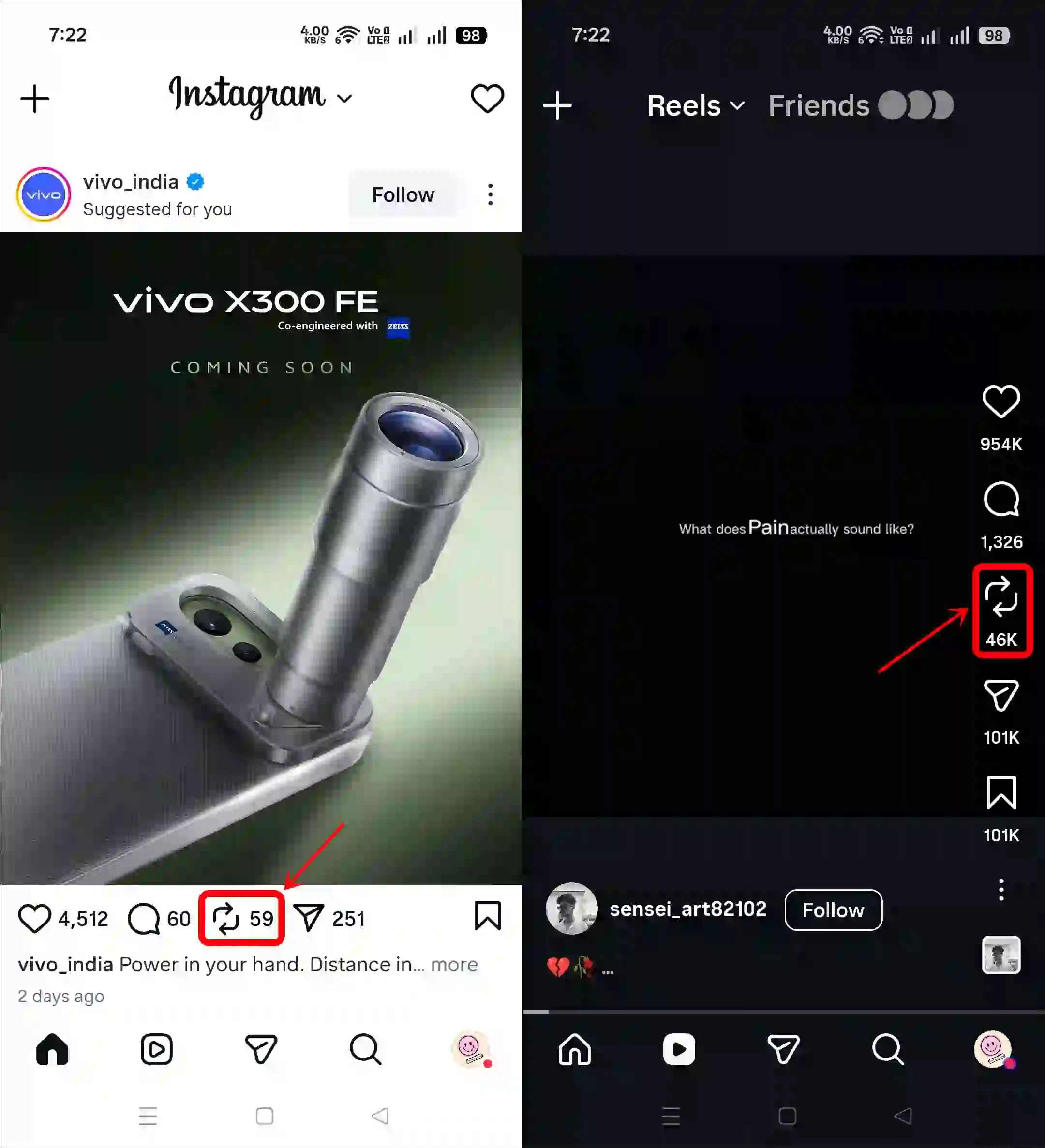
That’s it! Now that post or Reel has been reposted to your profile.
How to Undo a Reposted Post or Reel on Instagram
If you had reposted a post or reel earlier that is visible on your profile, but now you want to delete or remove it from the Repost tab, this is possible and easy. To do so, follow the steps given below one by one.
- Open Instagram App.
- Go to Your Profile and then Repost Tab.
- Open the Post or Reel You Want to Un-repost.
- Now, Tap on Repost 🔄 Icon Again Under the Post and Bottom Right Side or the Reel.
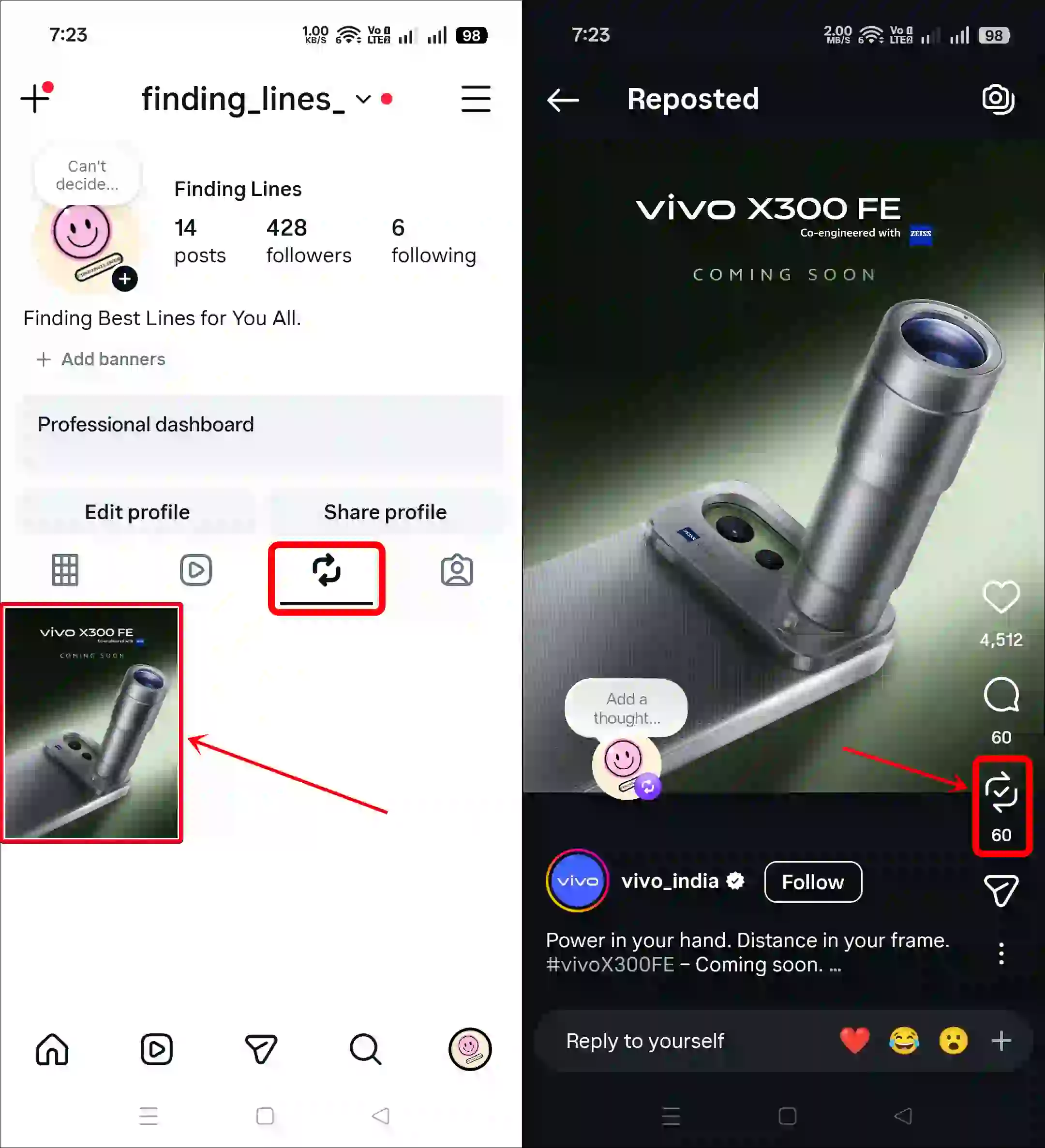
That’s it! The post or Reel has now been removed from the Repost section of your profile.
Read: How to Check & Clear Visited Links (Link History) on Instagram
Repost Option Not Showing on Instagram
Instagram’s Repost feature is now available to everyone. If you don’t see the Repost button on posts or Reels, the main reasons include an app bug, an outdated app version, or a corrupted cache. You can fix this issue using the methods below.
Fix 1. Clear Instagram App Cache
Often, corrupted cache prevents certain functions from loading. However, on Android phones, you can easily resolve these temporary issues by clearing the corrupted cache.
- Tap and Hold Instagram Icon.
- Tap App Info.
- Tap Storage Usage.
- Tap Clear Cache.
Fix 2. Update Instagram App
An outdated app often has glitches and bugs that break features. However, Meta always rolls out the latest updates for Instagram. You can update it to the latest version from the Google Play Store or the Apple App Store.
Note: Please log out of your account and then log back in. This process refreshes your login session and reconnects you with the server.

Photography
I can’t any reel please fix this problem 😩