
Here’s How I Completely Turned Off Animations in My POCO Phone?
I recently bought a POCO phone, but I noticed a bit too many animations in the notification panel, app switching, and similar areas. However, I have completely disabled these animations on my phone to suit my preference. If you are also annoyed by these and want to remove them, follow the steps mentioned below.
As everyone knows, all Android phones have an option in Developer Options to reduce the built-in animations, and I set all three of these options to 0. However, I still noticed animations in certain parts of the device’s Android OS, such as opening the notification panel and switching between apps.
However, when I analyzed the POCO settings deeply, I discovered that POCO offers an option in its accessibility settings, and as soon as you enable it, all the unnecessary animations just disappear. This feature is extremely essential for users who do not like extra animations.
Did you know that phones come with animations along with the operating system to hide minor lags? If you disable animations, you may experience some minor lag while accessing functions on your phone.
How to Turn Off Animations in POCO Phones
There are two ways to disable animations on POCO phones: First, you can use Developer Options. Second, you can go through accessibility settings. I’ve shared both methods step-by-step below, so just follow them carefully.
Method 1. Disable Animations from Developer Options
Step 1. Open Settings App on Your Phone.
Step 2. Scroll Down and Tap on Additional Settings.
Step 3. Tap on Developer Options.
Step 4. Scroll Down to the Drawing Section and Select ‘Animation Off’ for These Three Settings.
Window Animation Scale:Animation OffTransition Animation Scale:Animation OffAnimator Duration Scale:Animation Off
If Developer Mode is not enabled on your phone, don’t worry! You can activate this hidden setting on your POCO phone by following the steps mentioned below.
- Open Settings on Your POCO Phone.
- Tap on About Phone.
- Tap on Detailed Info and Specs.
- Tap Continuously on the HyperOS Version 7 Times Until You See a Prompt “You are now a developer!”.
That’s it!!!
Method 2. Disable Animations from Accessibility Settings
Step 1. Open Settings App on Your Phone.
Step 2. Tap on Additional Settings.
Step 3. Tap on Accessibility.
Step 4. Select Vision Section and Turn On the “Remove Animations” Toggle.
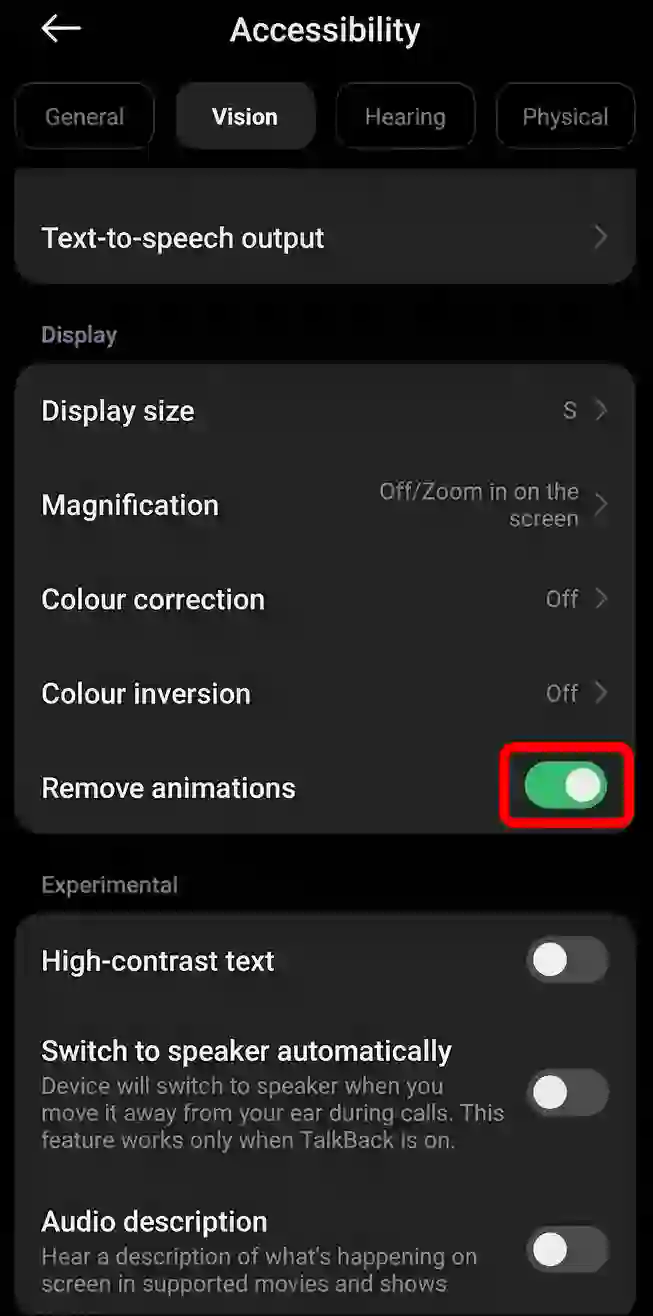
That’s it! Now you’ve completely disabled animations on your POCO phone.
Also read: How to Increase or Decrease Flashlight Brightness in Android
FAQs
Q 1. Why should I disable animations on my POCO phone?
Answer – Disabling animations makes your phone feel faster and more responsive. It can also help save a little battery power, and if you suffer from dizziness or motion sickness, it will provide relief.
Q 2. Which exact settings should I change to disable all animations?
Answer – Find these three settings in Developer Options and set them to “Animation Off” or 0x:
- Window animation scale
- Transition animation scale
- Animator duration scale



Can’t able to explore instant