
Meesho Says “An Unexpected Error Occurred”? Here’s How to Fix It!
Meesho users are suddenly encountering an error message that says, “An unexpected error occurred. Please try again later.”. This issue isn’t just occurring on the mobile app, but some users are also experiencing it on the Meesho website. Don’t worry! Let’s find out how you can easily fix this problem.
What is This Problem in Meesho?
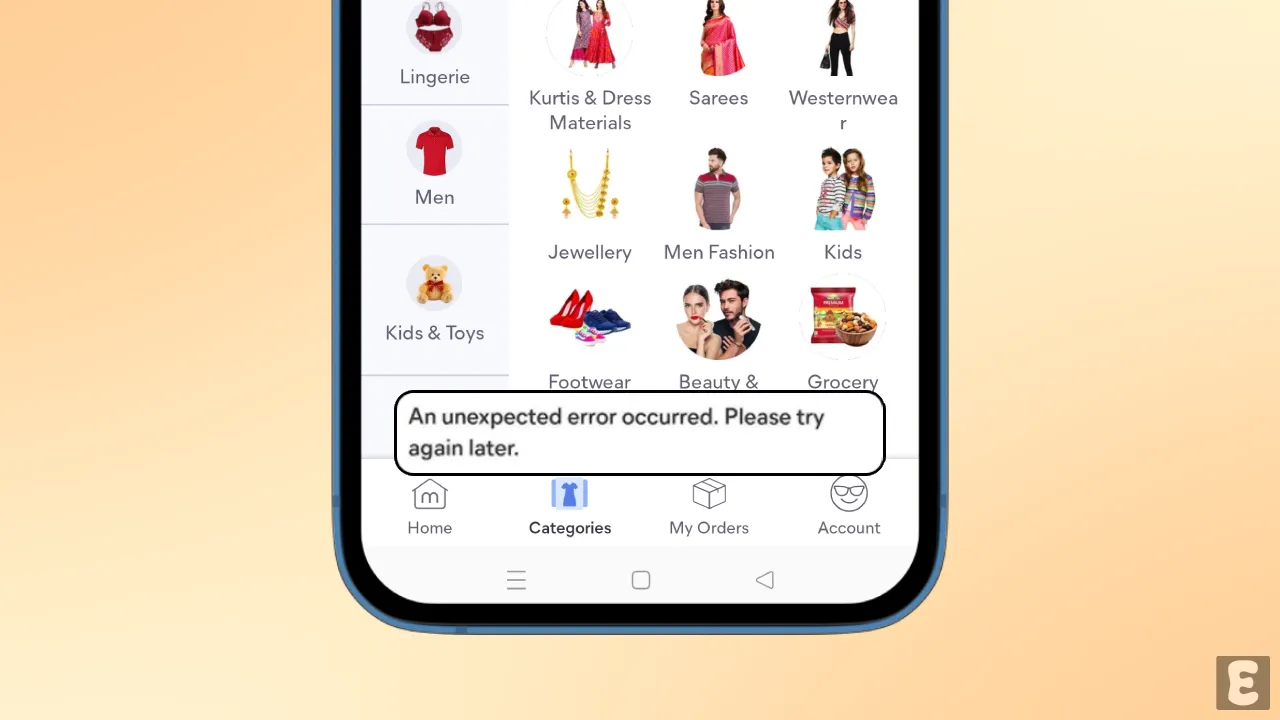
This “An Unexpected Error Occurred” issue in the Meesho app means that the app or website is unable to communicate with its servers. Apart from this, this problem can also occur due to a corrupted cache, an unstable internet connection, account restrictions, etc.
Often this problem is seen due to the server being down. You can check the live status of the Meesho server once by clicking on this link. If the server is live but the problem still persists, then follow the steps given below once; maybe your problem will be fixed.
How to Fix Meesho’s An Unexpected Error Occurred Problem
1. Check Your Internet Connection
Sometimes, you may face such errors in the Meesho app when the internet is slow or not working at all. To do this, make sure your internet is working properly. If you have an internet issue, you can switch to a different Wi-Fi or internet connection.
2. Close and Reopen Meesho App
Completely close the Meesho app on your phone, then clear it from the Recent apps tab. Now open Meesho again and check the Restyle AI feature. This process often resolves temporary problems easily.
3. Clear Meesho App Cache
Cache helps apps load faster, but when it gets corrupted, it can prevent an app and its functions from working properly. However, did you know that you can easily fix this issue by clearing the cache on your Android phone?
- Tap and Hold Meesho Icon.
- Tap App Info.
- Tap Storage Usage.
- Tap Clear Cache.
4. Update Meesho App
An outdated Meesho app version often causes such problems. If your Meesho is also outdated, quickly update it to the latest version from the Google Play Store or the Apple App Store. Updating will immediately fix the bug-related issues.
Note: Please log out of your account and then log back in. This process refreshes your login session and reconnects you with the server.




Unexpected error a raha hai