YouTube’s Search and Watch History Not Showing Up? Here are Ultimate Fixes
YouTube saves your search and watch history by default, but this is only possible if you are logged into your Google account. This history feature further enhances your experience. For some time now, Android and iPhone users have been reporting on Reddit and Twitter that YouTube’s search and watch history is not showing up.
‘Search and Watch History’ is part of ‘Recent Activity,’ which can be accessed within the app via the ‘Search’ icon and the ‘Watch History’ section. If your search and watch history is missing from your YouTube app, meaning these functions aren’t working, you are not alone. In this article, I have shared some potential methods to fix this problem.

Why is my YouTube search and watch history not showing up?
If your YouTube mobile app is not showing search and watch history, here are some possible reasons:
- Disabled YouTube History
- Outdated YouTube App
- Wrong Google Account
- Server Issues
- Corrupt Cache
- App Bugs/Glitches
Read: How to Turn Off Auto Dubbing on YouTube
4 Ways to Fix If YouTube’s Search and Watch History Not Showing Up
1. Turn On YouTube History
If your watch history has been accidentally or unintentionally paused in your Google account, neither your search history nor your watch history will appear in your YouTube app. When Watch History is paused, YouTube does not record the searches you perform or the videos you watch.
- Open YouTube App on Your Phone.
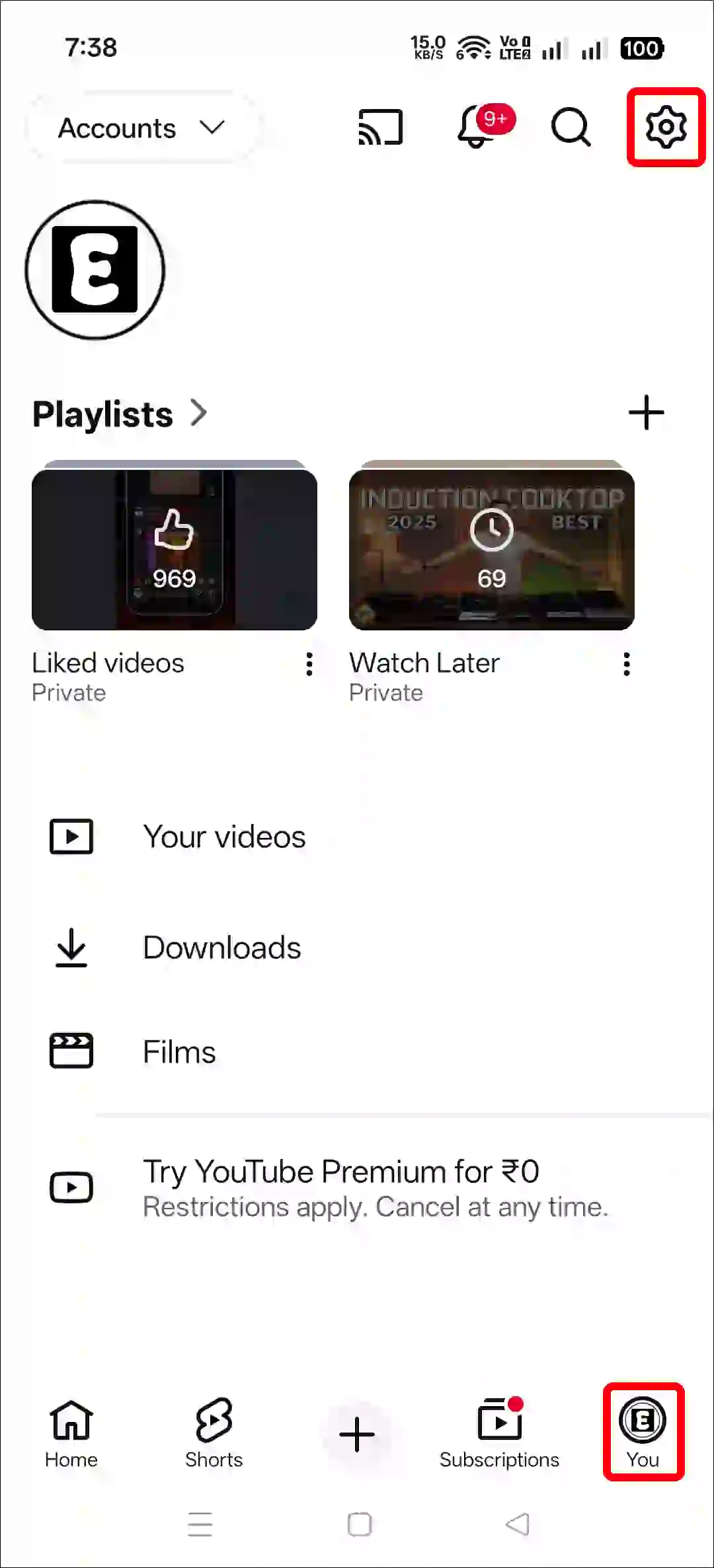
- Go to Your “Profile” and Tap on Gear ⚙️ Icon at Top Right.
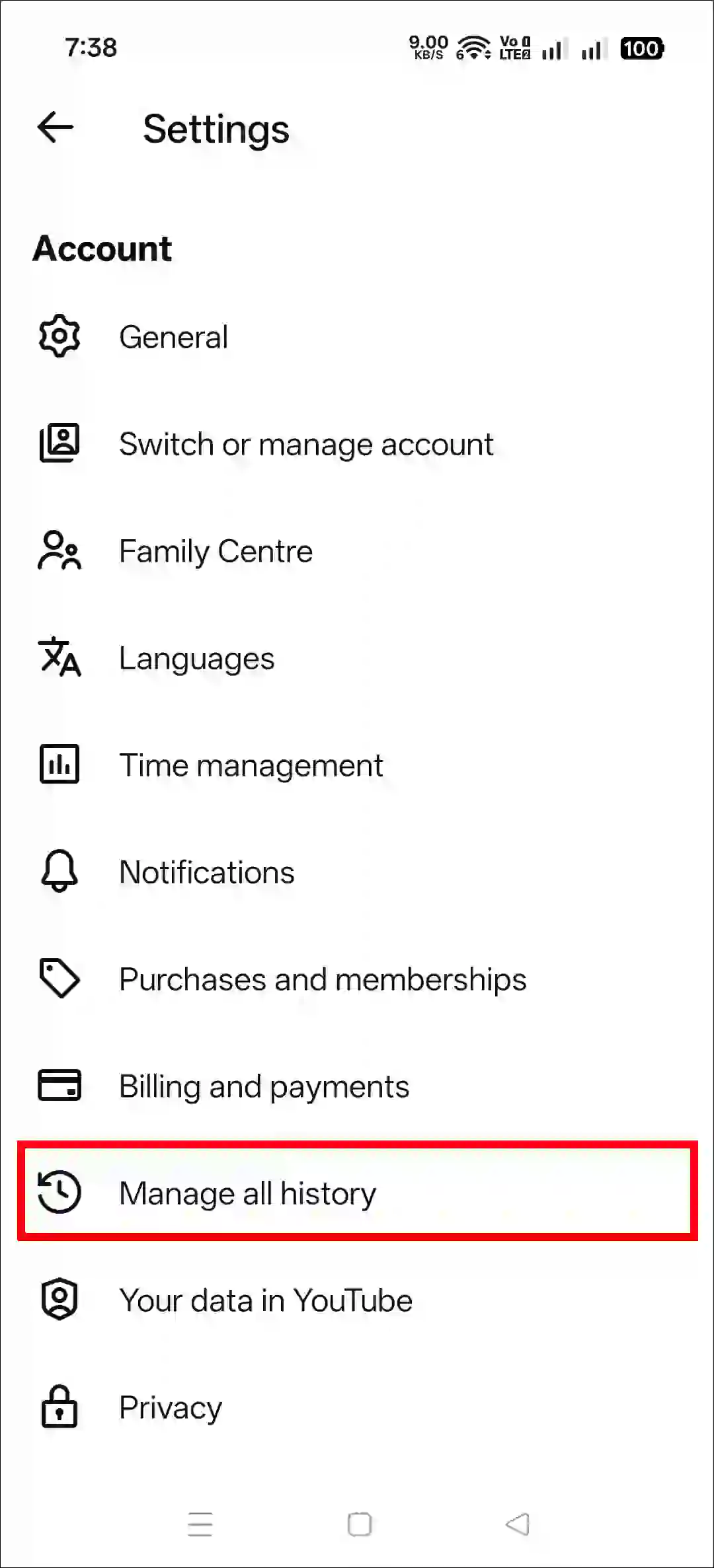
- Tap on Manage All History.
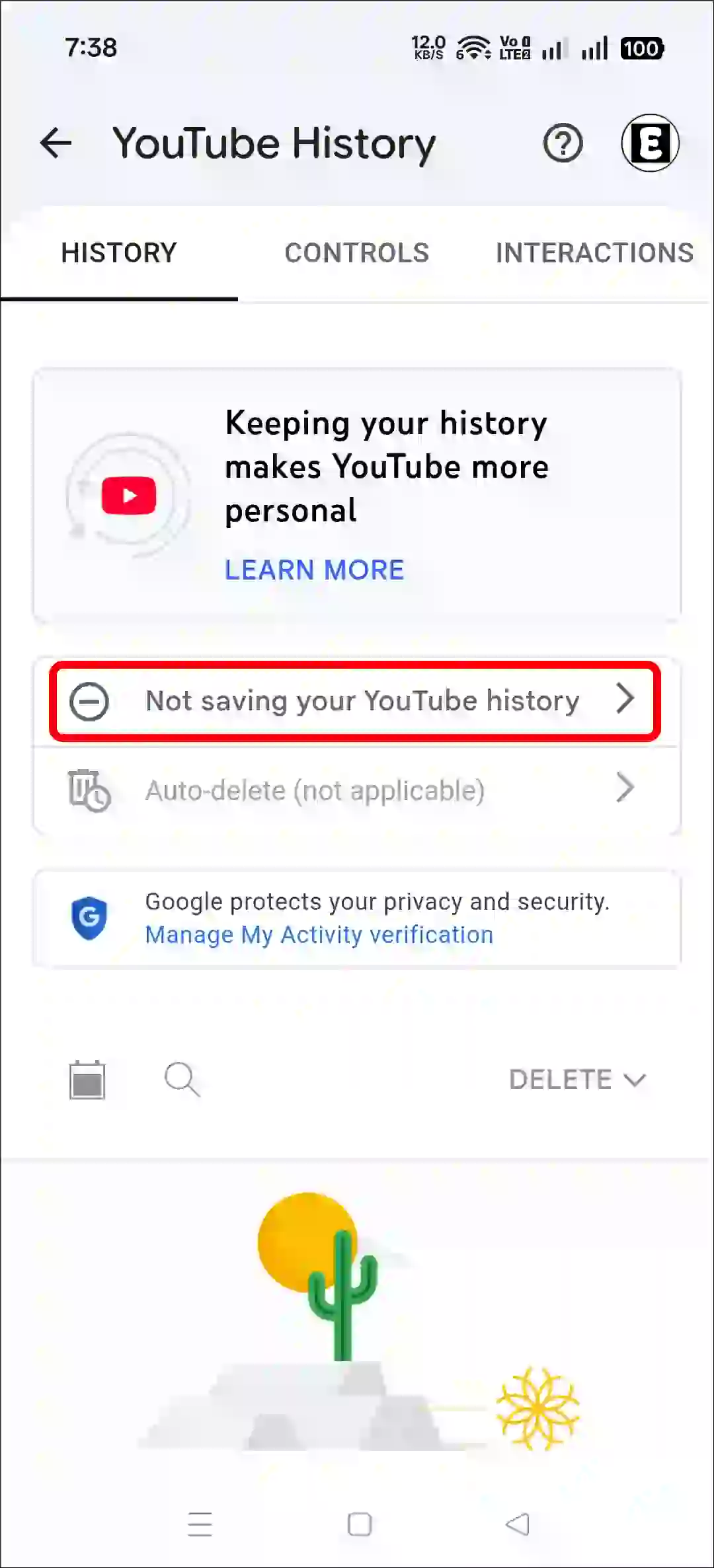
- Tap on “Not Saving Your YouTube History”.
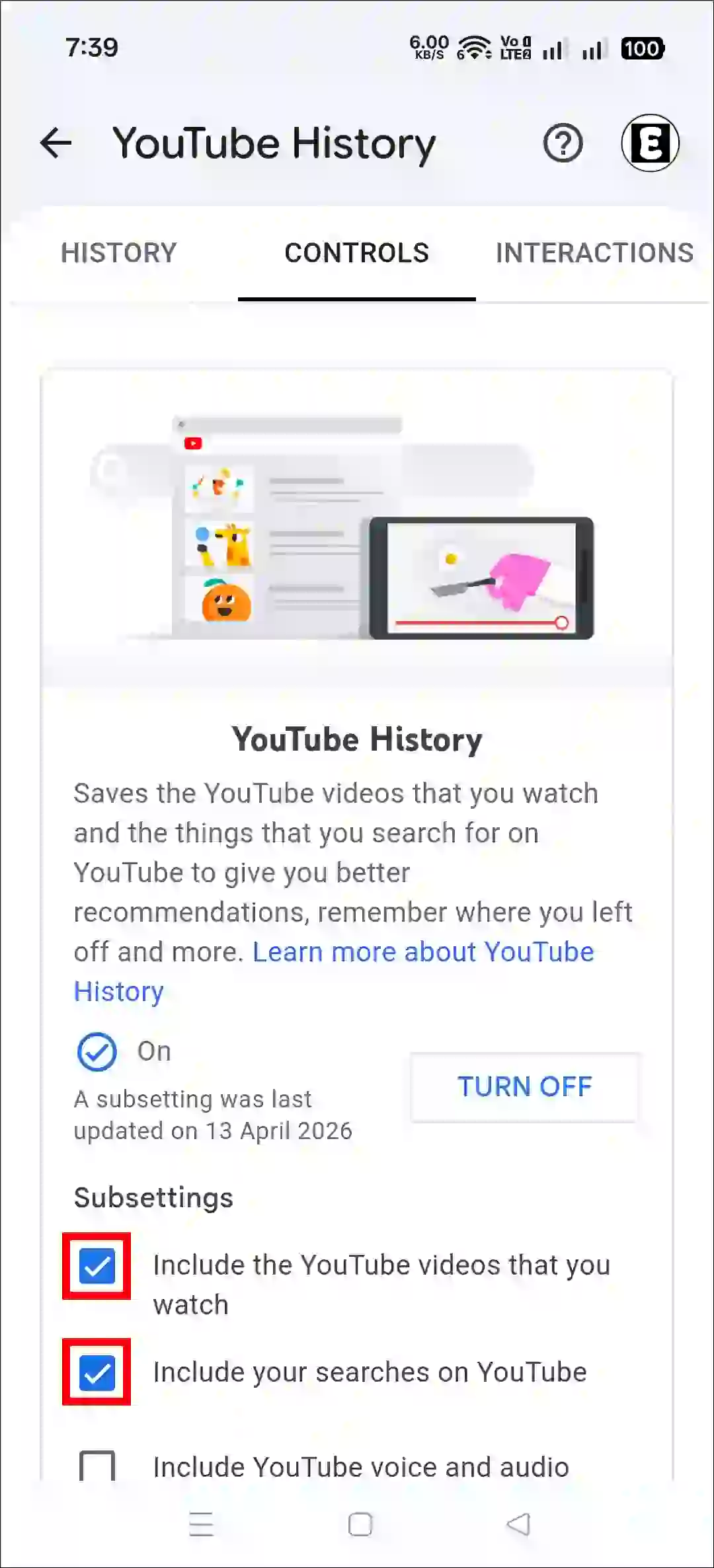
- Tap “Turn On” Button and Confirm.
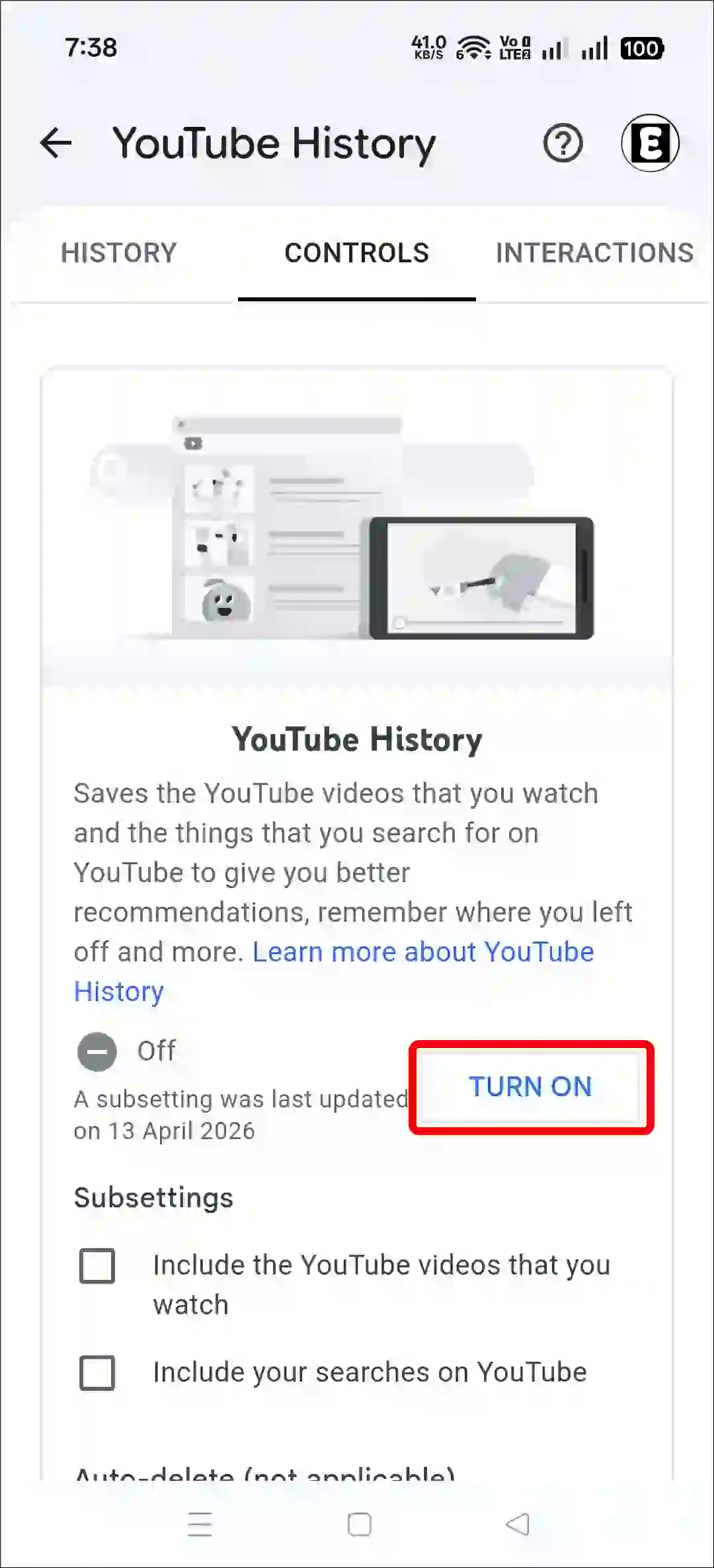
- Make Sure Both “Include the YouTube Videos That You Watch” and “Include Your Searches on YouTube” Boxes are Checked.
2. Close and Relaunch YouTube App
If this is a temporary glitch, you can easily resolve the issue by restarting the YouTube app. To do this, completely close the YouTube app on your phone and clear it from your recent apps. Now, reopen the YouTube app and check whether the history feature is working or not.
3. Clear YouTube App Cache
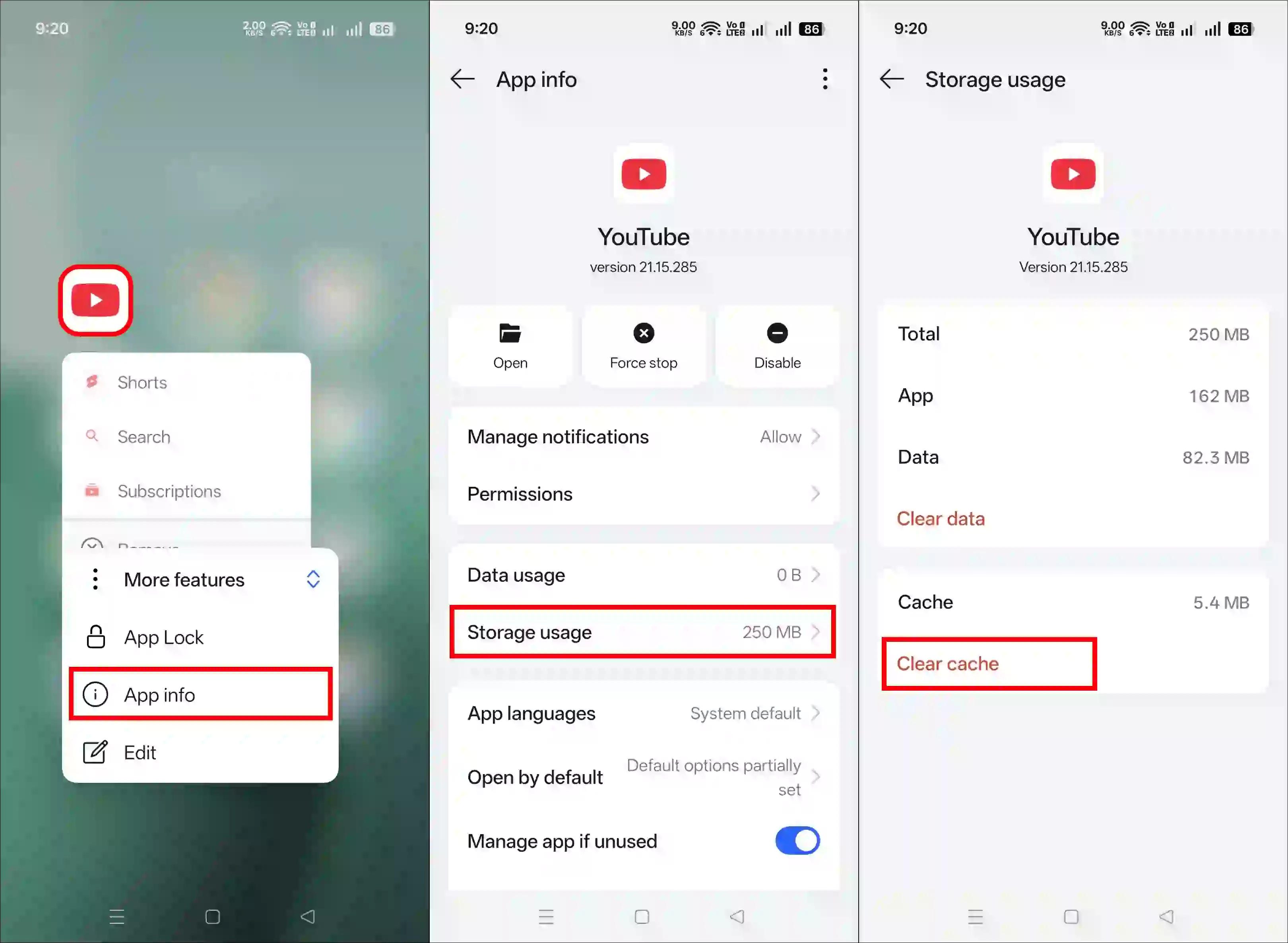
Sometimes, a corrupted app cache can prevent certain app functions from working correctly. Did you know that clearing corrupted cache data deletes all the temporary files that were preventing the YouTube History feature from functioning properly?
- Tap and Hold the YouTube App Icon and Tap App Info.
- Tap on Storage Usage.
- Tap on Clear Cache.
4. Update Your YouTube App
An outdated app can contain various bugs that prevent its features from functioning correctly. For an app to work properly, it must be up-to-date. Updating the YouTube app to the latest version can fix search and watch history problems.
Steps to Update YT App:
- Open “Google Play Store” on Android Phone.
- Search for “YouTube” and Tap It from List.
- Tap on “Update” Button.