2 Ways Turn Off YouTube Notifications on Your Edge Browser
If you use the Edge browser on Windows, Mac, or Linux and enjoy watching YouTube videos, then this article is for you. If you are receiving YouTube notifications on the Edge browser that distract you while you are doing other tasks, turning them off is easy.
Often, when we visit the YouTube website, it asks for permission to send push notifications, which are browser-based notifications, and we tend to allow them in a hurry. Then, YouTube keeps sending you notifications about the channels you have subscribed to and recommendations via the Edge browser.
If you are annoyed by these YouTube notifications while working on important tasks, you can get rid of them using the two methods given below. The steps for both methods are mentioned below along with pictures; please follow them carefully.
2 Ways Turn Off YouTube Notifications on Your Edge Browser
Method 1. From YouTube Website
- Launch Microsoft Edge Browser on Your Computer or Laptop.
- Go to
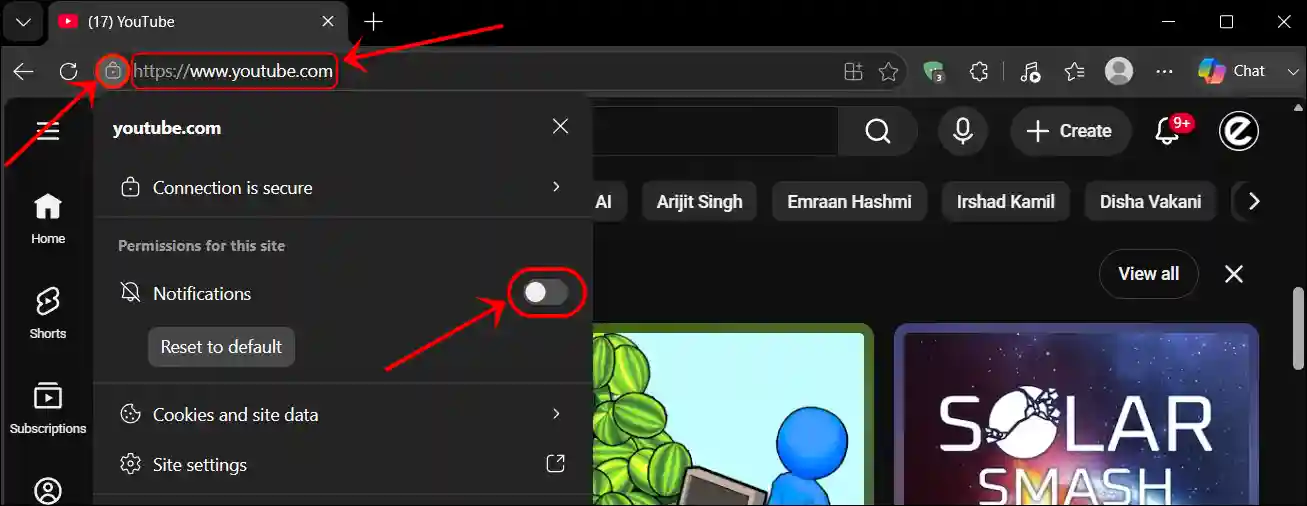
YouTube.comWebsite. - Click on Lock🔒Icon Just Before YouTube URL.
- Simply, Turn Off the Notifications Toggle.
Method 2. From Edge Settings
- Open Microsoft Edge Browser.
- Go to
edge://settings/privacy/sitePermissions/allSitesURL. - Click on Arrow Next to YouTube.com.
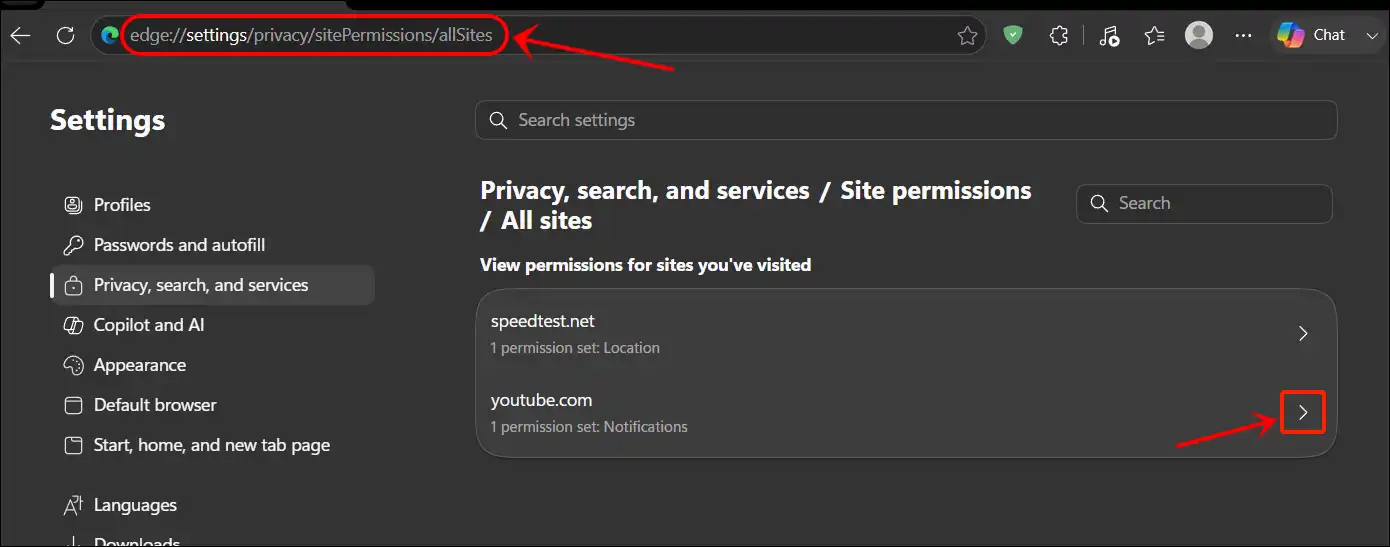
- Now, Set Notifications Value to Block.
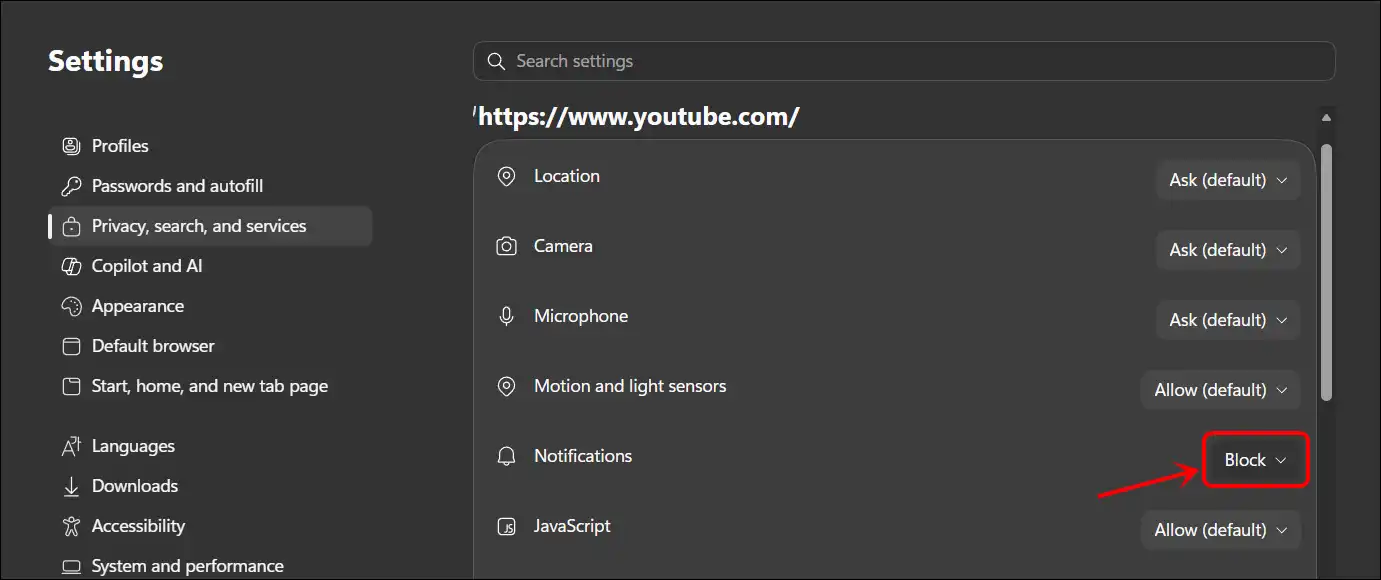
That’s it! As soon as you follow either of these methods, the Edge browser will stop sending you YouTube notifications.
Also read: How to Turn Off Auto Dubbing on YouTube (Android & PC)
FAQs
Q 1. Will it disable all YouTube notifications on the Edge browser?
Answer – Yes! Both these methods are capable of completely disabling YouTube notifications on the Edge browser.
Q 2. Can I turn YouTube notifications back on in the Edge browser?
Answer – Yes! You can re-enable YouTube notifications on the Edge browser by following these same steps.