“Please Enable JS and Disable Any Ad Blocker” on Chrome, Edge, Firefox, Safari
Have you seen a message like “Please Enable JS and Disable Any Ad Blocker” immediately upon opening certain websites? Don’t worry! You are not alone. This issue is no longer limited to just a single browser; rather, it is troubling users on almost every browser, including Chrome, Edge, Firefox, and Safari.
What does this ‘Please enable JS and disable any ad blocker’ mean?
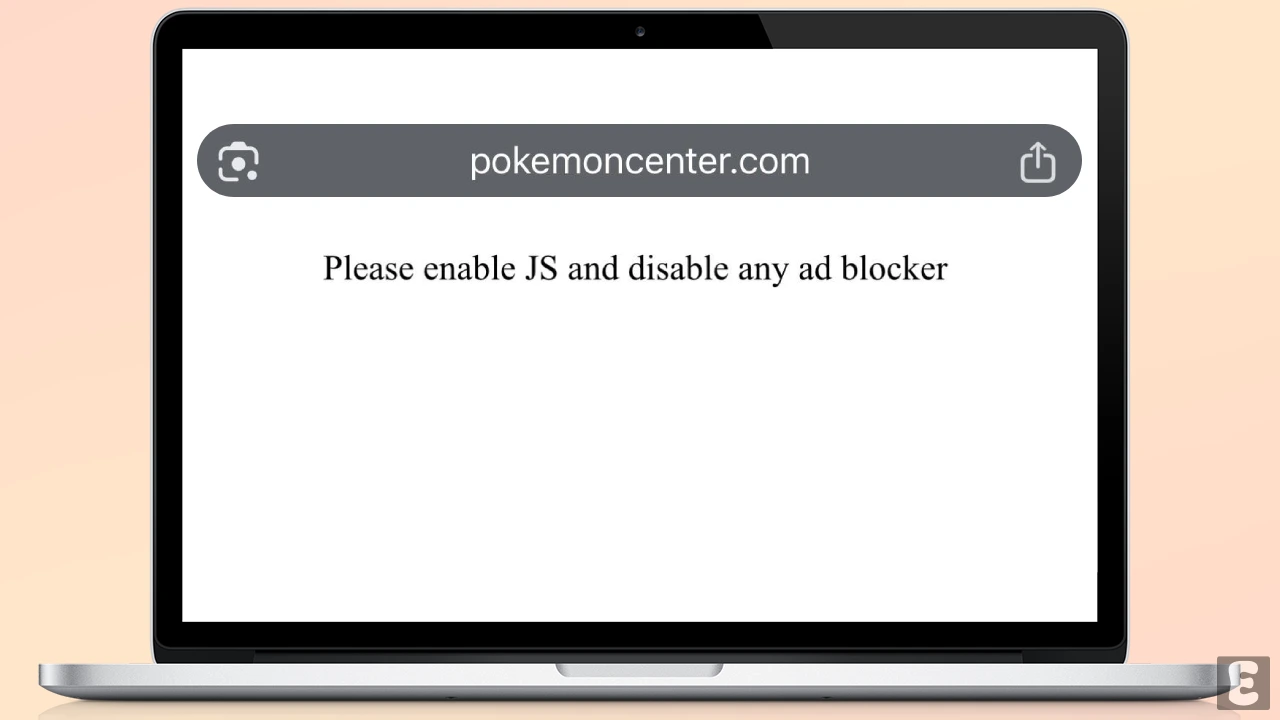
If this message flashes while accessing a website in your browser, it means that the website is unable to function properly because your browser is blocking its functional scripts (JavaScript) or advertising/tracking tools.
Nowadays, some modern websites (such as PayPal, Archive.ph, Venmo, Pokémon Center, Postman, Etsy, and Allegro) require JavaScript permission to function. If JavaScript is disabled in your browser and an ad blocker extension is active, you will encounter this issue.
Here’s How to Fix “Please Enable JS and Disable Any Ad Blocker” Problem on Different Browsers
1. On Google Chrome Browser
Most users use the Chrome browser, and JavaScript is enabled by default in this browser; however, users sometimes disable it. With the help of the steps given below, you can enable JavaScript and disable ad blockers in the Chrome browser.
Enable JavaScript
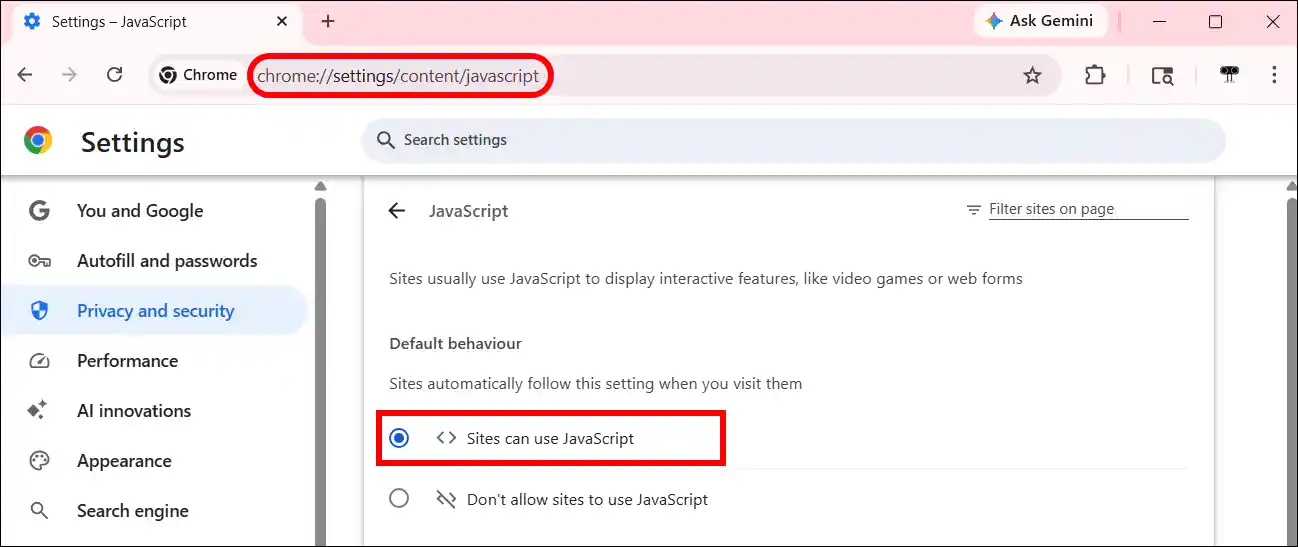
Step 1. Open Chrome Browser on Your PC and Go to “chrome://settings/content/javascript“.
Step 2. Now, Select “Sites can use JavaScript” Option.
Disable Ad Blocker
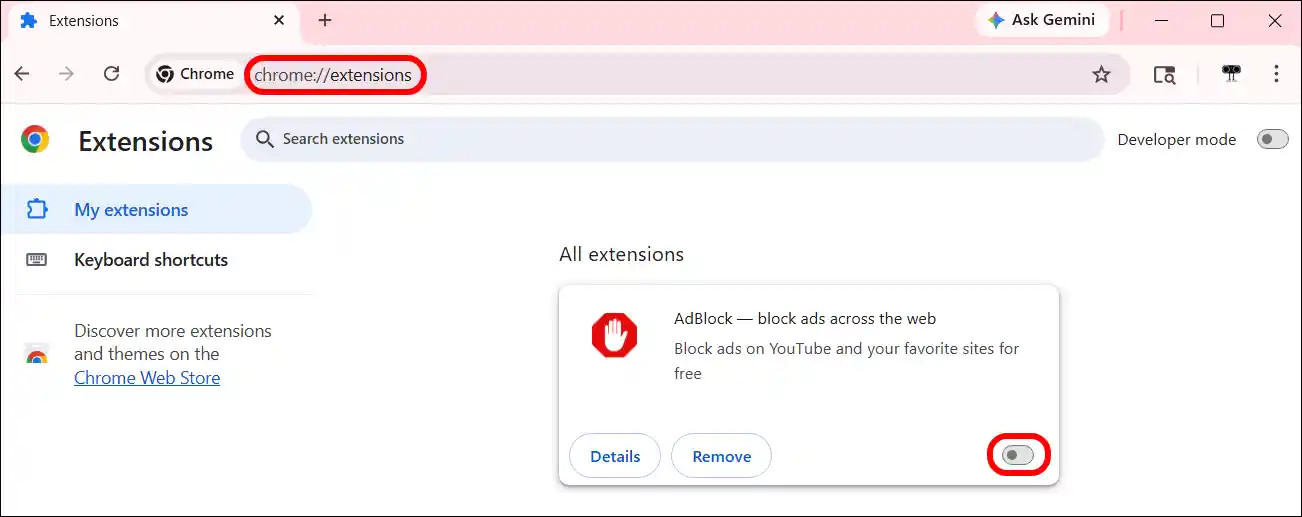
Step 1. Go to chrome://extensions.
Step 2. Simply, Toggle Off the Ad Blocker.
2. On Microsoft Edge Browser
Edge is Microsoft’s official browser, and did you know that this browser is also based on the Chromium open-source project? In this browser, you can manage both built-in JavaScript and third-party ad blockers.
Enable JavaScript
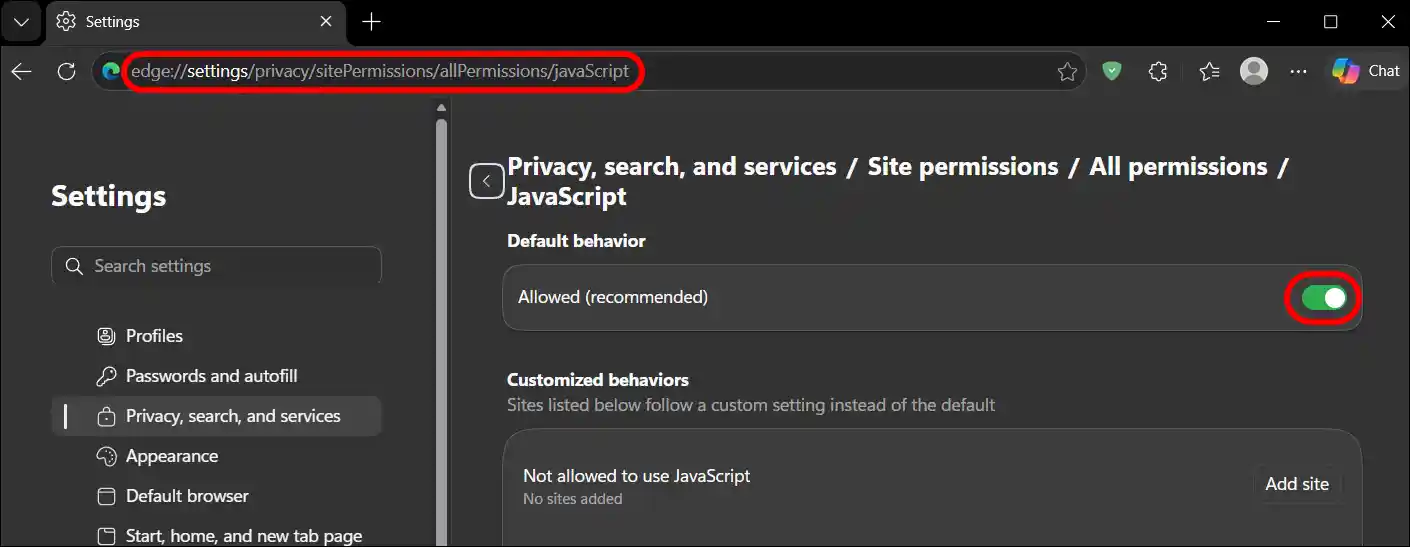
Step 1. Open Edge Browser and Go to “edge://settings/privacy/sitePermissions/allPermissions/javaScript“.
Step 2. Now, Turn the “Allowed (recommended)” Toggle On.
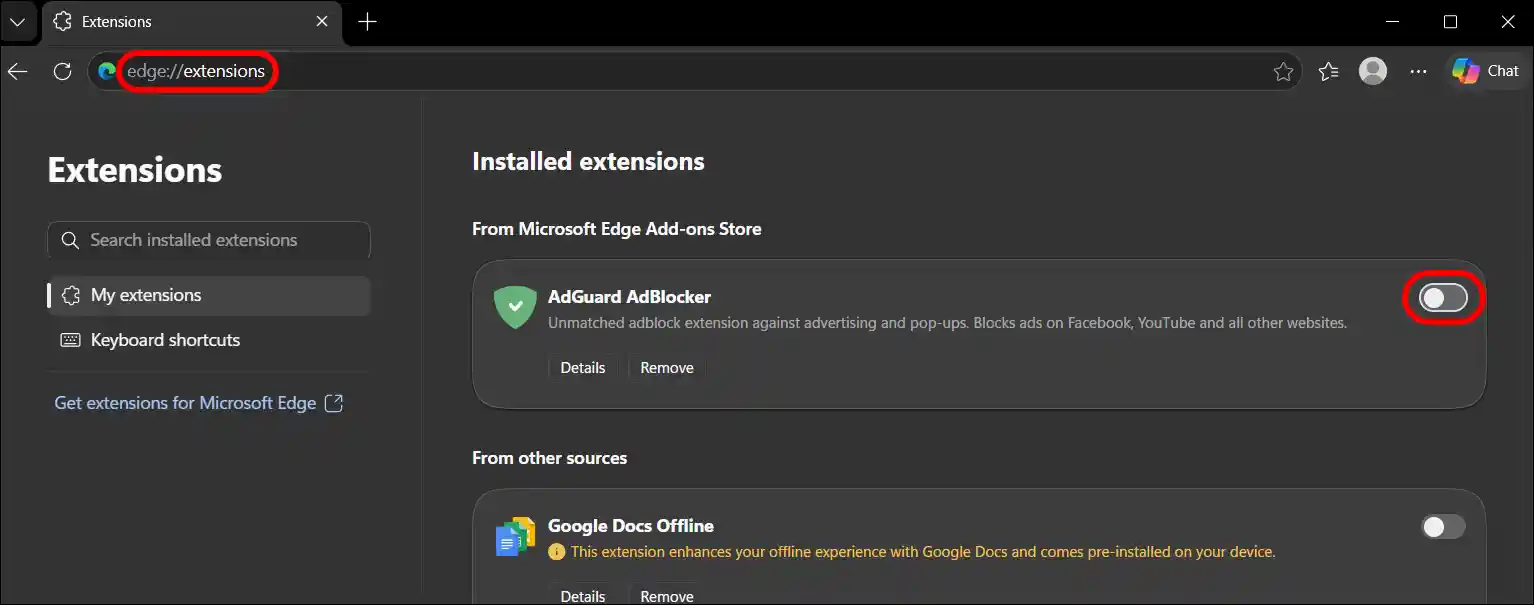
Disable Ad Blocker
Step 1. Go to edge://extensions.
Step 2. Simply, Toggle Off the Ad Blocker.
3. On Mozilla Firefox Browser
Many desktop users prefer Firefox over Chrome and Edge because of its superior privacy protections, performance and efficiency, high customizability, and independent engine. The steps below will help you manage JavaScript and ad blocker extensions in this browser.
Enable JavaScript
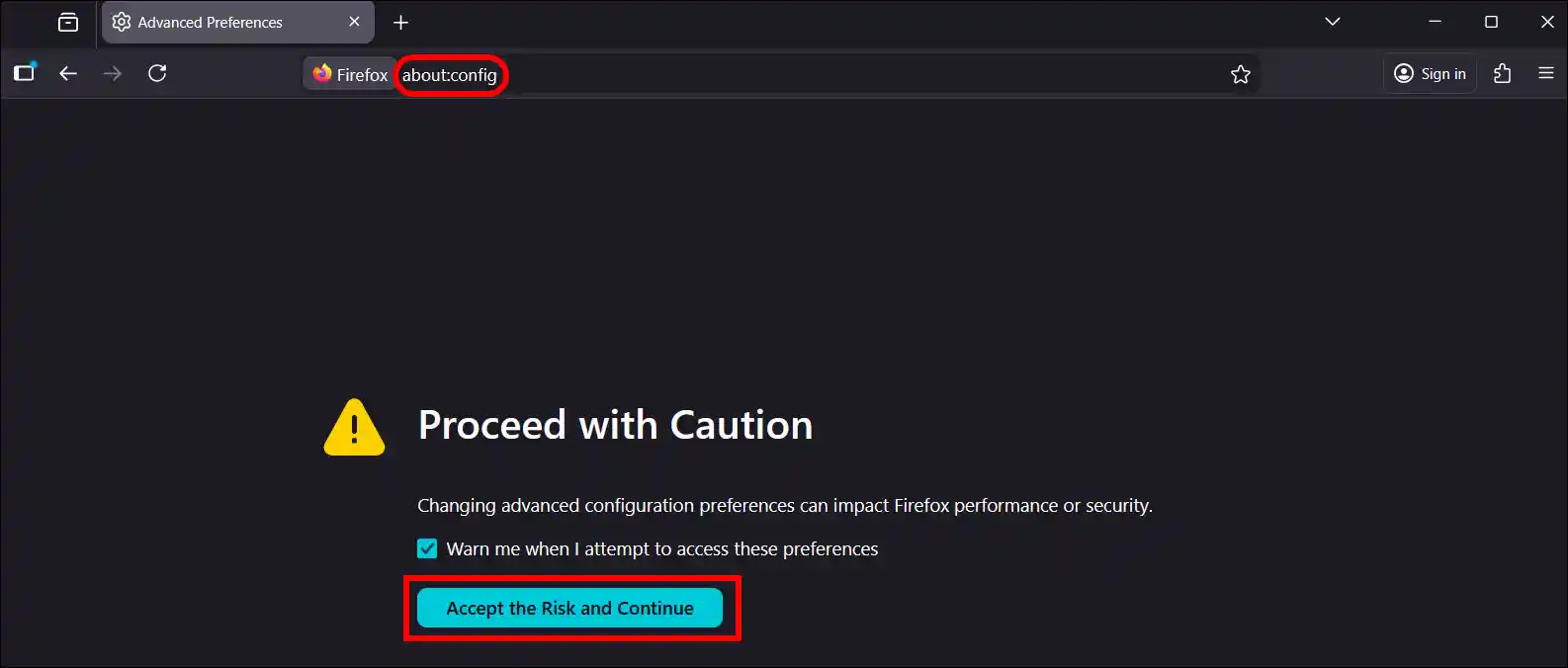
Step 1. Open Firefox Browser and Go to “about:config“ and Then “Accept the Risk and Continue”.
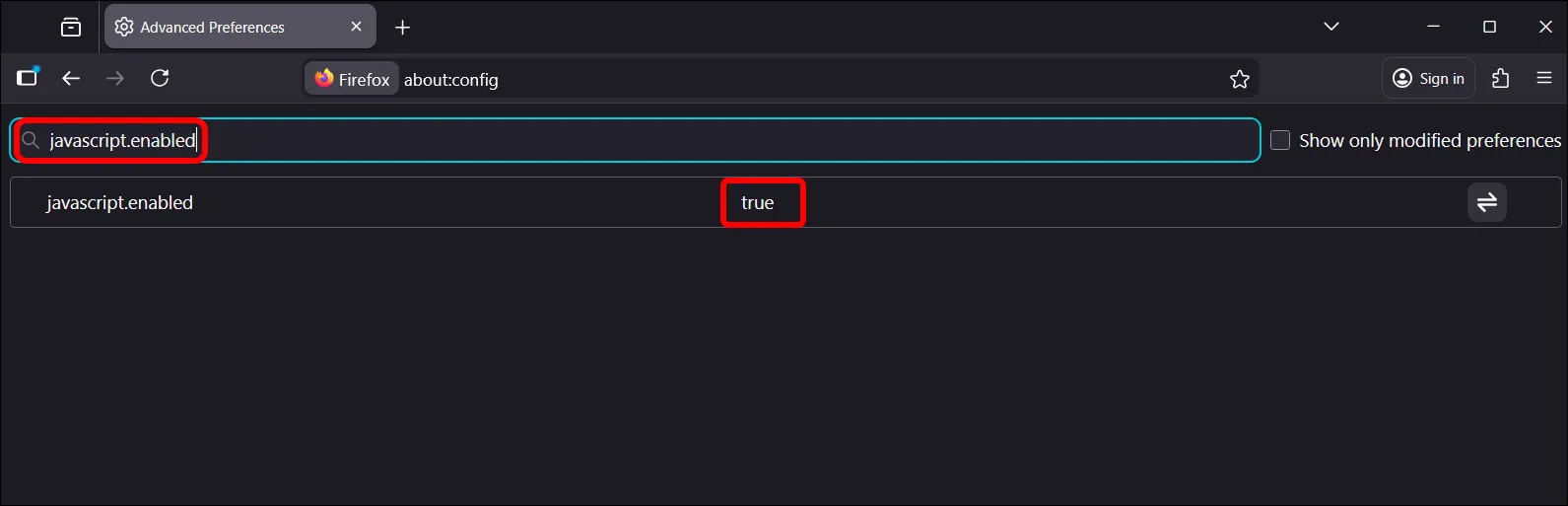
Step 2. Now, Search “javascript.enabled“ and Set It to True.
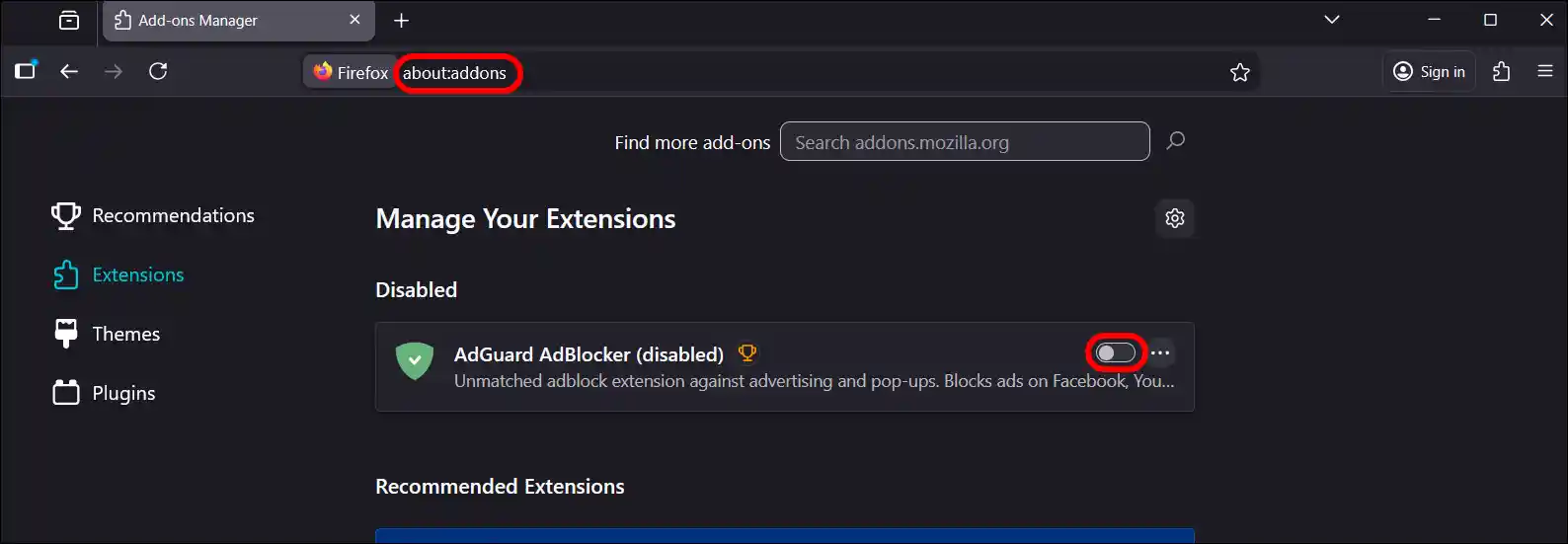
Disable Ad Blocker
Step 1. Go to about:addons.
Step 2. Simply, Toggle Off the Ad Blocker.
4. On Safari Browser
Safari is Apple’s official web browser, which comes pre-installed on the iPhone, iPad, and Mac. Let’s learn how to enable JavaScript and disable ad blockers in the Safari browser.
Enable JavaScript
Step 1. Open Safari Browser and Click on Safari in the Menu and Select Settings (or Preferences).
Step 2. Now, Go to Security Tab and Check the Box for Enable JavaScript.
Disable Ad Blocker
Step 1. Open Safari Browser and Click on Safari in the Menu and Select Settings (or Preferences).
Step 2. Go to Website Tab and Select Content Blockers.
Step 3. Now, Turn Off Blockers for Specific or All Sites.
Note: Alternatively, go to Settings > Extensions to deactivate ad-blocking extensions like AdBlock or uBlock.
Also read: 2 Ways to Check Time Until Battery Fully Charged in Windows 11