Ready or Not Keeps Saying “Unable to Connect to Epic Services”
Ready or Not is a tactical first-person shooter game available for Windows PC, PS5, and Xbox Series X/S. Suddenly, players have started seeing an “Unable to Connect to the Epic Services. Please Try Again Later.” error message on their screens, which is preventing them from accessing multiplayer mode.
What Does This Error Message Mean in the Ready or Not Game?
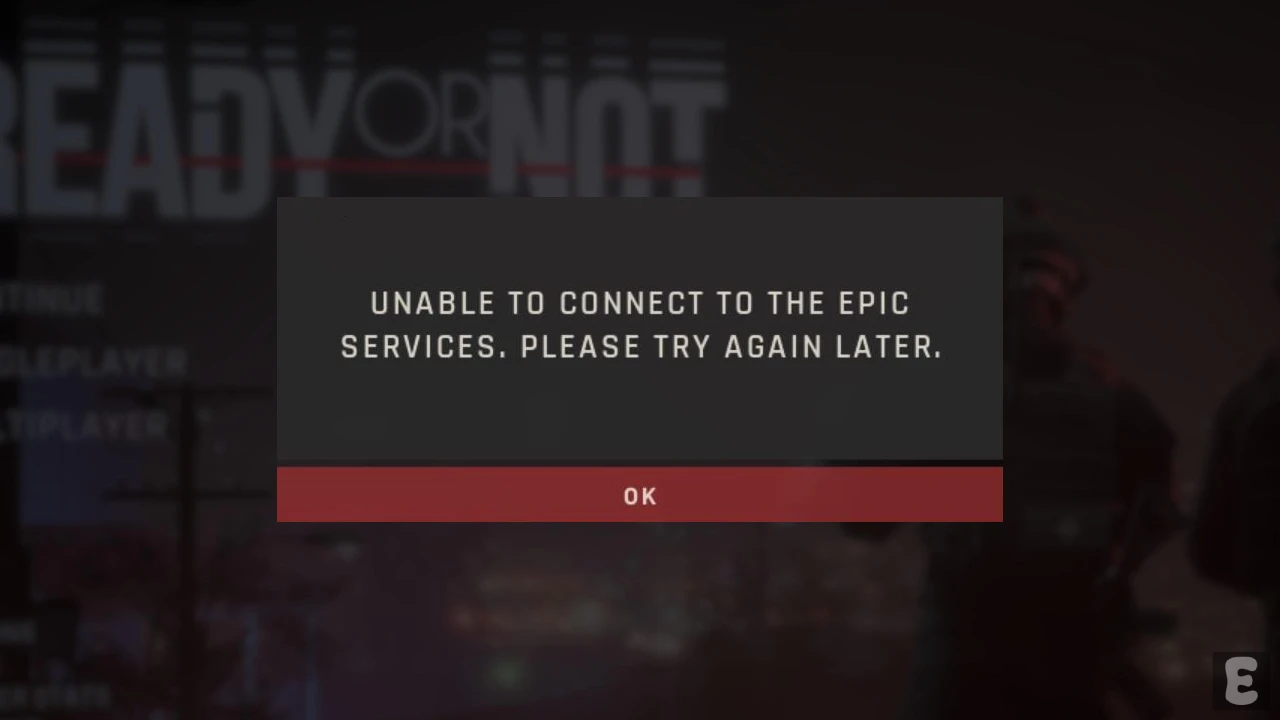
Ready or Not uses Epic Online Services (EOS) to manage and handle background tasks such as matchmaking, cross-play authentication, and social features, and it blocks multiplayer access when the game fails to connect to a specific service.
During this process, the game may get stuck at the authentication stage. There are several specific reasons why this issue might arise, such as Epic Games server outages, an unstable internet connection, or linking issues between different platforms, among others.
Issue Reported on Reddit
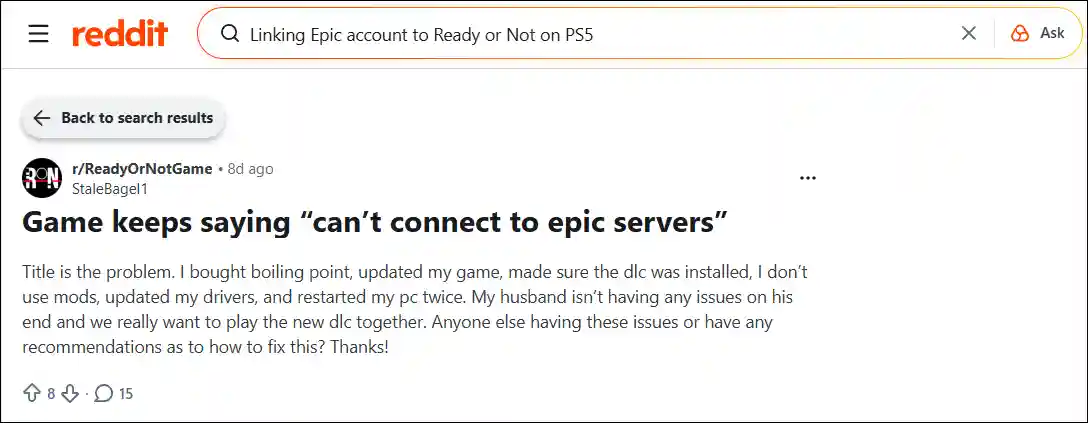
On Reddit, a user named StaleBagel1 highlighted this issue with the title “Game keeps saying ‘can’t connect to Epic servers.'” In this post, the player stated that they purchased Boiling Point, updated the game, ensured that the DLC was installed, used no mods, updated their drivers, and restarted their PC twice.
Fix Ready or Not Game’s “Unable to Connect to Epic Services” Problem
If you are also troubled by this problem, you should definitely try some of the methods mentioned below; they might just help you.
1. Check Server Status
First, check that the Epic servers are not experiencing any outages. Server downtime often causes these types of errors in the game. You can check the server status by visiting the Epic Games Public Status page.
2. Unlink and Relink Account
If the server is up and running, but the problem still persists, relinking the account is a good option. According to reports found on community forums, this method has been quite successful.
- First of All, Close the Game Completely on Your Device.
- Next, Go to Epic Game Website and Log into Your Account.
- Click on “Apps and Accounts” Section and Find Ready or Not Game.
- Next, Unlink the Game/Account.
- Now, Relaunch the Game on Your Device and Re-link Your Account When Prompted.
Note: Linking different platform accounts to the same Epic account can sometimes create an issue that prevents successful login.
3. Flush DNS and Reset Winsock
Sometimes in Ready or Not, this problem can also occur due to a network conflict. You can clear network conflicts by flushing DNS and resetting WinSock on your PC, which will unblock the authentication URL.
Step 1. Press Windows + S and Search “CMD” and Then Run as Administrator.
Note: Click YES When UAC (User Account Control) Prompted.
Step 2. Type ipconfig /flushdns and Hit Enter.
Step 3. Type netsh winsock reset and Hit Enter.
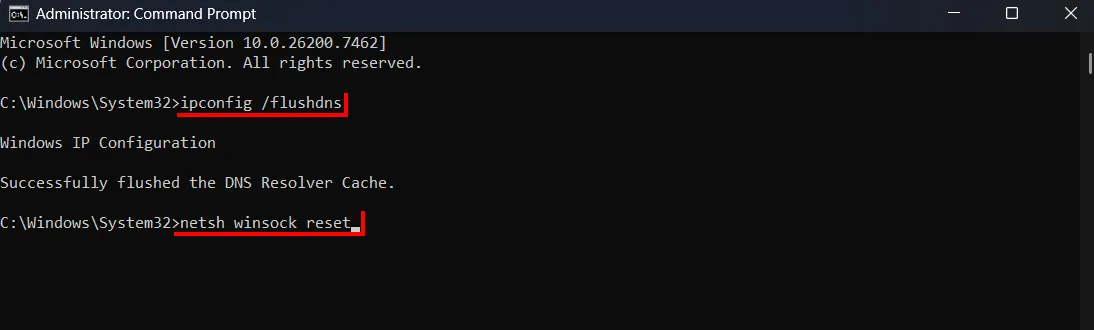
Step 4. Now, Restart Your PC.
4. Disable Proxy
If a custom proxy is configured on your computer, it may prevent your game from authenticating with the server. In such a case, you will need to disable the proxy via the Control Panel and set the system network to “Auto-detect settings”.
- Open Control Panel on PC.
- Click on Internet Options.
- Navigate to Connections > LAN Settings.
- Now, Check the “Automatically detect settings” Box and Uncheck the “Use a proxy server for your LAN” Box.
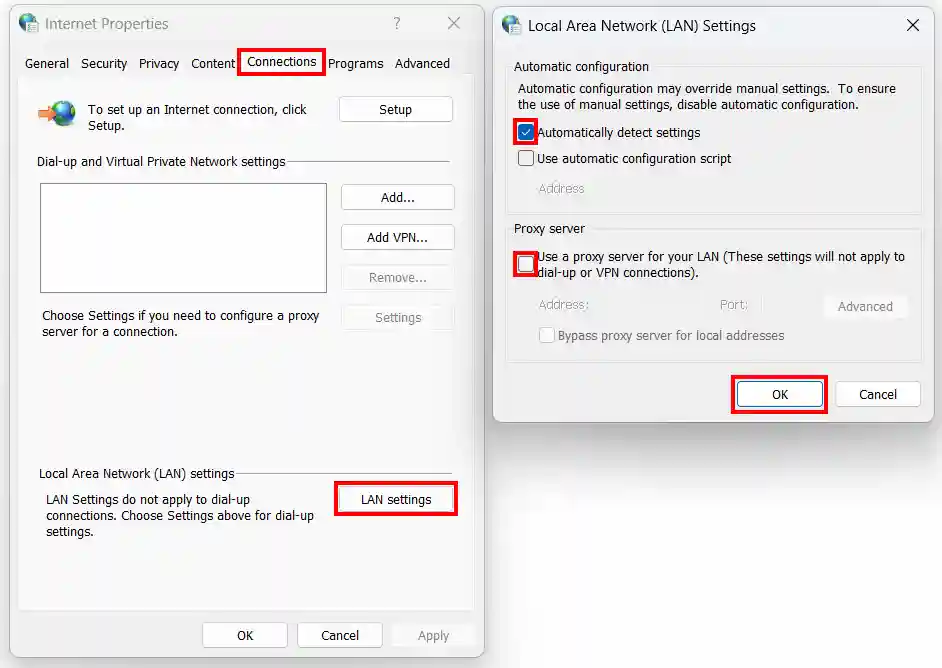
- Next, Click OK > Apply > OK.