IMSS Triggered “Access denied: Error 15” on the Site
Are you trying to open the IMSS (Instituto Mexicano del Seguro Social) website but seeing “Access denied: Error 15” on the screen? If so, don’t worry; you are not alone. For some time now, users have been encountering this error code on the website, preventing them from opening the site in their browsers.
What Does IMSS’s Error 15 Mean?
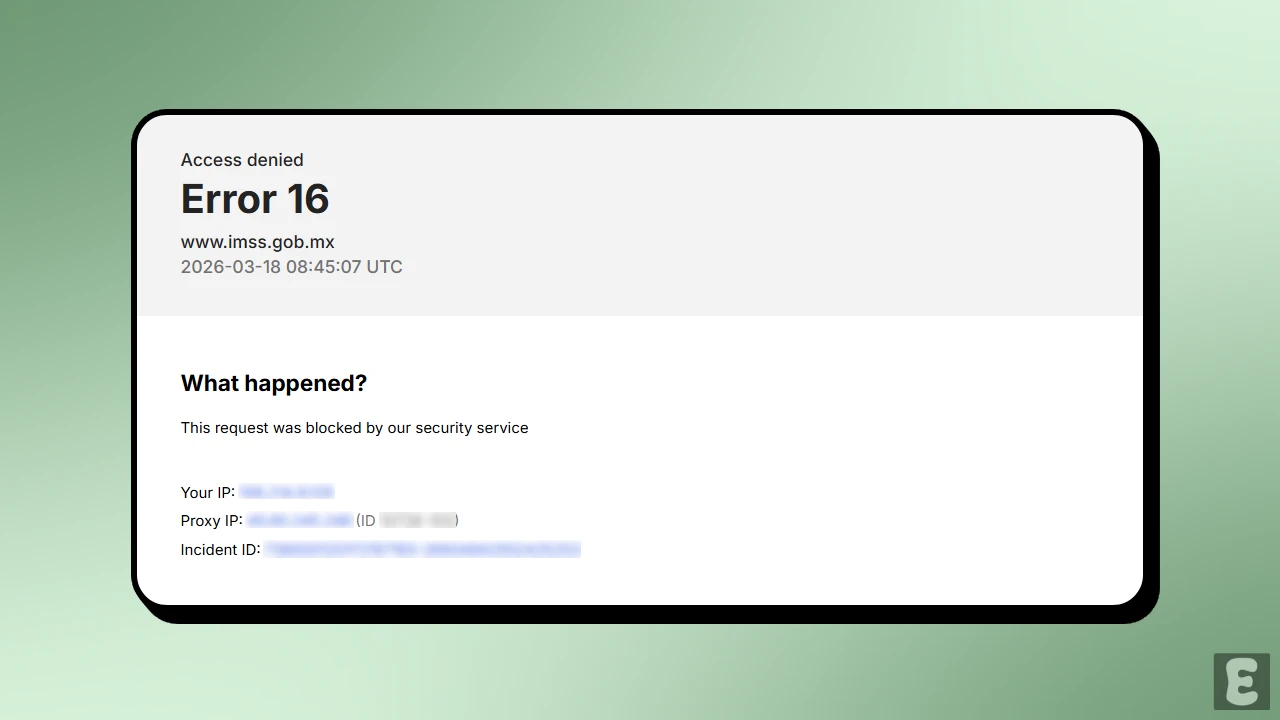
On the IMSS (www.imss.gob.mx) website, Error 15 simply means that your request has been blocked by their security service, resulting in an “Access denied” message appearing on the screen. This often occurs when the system considers your connection suspicious.
This problem arises primarily due to three reasons: Java issues, browser incompatibility, and server overload.
The error message appears on the website screen like this:
Access denied
Error 16
www.imss.gob.mx
What happened?
This request was blocked by our security serviceYour IP:
Proxy IP:
Incident ID:
How to Fix IMSS Error 15 Problem
I have mentioned a few methods here that might help you open the IMSS website in your browser.
1. Use Edge Browser in “IE Mode”
The IMSS website is built on older tech; consequently, it encounters issues when opening in modern browsers. However, the Microsoft Edge browser features a built-in IE Mode that allows it to reload legacy websites in Internet Explorer Mode.
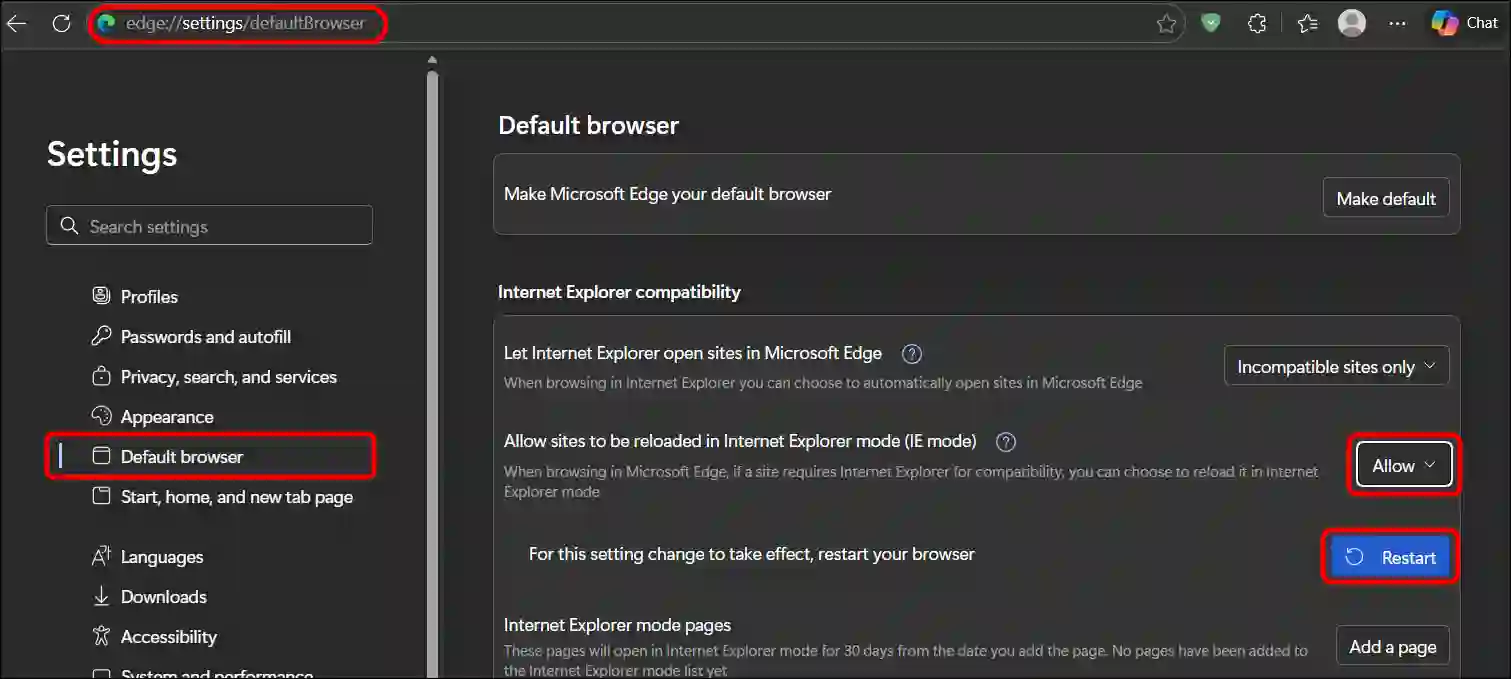
By following the steps mentioned below, you can easily enable this mode within the Edge browser.
Step 1. Open Edge Browser and Go to edge://settings/defaultBrowser.
Step 2. Now, Set “Allow sites to be reloaded in Internet Explorer mode (IE mode)” to Allow and Restart the Browser.
2. Add IMSS Site to Java’s Exception List
This portal relies heavily on Java. However, did you know that even if Java is installed, it may block the “applets” required to sign your documents? You can, however, resolve this issue by adding the site to Java’s exception list.
- Launch the Configure Java App.
- Go to Security Tab.
- Next, Click on Edit Site List…
- Add these two URLs.
https://idse.imss.gob.mx/imss/http://idse.imss.gob.mx/imss/ - Click on OK.
- Now, Restart Your Browser.
3. Try Hard Refresh
A hard refresh is more effective than a standard page refresh. To perform a hard refresh, press CTRL + F5 or CTRL + Shift + R (for Windows) and Cmd + Shift + R (for Mac) on your keyboard. This method bypasses the browser cache to load the page afresh.
4. Try VPN or Proxy
If the problem persists even after following all the methods, you should now use a VPN or a proxy, as issues related to regional routing blocks can be easily resolved using a VPN or a proxy. You can restore access by connecting to a server in a region via the VPN.
Additional Note: The servers may be very busy at this time. If you have followed the steps above and are still experiencing issues, please wait 20–30 minutes and try again.
Also read: 2 Ways to Check Time Until Battery Fully Charged in Windows 11