Rocket League Says “This Feature has been Temporarily Disabled”
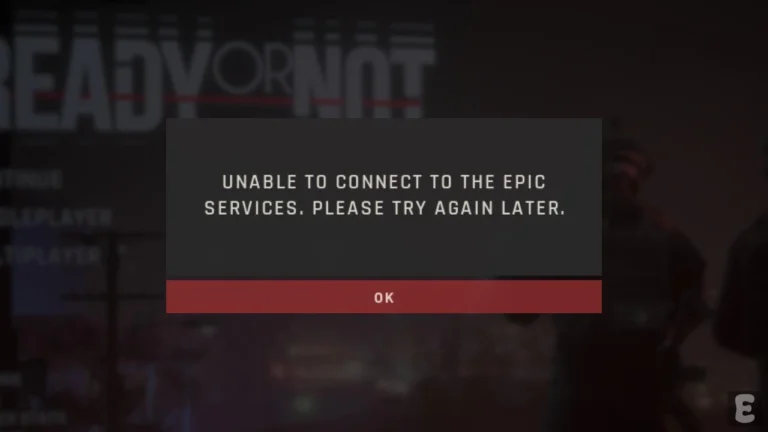
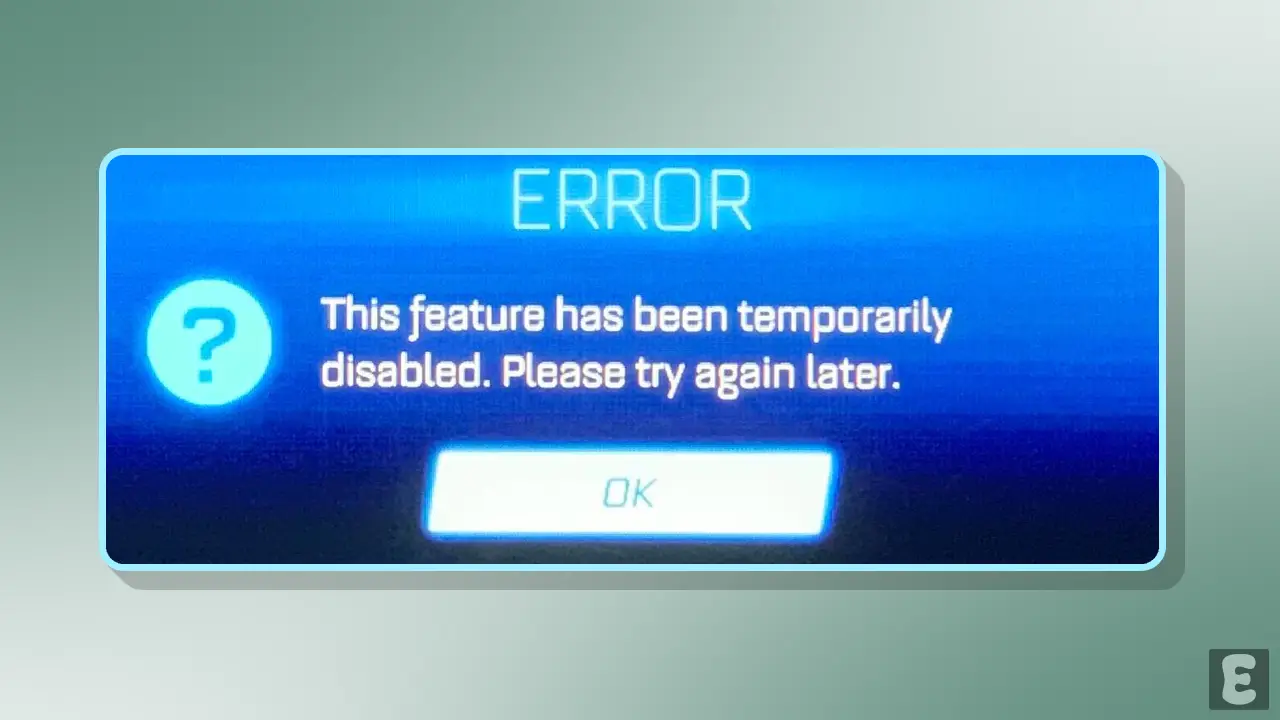
Suddenly, Rocket League players are seeing the error message “This feature has been temporarily disabled. Please try again later.” on their screens. Many players are reporting this issue on Reddit, Twitter, and the Steam Community forums. If you are also experiencing this problem and would like to learn more about it, all the details are mentioned below.
Since this is a cross-platform play game, players are encountering the “Feature Temporarily Disabled” issue not only on Windows PC but also on PlayStation 4/5, Xbox One/Series X|S, and Nintendo Switch. This problem usually appears most often during periods of server instability.
Apart from this, there could be several other reasons why this issue might arise in the game. I have listed some of these reasons below.
1. Post-Update Server Maintenance
With the recent launch of Season 22, Psyonix is implementing hotfixes to address bugs like the “Call Limit” error. During this time, servers may sometimes become unstable, and to reduce this load, Psyonix occasionally disables certain features. These may sometimes include matchmaking, competitive playlists, and the item shop/credits.
2. Regional Tournament Issues
Some reports suggest that changes may occur during the tournament. If you try to join the tournament during this time, you might see this error message on your screen, and a “soft reset” happening in the server region specific to that tournament could cause this issue.
Issue Acknowledged
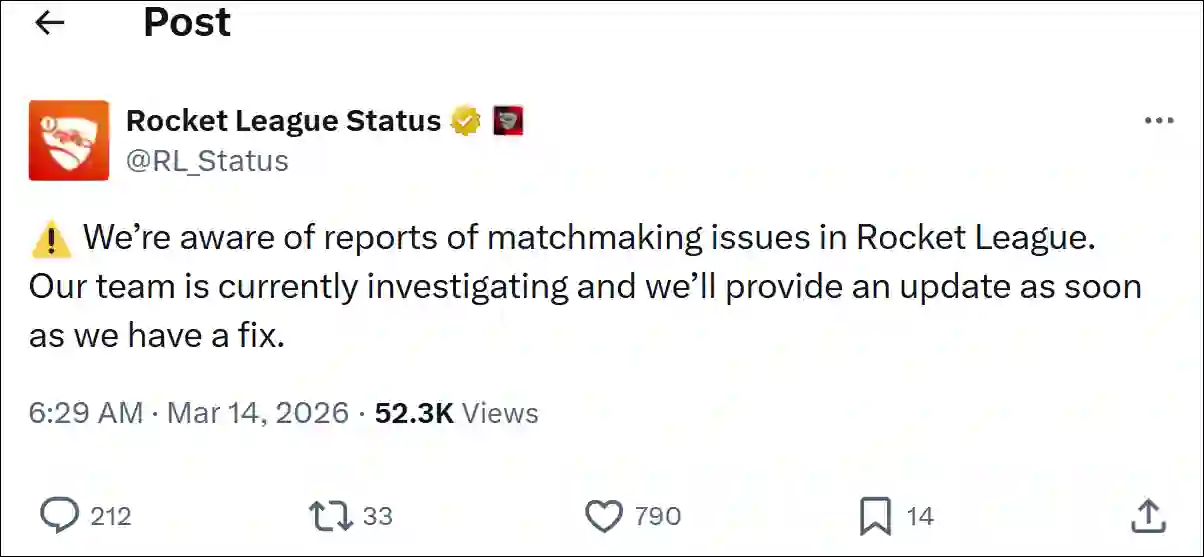
The company has acknowledged this issue in Rocket League and has also posted about it on Twitter, mentioning that:
⚠️ We’re aware of reports of matchmaking issues in Rocket League. Our team is currently investigating and we’ll provide an update as soon as we have a fix.
Here are Some Methods May Fix Rocket League’s Feature Temporarily Disabled Problem
1. Restart & Sync
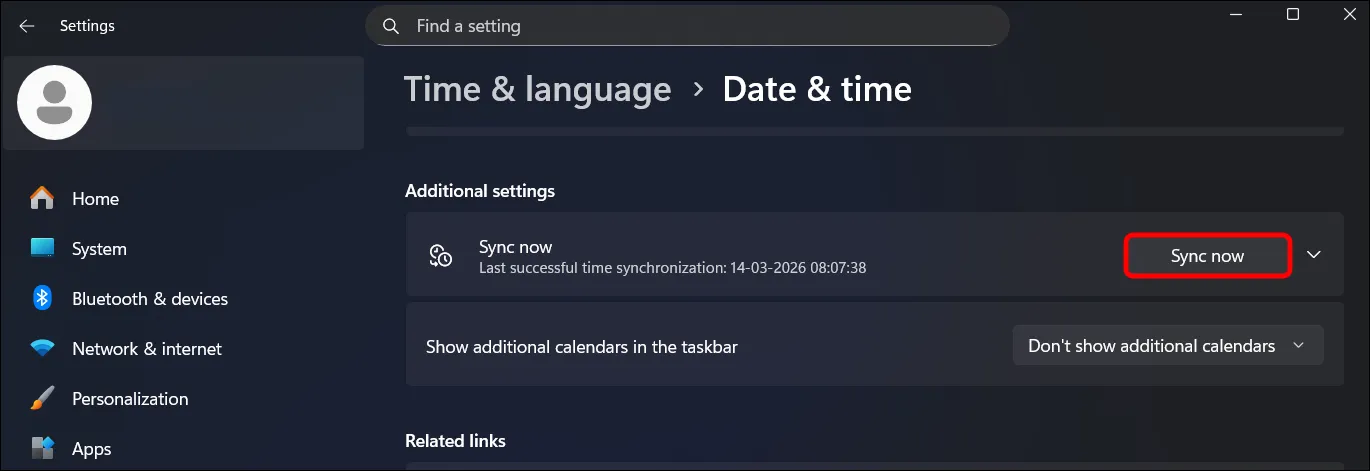
First, completely close the Rocket League game, then restart your device (PC or console). After your device restarts, make sure your device clock is synced with the internet. If the system clock is not synced, you can sync the clock on a Windows computer by following the steps below.
To sync your system (Windows 10/11) clock to the internet:
- Press Windows + I to Quickly Open Settings.
- Navigate to Time & Language > Date & Time.
- Under the Additional Settings, Click on Sync Now Button.
2. Wait for a Few Minutes
Sometimes this issue can also occur due to high traffic. In such a situation, you cannot do anything except wait. Simply stay on the game’s main menu for about 5 minutes without clicking anything. This process allows your game to fully authenticate your “Player Profile” with the Epic servers.